Step-by-Step Guide to Access Peacock on Your LG Smart TV
Ready to jump into the vast world of Peacock streaming on your LG Smart TV? Look no further! This guide will swiftly walk you through the essential steps to access Peacock’s extensive library of TV shows, movies, and sports content. From downloading the Peacock app to setting up your account, I’ve got you covered.
Let’s not waste another minute; get your LG Smart TV ready for endless entertainment with Peacock!
Preparing Your LG Smart TV for Peacock
The process of setting up your LG Smart TV for Peacock can be simple and straightforward; there’s no need for any sophisticated details. You could be asking, “What’s the next step?” Well, to put it plainly, it’s not hard at all!
The first thing to do is to find your LG Smart TV model.
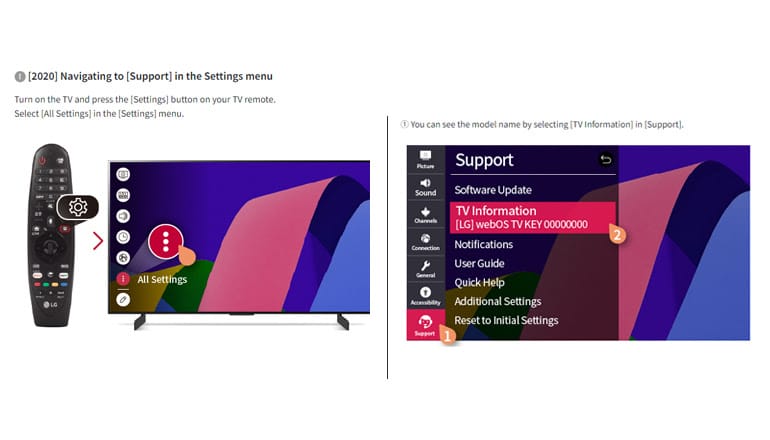
It’s important to know – the only requirement around here is that your TV needs to be a 2014 model or newer to handle Peacock. So go ahead and take a good look. Do you see a sticker with a model number or a production year? Cool! If your TV is a match, you’re a tad closer to your Peacock binge.
(If it’s not, well, it might be time to go television shopping. Who knows, this could be the nudge you needed to go for that upgrade.)
Now, once you have established that your model fits the bill, the next thing on your list is to ensure your LG Smart TV software is up-to-date. Trust me, keeping your software in line with the latest trends paves the way for a game-changing Peacock experience, really tossing out potential bugs or glitches. But wait – there’s more! The software updates often come with new and improved features, stepping up your general user experience.
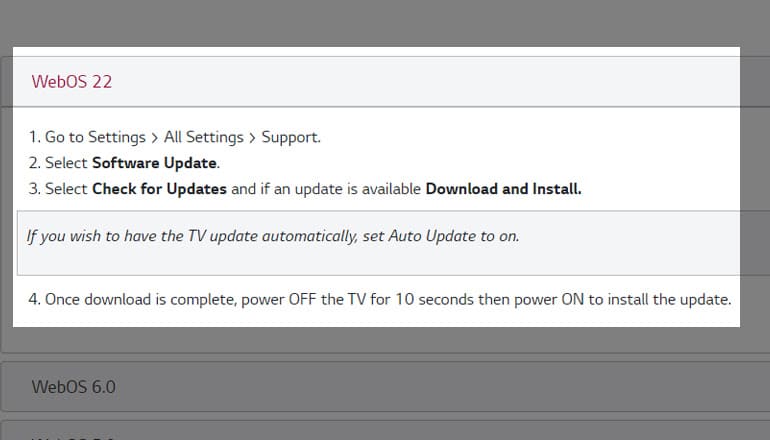
For those scratching their heads wondering how to check for these updates, relax. It’s pretty straightforward. Go to your TV Settings and dig into them until you find “General.” Once there, select “About this TV.” Can you see something that says “Check for updates”? Click on it. If an update is ready and waiting, your TV will coax you into installing it. Dive right in and agree; it’ll only snatch a few minutes of your time.
Let’s talk: is your LG Smart TV still not hooked up to Wi-Fi? That’s hardly an issue. You definitely need a strong internet connection to stream Peacock, so it’s important that you pencil that situation in. So how do you do it? Look for “Network” under “Settings,” then choose “Wi-Fi Connection,” and pick your home network. Put in your password, and boom! Your internet situation is solved.
A piece of advice you should take to heart, especially when streaming services like Peacock, is to maintain a strong and steady internet connection. Keep in mind that it really makes a huge difference to your streaming quality, assuring your The Office marathon sails smoothly without hiccups.
Creating a Peacock Account
Are you ready to set up a Peacock account? It’s pretty straightforward – we’re not talking rocket science here. So, let’s shove off those distractions and focus on one thing for now – getting you all set up with your Peacock account.
This process is much easier to do on a computer or a phone rather than on your TV:
Your first stop should be the official Peacock website – pretty simple, right? Keep an eye out for the “Sign Up” button – think of it like a key to a treasure chest of unlimited content. Once you spot it, give it a click, and we’ll get this party started.
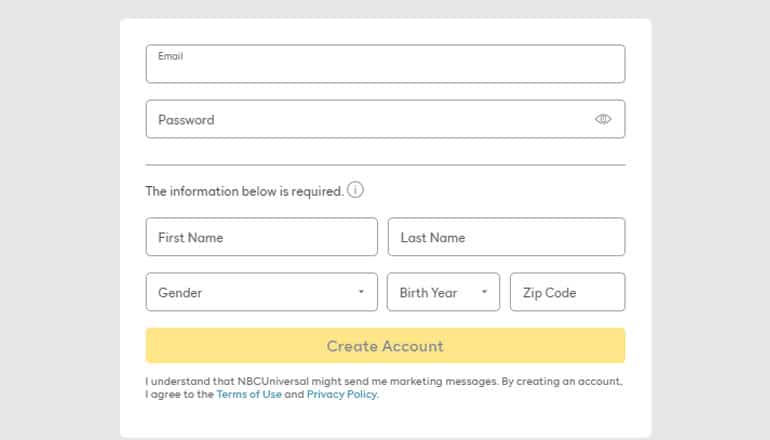
Next up, the signup page needs your email address. Double-check it – you don’t want your confirmation email ending up in some random person’s inbox because of a typing error.
Alright, so with your email squared away, the next thing you’re going to need is to settle on a password. “Fido123” isn’t going to cut it. I’m talking about security, so mix it up with some letters, numbers, and symbols. The tougher it is to guess, the more difficult it is for any would-be hackers.
Now it’s time to pick your poison in terms of a Peacock billing plan. Maybe you’re cool with basic, free access, or perhaps you’re more of a “go big or go home” type. Peacock doles out three options to consider: “Peacock Free,” “Peacock Premium,” and “Peacock Premium Plus.” Have a think about what kind of viewer you are – weigh up the pros and cons and then decide which fits best. You’ve got to punch in that payment information once you’ve picked a plan. Do you have any promo codes? Have them ready! Fill out all the required info, and bam – you’re all set to dive right into the content.
Keep in mind your account details, as you’ll be using them in a bit after you download the app on your TV.
Note: Have you considered the parental controls feature? Peacock offers a handy tool that lets you restrict content based on age restrictions. If there are kiddos who might use this account, it’s a good idea to check this out before you start enjoying all the great stuff Peacock has to offer.
Downloading the Peacock App on Your LG Smart TV
Now that you have a Peacock account let’s get it set up on your LG Smart TV!
All you need to do is download the Peacock App. Let’s talk through it:
Grab your LG Smart TV remote and feel how your fingers fit nicely around the control buttons. When you press “Home,” you’ve just hit the main screen. Let’s talk; this is the start of your process.
Let’s talk about the LG Content Store next. Sure, it’s a bit different from your phone’s app store, but it’s got its own thing going on. This stage might feel a bit like the kick-off of an exciting treasure hunt. To locate the LG Content Store, just navigate using the control buttons on your screen. Be on the lookout for the section labeled “Apps & Games.” Once you spot it, awesome! Then, click on it. Stepping into the LG Content Store for the first time is quite the experience. It opens up a whole array of choices – so many places to visit. But we’re only here for one thing today: the Peacock App.
Wondering how to find the app? Well, look no further than the search tool; it makes things a lot quicker. Just type “Peacock” in the search area. You’ll see the Peacock App icon appear on your screen.
Click on it. Choose the button that says “install.”
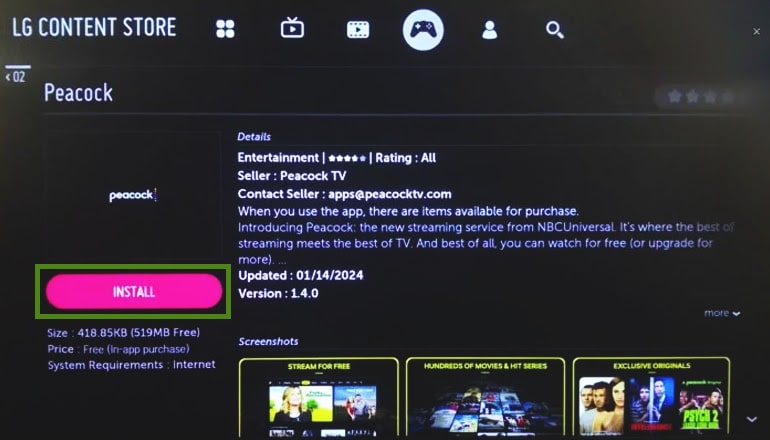
Now, the download is done! The Peacock App finds its place among your LG Smart TV’s apps. Once you’ve logged into the account you created earlier, it will be a great new option for your evening entertainment routine.
Congratulations! You’ve done it. The Peacock App is downloaded on your LG Smart TV. Not too bad, right?
Let’s talk about configuring your app now and improving the settings.
Setting up Peacock on Your LG Smart TV
Setting up Peacock on your LG Smart TV is really no big deal once you’ve got the app installed.
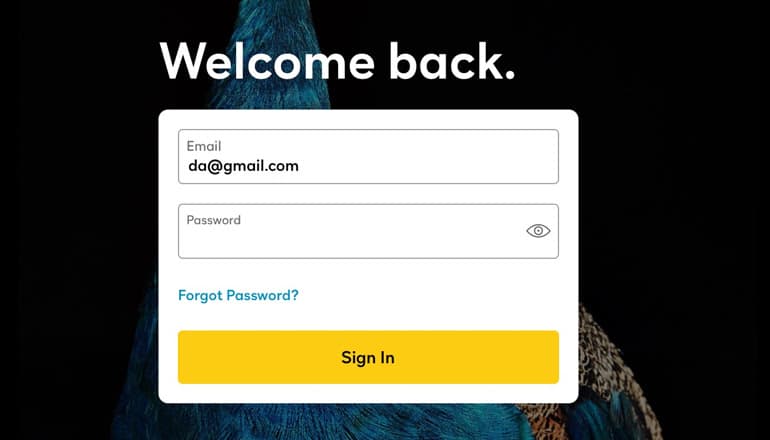
Start by signing in with your Peacock account details. Spot the “Sign In” button on the welcome screen. That’s the one – press it. Now, you’re at the panel where you need to type in your Peacock account info and hit “Sign In.” And voila! You’re in, ready to enjoy what Peacock has in store for you.
You might get a bit worried about navigating the app. Well, look no further than your app’s user-friendly interface. It’s designed with first-timers like you in mind. Notice the five tabs at the bottom—Home, Channels, Browse, Trending, and Sports? Clicking on “Home” brings up loads of content for you to dig into – it’s really easy to navigate through!
There are a few other common first-time settings:
I talked a bit earlier about setting up that all-important parental control pin. In the “Account” section, there’s “Parental Controls,” and there’s “Set Up Pin” within it. Follow that path, and before you know it, you’re the cyber-parent of the year.
Wondering how to adjust video settings? Most of it’s handled by Peacock automatically. But if you’re aiming for advanced settings, like changing to 1080p or 4k, find the “Settings” tab and then “Max Resolution.”
Need subtitles? No problem. They’re hiding under “Accessibility Settings” in the “Closed Captioning” option. Keep it casual; managing these language settings is less complex than it might seem.
And just like that, your Peacock on LG Smart TV setup is complete, ready for some binge-watching!
Troubleshooting Common Problems
Are you having a hard time getting Peacock on your LG Smart TV? Don’t fret; it can sometimes be a bit tricky. Things like a bad internet connection, trouble signing in, or streaming glitches can occur. But, no sweat – many of these ordinary issues have easy fixes.
Can’t connect to the internet? Let’s talk; your TV needs to be within range of your Wi-Fi network. A simple solution could be to turn off your TV and internet router for about 30 seconds, then switch them back on; it could work wonders. It’s also a smart move to check if other internet-using devices at home are working fine. If they’re all having issues – well, look no further – it’s time to call your internet provider.
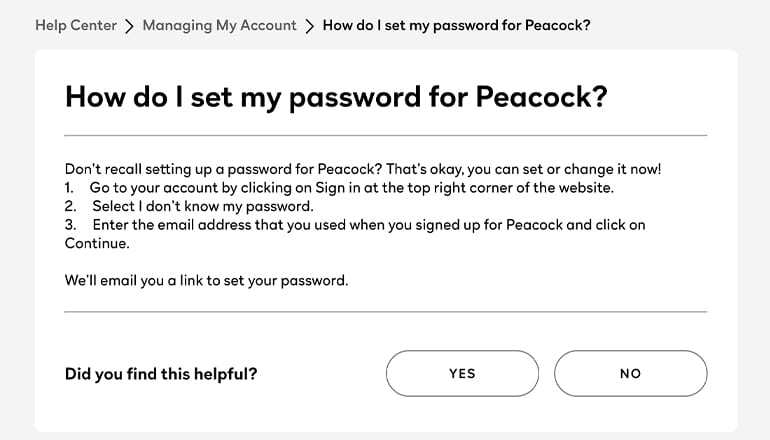
Having problems logging into your Peacock account? Losing your password could be the issue here. But hey, I’ve all been there, right? No sweat – just go to the login screen on your Peacock app and hit “Forgot Password.” Follow the step-by-step instructions to change your password, and you’re back in business.
Is the content on Peacock loading too slowly or refusing to play? I’m talking about a situation that would really bug anyone. Start by checking your internet speed. Peacock suggests a minimum speed of 2.5Mbps for standard streaming and 13Mbps for high-definition for smooth streaming.
If your internet speed falls short, consider switching off other devices connected to Wi-Fi. This might give your TV more of the bandwidth. If you’re still scratching your head, you could check for app updates. The LG Content Store often releases updates for its apps, and Peacock is no different. Double-check you’re running the latest version.
Most hurdles can be overcome by checking your internet connection, resetting forgotten passwords, optimizing your Wi-Fi use, or updating your app.
Sounds pretty manageable, doesn’t it?
Optimizing Your Viewing Experience on Peacock
I won’t judge you if you jump straight into your favorite shows, but spending a few minutes to fine-tune your TV’s settings can supercharge your viewing satisfaction; I’m talking sharper picture, smoother streaming, and a real ease of navigation. This, my friend, is the key to exploiting your Peacock subscription to its full potential.
So, where do you start, you may ask?
Did you know you can control your Peacock app with your smartphone? No need for that clunky TV remote. It’s a piece of cake. Simply install the LG TV Plus app and connect it to your TV. You can control the virtual remote, browse through content, and type out show titles quicker than ever.
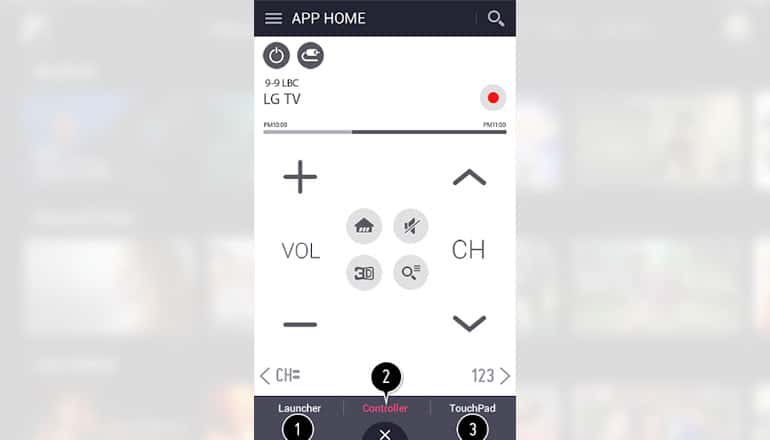
This is also handy when logging into accounts, typing in URLs, or doing any sort of searching on other apps, even outside of Peacock. Using a remote takes forever, but a phone is something all of us are much faster on, and it makes typing so much easier.
Most of the enjoyment in watching something comes from what you see—or, better yet, what you don’t see coming. Peacock gives you a “Spoilers” feature where you get to decide whether you want to see sneak previews, recaps, and summaries. This way, you’re in charge of your viewing process.
Don’t tie yourself down to just the preset viewing settings. Customize these options to perfectly match your personal needs and preferences. These modifications are all about making your Peacock streaming experience as fulfilling as possible. They also ensure you’re getting the most bang for your buck with your subscription! Follow these tips, and before you know it, you will be relishing a great home entertainment experience.
How Do You Get Support for Peacock on an LG Smart TV?
What if you have a really tricky problem?
Well, the online support forums for Peacock could be a lifesaver. Imagine a virtual town square where users from everywhere pitch questions, swap stories, suggest fixes, and build up a massive archive of knowledge. Tripped over a weird snag? Start looking for answers here. With so many users, it’s likely that someone has already dealt with your problem, and their contribution might be the magic wand you need.
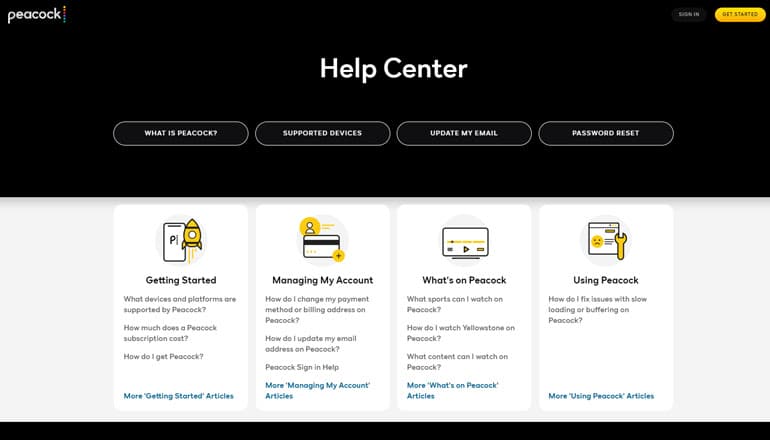
Miss chatting with a real person? The Peacock Customer Service team is standing by. You can get in touch for instant and personalized help. Whether you’ve got an uncommon problem, need step-by-step guidance, or want a pointer towards the most helpful tools, they’re on it.
Solving a problem is good, but wouldn’t it be better to avoid future issues? To do this, knowing more about your LG Smart TV is key. Enter the LG website. It’s crammed with information that can help sidestep future hiccups and improve your general usage experience. The next time you hit a speed bump, no sweat – you’ll have the know-how to resolve it quickly. You can start by searching for your LG Smart TV model to find resources and help for your specific model.