Sony TV Blinking Red Light (Proven FIX!)
Unfortunately older and newer Sony TV models alike are experiencing a “blinking red light” issue. Owners are reporting trying to power on their television, only to see the TV light blink red and the screen never fully turn on.
I personally experienced this issue recently, and I subsequently spent several hours researching how to fix it. I read various Sony forums, and even called Sony’s support hotline.
Here’s what I learned.
If your Sony TV has a blinking red light, you need to power-cycle your television. Start by unplugging your TV. While your TV is unplugged, press and hold the power button on the TV for 30 seconds. Wait another 30 seconds before plugging your TV back in. The blinking red light should be gone now!
Believe it or not, this fix will work for at least 50% of you.
Power-cycle your Sony TV
“Power-cycling” a device simply means turning it off, and then turning it back on again. And while this fix will seem silly to most, it is the MOST common way to fix the blinking red light issue you’re experiencing with your Sony TV.
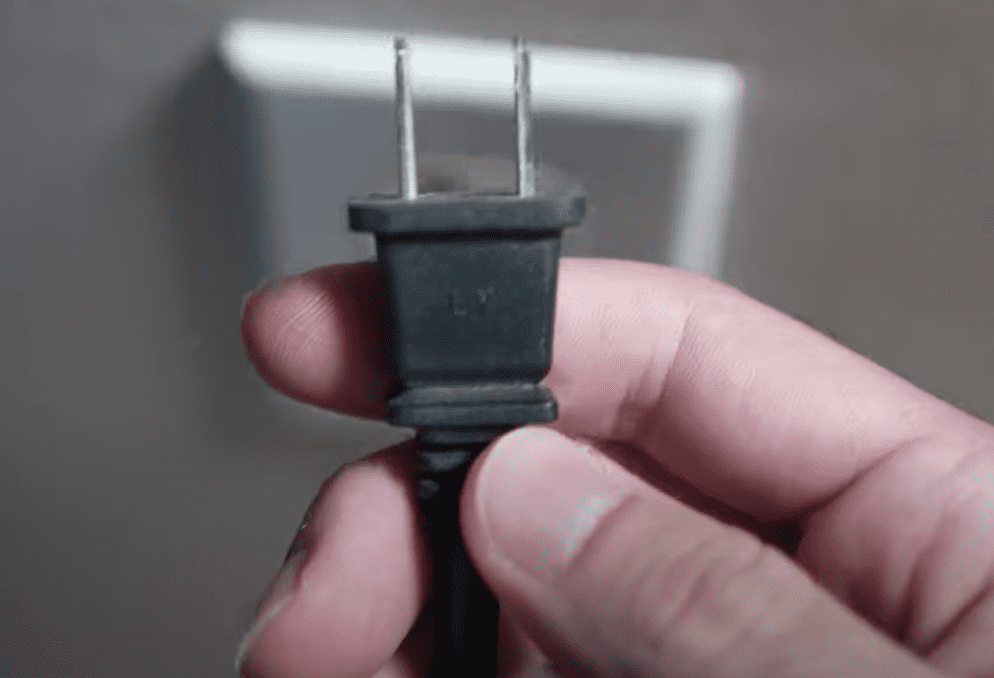
To begin, simply unplug your TV from its power supply – either the wall outlet or a power strip.
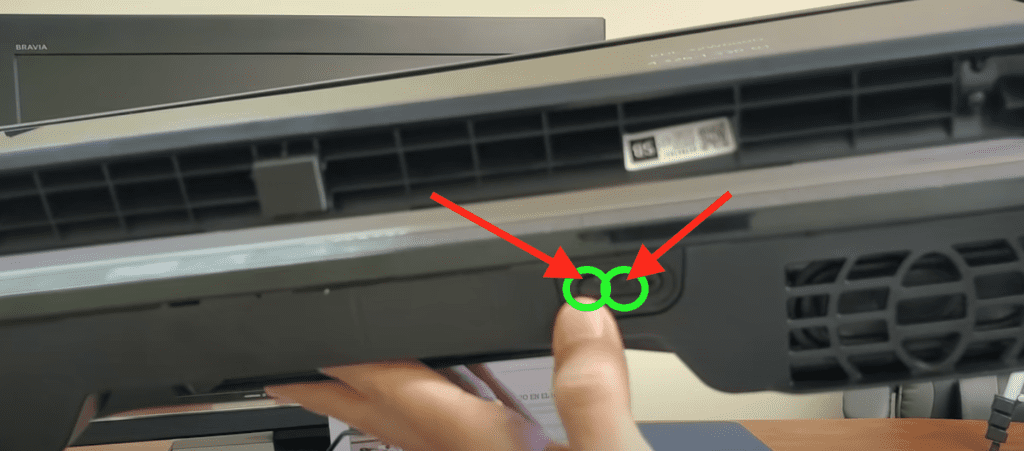
Next, locate the power button on your Sony TV. You can find the power button in four primary locations, depending on the TV model:
- Middle, underside
- Front right, underside
- Back, left side
- Back, right side
Once you locate the power button, press and hold it for at least 30 seconds.
By pressing the power button while the TV is unplugged, you’re draining all the residual electricity built up in the TV’s capacitors. This allows for a proper reset.
Wait another 30 seconds (so a minute total) and then plug the TV back in. When the TV powers back on, you should no longer see the blinking red light!
NOTE: While this fix should work for at least half of you, the remaining half can be a bit trickier to solve…
Software update is in progress
In some cases, depending on the Sony TV model you own, the TV will blink red during a software update. You’ll attempt to power on your television, but since the TV is undergoing an update, it simply won’t turn on.
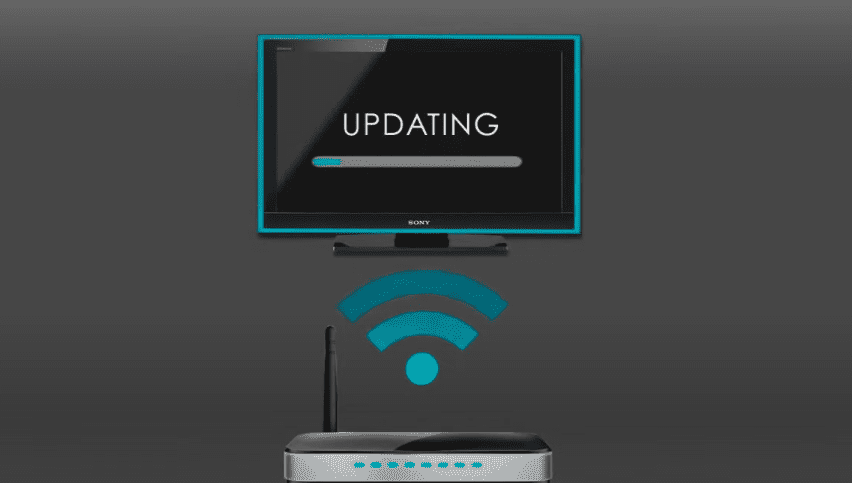
Keep in mind that this can only happen if your television is connected to the internet. So if your TV isn’t connected to WiFi, you can rule this out.
Just wait 5-10 minutes and then attempt to turn your Sony TV on again.
Factory reset your Sony TV
If power-cycling your Sony TV and waiting 5-10 minutes for a potential software update to finish installing didn’t resolve your blinking red light issue, it’s time to try a factory reset.
A factory reset will restore your television to the settings it had the day you bought it. That means that any new settings, apps etc. will be lost/erased.
To perform a factory reset, locate the buttons on your television. You can use the guide above. As a reminder, you can find the power button in three primary locations, depending on the TV model = the upper left side, the bottom right, or the button right side.
Once you locate the buttons, start by unplugging your TV.
While the TV is unplugged, go ahead and press and hold the POWER button and VOLUME BUTTON at the same time. Continue pressing and holding both these buttons while you plug your TV back in!
Keep holding the buttons until you see the Sony logo appear on the screen, or you see a green light on the front of the TV. This can take between 2 to 30 seconds, depending on the model of TV you have.
Once you see the logo or green light, release the buttons.
The factory reset process can take a few minutes to finish, but when it does, your TV should be working again.
If this factory reset appears to work the first time, but your TV still isn’t fixed, go ahead and repeat this entire process 3-4 more times until it works. Just keep trying to factory reset the TV!
Replace Sony TV power-supply board
If nothing has worked so far, it’s very possible that your power-supply board has gone bad and will need to be replaced.
Replacing the power-supply board will require you to take apart the television and swap out the board.
Before proceeding, make sure you don’t have an active warranty on the TV and double check that the TV is unplugged!
Once you get the back of the TV off, you can easily identify the power-supply board – it’s where the power cord plugs in.
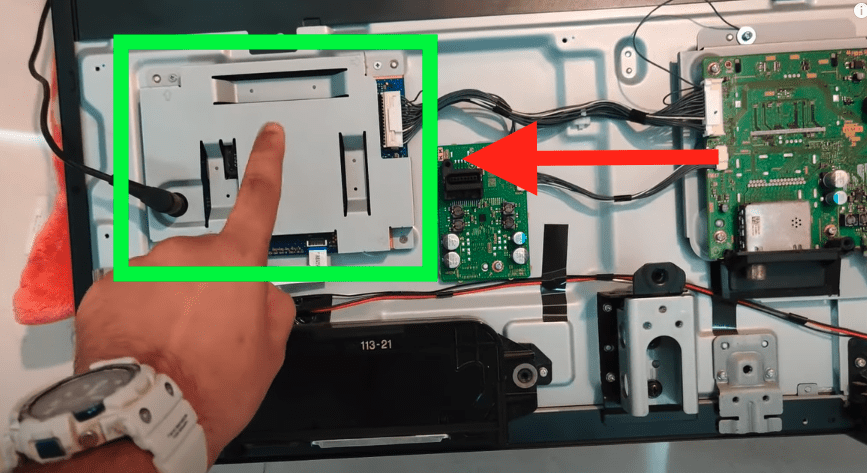
Next, find the manufacturer sticker and locate your TV’s model number. The model number of the TV below is XBR-55A1E.
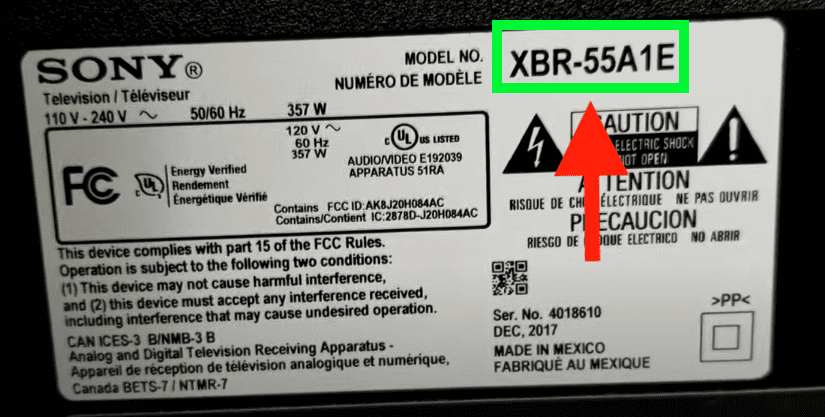
Type that model number + “power-supply board” into Ebay and track down a power-supply board replacement!
Once you’ve successfully replaced the board, turn the TV back on and see if the blinking red light has gone away.
Issue with the display panel
If you’ve made it this far, and you’re still seeing a blinking red light, you probably have a bad display panel.
If that’s the case, that’s bad news.
Display panels are EXPENSIVE. So expensive in fact that most manufacturers don’t even sell replacements. The panel can cost more than the TV itself!
If your display panel is bad, you’ll be better off buying a new television.
I would sell off the T-Con board, power-supply board, and main logic board of the broken TV, and then recycle the rest at an e-waste facility.
Sony TV support
As a last resort you can always try contacting the Sony TV support team directly to see if they can help you in any way.
They can be reached at 1-239-245-6354.
- Monday – Friday: 9:00 am – 9:00 pm ET
- Saturday – Sunday: 10:00 am – 8:00 pm ET
(Shortest wait times are usually Monday – Friday, 1:00 PM – 5:00 PM ET).
You can also try using their Text Message support or Live Agent chat.
Conclusion
If you’re Sony TV has a blinking red light and won’t turn on, don’t panic. There are several proven fixes you can try:
- Power-cycle your Sony TV
- Wait 5-10 minutes until the Software Update finishes
- Factory reset your Sony TV
- Replace your Sony TV’s power-supply board
- Buy a new TV if your display panel is broken
If none of these fixes work for you, I suggest reaching out to Sony support and seeing if they can help somehow.