Samsung TV Flickering (Try This Fix First!)
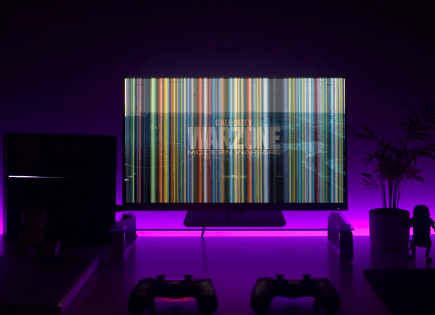
For some reason many Samsung TVs eventually run into a similar problem – the screen flickers.
There are countless cases of Samsung TV owners who say they’ve had this problem – some say it’s been an issue they’ve dealt with for multiple years!
Luckily there is a very easy fix that should resolve about 80% or so of Samsung TV flickering complaints.
Samsung TV Flickering
If your Samsung TV is flickering, you need to reset it. Unplug your TV and wait a full 60 seconds. While the TV is unplugged, press and hold the power button for 30 seconds. After the 60 seconds are up, plug your Samsung TV back in and the flickering should stop.
Unplug Samsung TV from the wall
While this fix sounds obvious, unplugging your Samsung TV from the wall socket is the most common way to get it to stop flickering.
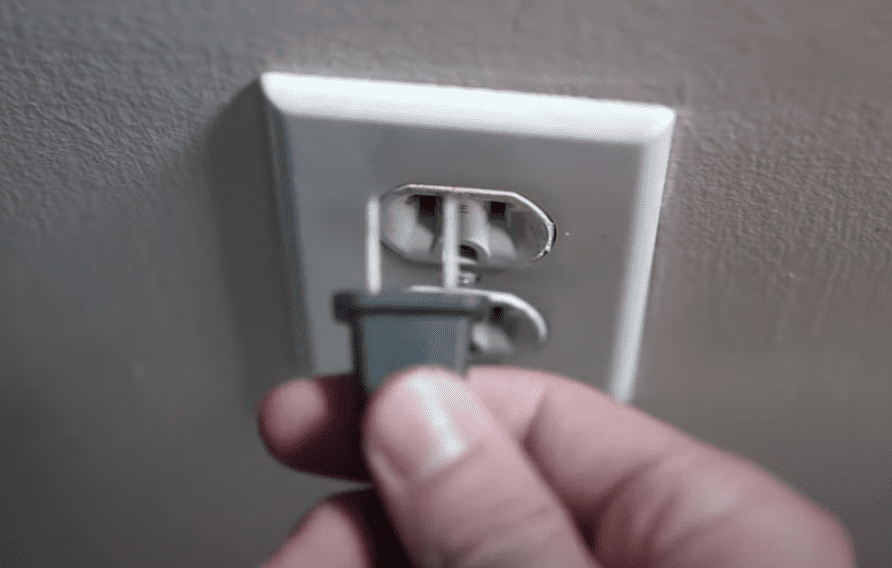
The key here is to actually wait the FULL 60 seconds. Have a little bit of patience and make sure it’s been at least a minute before plugging it back in.
While the TV is unplugged, find and hold the power button on your Samsung TV for 30 seconds. Make sure you are holding the power button on your TV, and not your remote!
This will help to drain any residual power left in the TV and allows the TV to soft reset itself. This is different than simply switching the remote on and off!
Once you plug the TV back in after the 60 seconds, you should see it power back up no problem and your screen should no longer be flickering!
Turn off Energy Saving Mode
If unplugging your Samsung TV didn’t resolve your flickering issue, then it’s time to investigate whether or not you have Energy Saving Mode turned on.
Energy Saving Mode automatically adjusts the brightness of your TV to reduce the amount of power it consumes.
Occasionally this feature is to blame for the flickering you’re seeing on the screen.
To turn Energy Saving Mode off on your Samsung TV, follow these steps:
- Press Home on your Samsung remote and then go to Settings
- Scroll down to General
- Select Eco Solution
- Select Energy Saving Mode
- Press Enter on the remote to turn it OFF
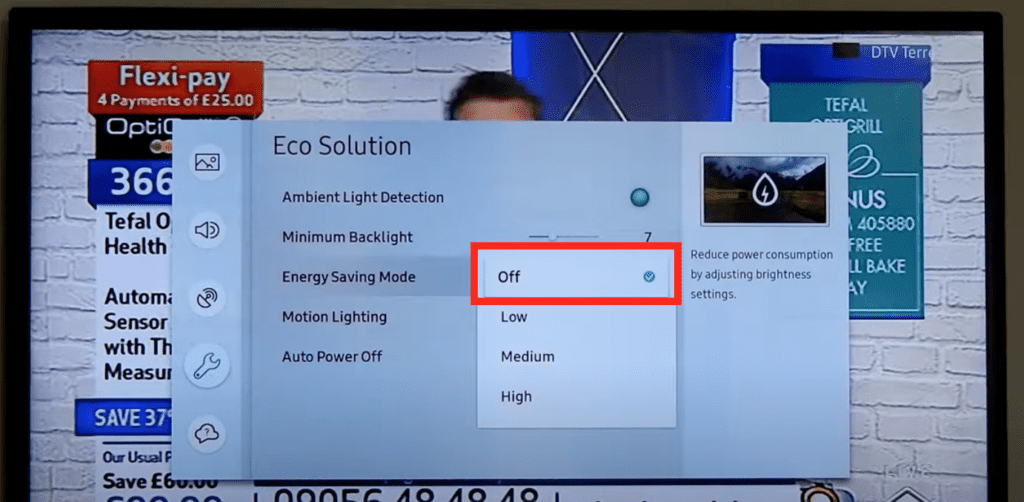
NOTE: on some Samsung TV models, Energy Saving Mode is called “Power Saving Mode”
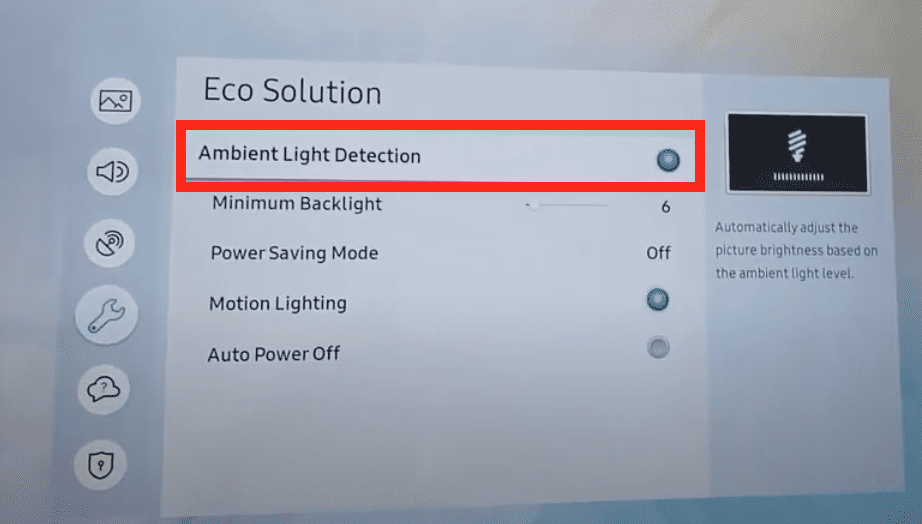
If you have an older model, try going to Settings > General > Eco Solution > Ambient Light Detection.
Adjust your screen’s Minimum Backlight
If turning off Energy Saving Mode (or Ambient Light Detection) didn’t work for you, I’d play with the “Minimum Backlight” setting of your Samsung TV.
This feature adjusts the intensity of the lighting source for your screen, and once in awhile it’s this very dial that needs to be adjusted in order to get your TV to stop flickering!
To adjust the Minimum Backlight intensity on your Samsung TV, follow these steps:
- Press Home on your Samsung remote and then go to Settings
- Scroll down to General
- Select Eco Solution
- Select Minimum Backlight
- Adjust the scale and see if you’re able to get the flickering to go away
NOTE: on some Samsung TV models, Energy Saving Mode is called “Power Saving Mode”
If you have an older model, try going to Settings > General > Eco Solution > Minimum Backlight.
Reset Samsung Picture Settings
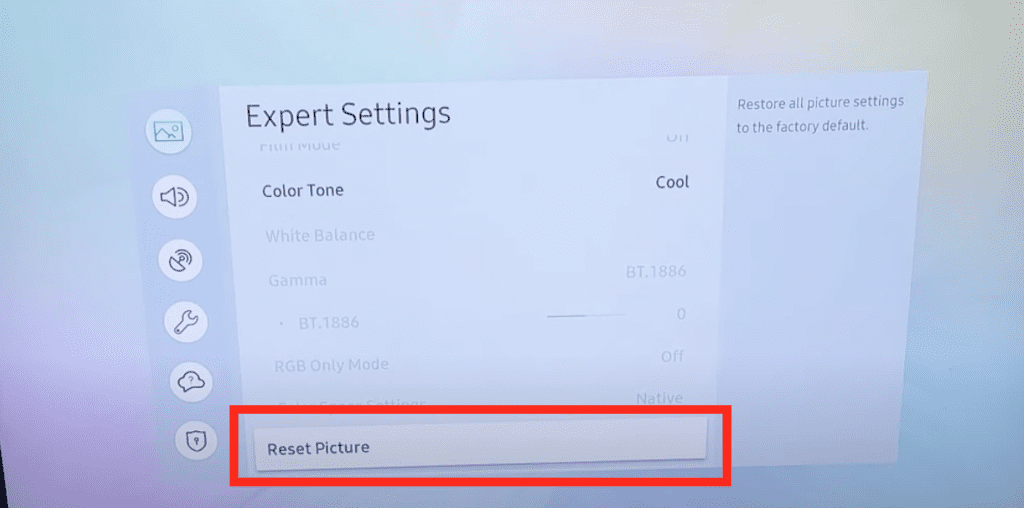
Another possible fix here is to simply reset your Samsung TV Picture Settings.
Doing this will reset your screen settings back to factory defaults.
To reset your Samsung TV Picture Settings:
- Press Home on your Samsung remote and then go to Settings
- Select Picture
- Scroll down to Expert Settings
- At the very bottom, select Reset Picture and finally Yes
Change the Video Source
Try testing your Samsung TV using a different “video source” (or input). The issue could very well be the result of an external device, or a cable connecting to your TV.
For example, flickering can happen when your TV receives corrupted frames from a broadcast that you’re streaming.
At the very least, this step will help you identify if the issue is truly with your Samsung TV, or if it’s something else (like your Firestick, Roku, or other connected, streaming device).
Inspect all connections
Be on the lookout for loose connections, bent wires, or damaged cords.
If you’re noticing the flickering only happens when your TV is using a certain input, that’s a huge clue as to which connections are failing.
For example, if your TV only flickers while playing a video game, you’ll want to check all of the cords associated with the console.
HDMI cords in particular are notorious for causing problems. Bad HDMI connections come in a few forms:
- Loose HDMI connection
- Faulty HDMI port
- Bad HDMI cable
If disconnecting and reconnecting didn’t fix the TV flickering, you should:
- Try using a different HDMI port on your TV
- Try using a different HDMI cable
However, if the flickering is only happening when you’re using cable TV, then you’ll want to check the wires attached to the cable box instead.
Luckily, these types of wires don’t cost a lot of money to replace these days.
Update Samsung TV OS
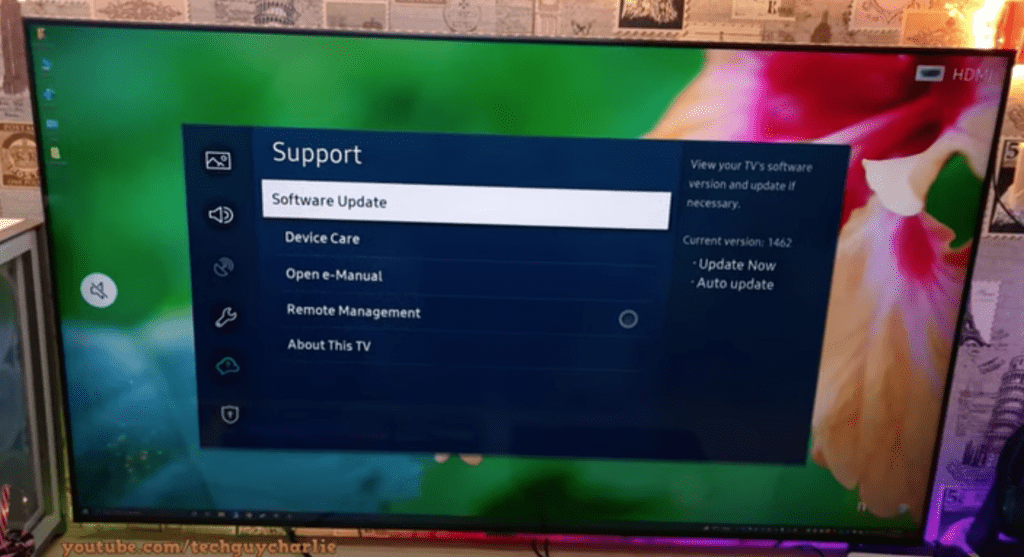
Your Samsung TV can run into a lot of different issues if the software isn’t up to date. To correct this problem, simply check for any new Samsung TV OS updates in the settings menu.
All you need to do is look for the newest firmware update available for your TV model.
Here’s how:
- Go to Settings.
- Select the option Support.
- Now, go to Software Update.
- Select the Update Software option.
Your TV will automatically update itself. This process may take a few minutes, but your TV will let you know when it’s done.
You’ll want to ensure you update your Samsung TV often to keep up with the newest software.
Factory reset Samsung TV
If updating the OS didn’t resolve your flickering problems, it’s time for a full factory reset.
With the TV powered on, click the Home button on your remote.
Then go to Settings > General > Reset. Then enter your security PIN (“0000” if you never set one). Your TV will turn off and on again and then display the initial setup screen.
This will essentially restore your Samsung TV to the settings it had on the day you purchased the television.
(If you have an older Samsung TV, the factory reset steps differ slightly from what’s above)
Factory reset Samsung TV without remote
If for whatever reason you do not have access to your TV’s remote, you can still factory reset your Samsung TV.
To do this find the power button on your TV. Depending on the model you have this may be on the right hand side, left hand side, or very bottom of the device
With the TV on, press the Menu button on the TV and then toggle to Settings > General > Reset.
If you’re having trouble finding these buttons on your TV, or if your TV is mounted in a tight spot, there are other options.
First, consider plugging in a USB keyboard directly into the back of your Samsung TV.
You can then use the keyboard to navigate and reset your TV.
Another option, if you have a Samsung Smart TV, is to download the the Samsung SmartThings app to your smart phone.
After connecting your TV to the app, you can use your smart phone as a remote!
A final possibility is to grab a universal remote you have lying around and enter the appropriate Samsung code for the remote to get it working.
At this point you should have fully resolved your flickering issues, but just in case you haven’t I’ve included a few additional steps worth trying before calling it quits.
Consider the room’s lighting levels
Believe it or not, TV screens are actually always flickering. But it typically happens so fast that under normal circumstances, you can’t even tell!
However, certain extreme lighting conditions can make these refresh rates noticeable, which would make the TV appear to be flickering. To fix it, either brighten or darken the room.
You also can also try to fix this problem by adjusting your TV’s brightness settings.
This can take a bit of experimentation, so stick with it for a bit before moving on.
Investigate internal hardware problems
Screen flicker issues could be coming from INSIDE of your Samsung TV.
If you haven’t been able to determine what’s causing the flickering yet, then an electrical component inside your TV is probably wearing down (like the ribbons, for instance).
You’ll want to try all of the other troubleshooting options before deciding that this is the problem!
Most likely, you won’t be able to fix this type of problem on your own (unless you’re a trained professional). It’s probably best to take your TV in for repair, or consider buying a replacement.
If this is a newer TV, you may even have a warranty still available for it!
That said, if you’re still feeling ambitious, this video is a good starting point:

Conclusion
Samsung TV’s can be finicky when it comes to flickering. If your Samsung TV is flickering, try these fixes in this order:
- Unplug Samsung TV from the wall
- Turn off Energy Saving Mode
- Adjust your screen’s Minimum Backlight
- Reset your Samsung TV Picture Settings
- Try different Video Sources and inspect all connections
- Update Samsung TV OS
- Factory reset Samsung TV, with or without a remote
- Consider the room’s lighting levels
- Investigate internal hardware problems
If you found a fix that worked for you, be sure to let us know in the comments below!