How to Clear Cache on Samsung TV (Try This FIRST!)
Clearing the cache on your Samsung TV can help to drastically improve the TV’s overall performance.
When left unchecked, the cache on certain apps can grow out of control and quickly consume all of your TV’s available memory.
The problem is that the option to clear the cache is buried deep in the TV menu, and it’s not even in the same location across all Samsung TV models.
Below, I’ll walk you through step-by-step several effective ways I’ve learned to clear the cache on all varieties of Samsung TVs.
How to Clear Cache on Samsung TV
The best way to clear the cache on a Samsung TV is to press and hold down the power button on your remote until the TV reboots. Once the TV comes back on, press the Home button on your remote and go to Settings > Support > Device Care > Start Device Care.
Press and Hold Power Button on Samsung Remote
While this fix sounds almost too obvious, the quickest and easiest way to clear your Samsung TV’s cache is to press and hold the power button on your Samsung remote for at least 20 seconds.
Wait the full 20 seconds and you should eventually see your Samsung TV reset.
If this didn’t work, you’ll want to try accessing the Device Care (Self Diagnosis on older models) menu…
Device Care (Self Diagnosis) Menu
Most modern Samsung TVs will have an app called Device Care which automatically optimizes the apps on your TV to keep everything running smoothly. The feature can be found in Samsung’s 2020 and newer lineup.
Device Care runs scans on the TV to optimize and diagnose TV conditions, such as blurry screen issue, or insufficient storage space. It will check all the status of the TV and if there is an issue, it will be listed and shown to you.
To access Device Care and run the test, press the Home button on your remote and then go to Settings. On the Settings menu, navigate over to Support and then select Device Care and finally Start Device Care.
While you’re in Device Care, you can also Manage Storage. This allows you to delete any unused apps and even Clear the Data/Cache of individual apps!
Remember, clearing the cache on apps won’t remove your data but you might need to sign in to those apps again.
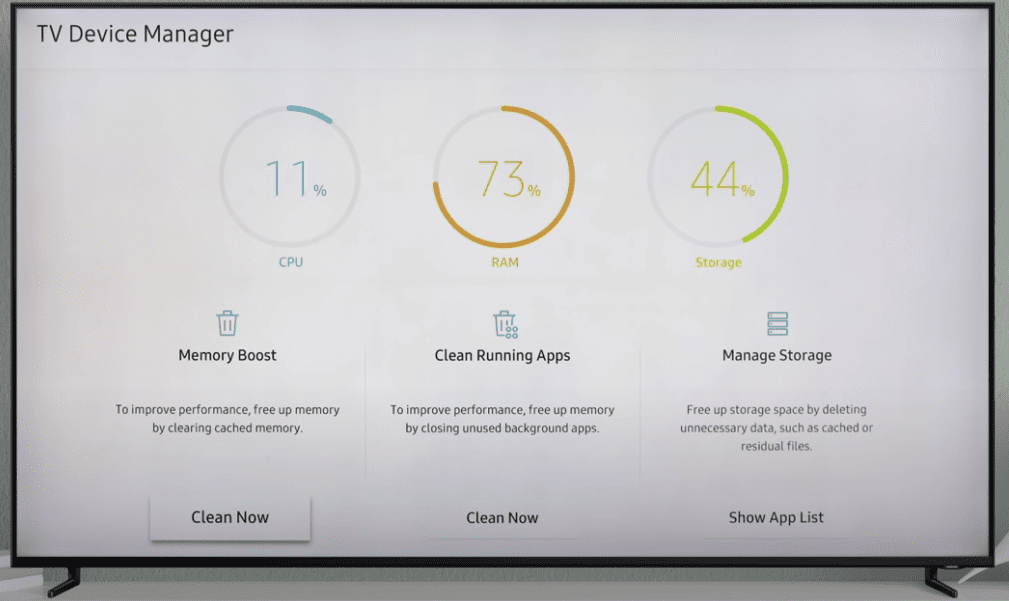
If your Samsung TV is from 2019 or later, you’ll have a feature called TV Device Manager.
You can access TV Device Manager by pressing the Home button on your remote and then go to Settings. On the Settings menu, navigate over to Support and then select Self Diagnosis and finally TV Device Manager.
Samsung TV Options Greyed Out
In some cases, Device Care or Self Diagnosis will be greyed out on your Samsung TV.
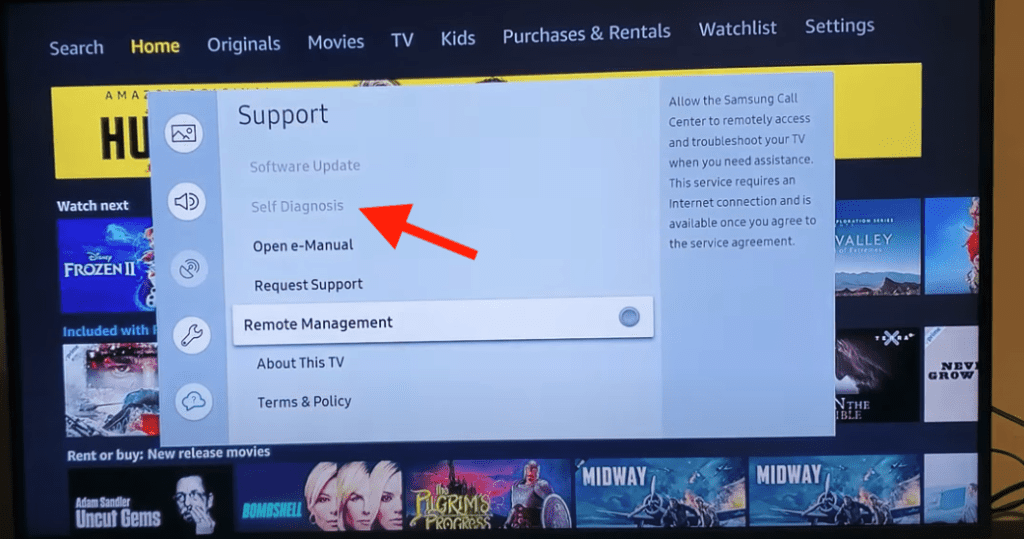
You won’t be able to use the self-diagnosis tools if there is an app open in the background, such as Netflix or another streaming app.
To fix that, tap the exit button on your remote to close any open apps, head back to the Settings menu, and these option should be available again.
Reset Samsung Smart Hub
The Samsung “Smart Hub” is basically just the customizable app store for your TV.
A Smart Hub reset removes all information from your account and returns the settings to their factory defaults.
To start click Settings on your remote. If you don’t have a Settings button you can press the Menu button instead.
Then go to Support and finally Self Diagnosis. You should see an option to Reset Smart Hub. Click on it.
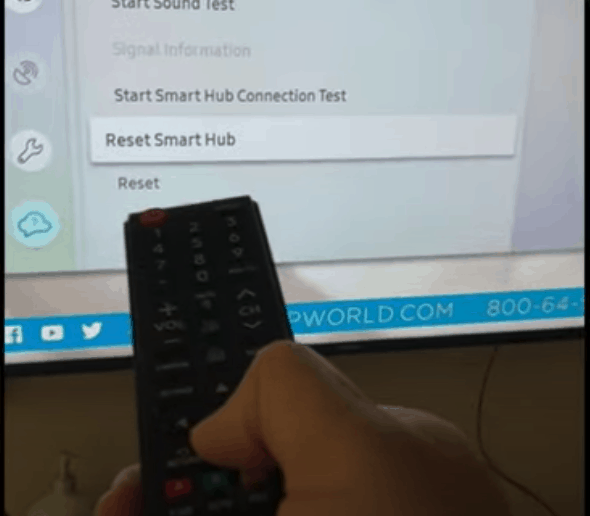
You will be prompted to enter your TV’s PIN. This will be “0000” unless you set one previously. Once the PIN is entered, you will reset your TVs Smart Hub settings.
On older TVs, the option to reset the Smart Hub can be found under Picture settings and Smart Features.
Your TV will not turn off when you reset the Smart Hub but you will be signed out of your Samsung account.
Reminder: If the Reset Smart Hub option on your Samsung TV is greyed out, that means you have an app open in the background. Press the exit button on your remote a few times to close any open apps and then see if the option to reset the Smart Hub option is available again.
Unplug the Samsung TV for 60 Seconds
Another easy way to clear your Samsung TVs cache is by unplugging it from the wall socket.
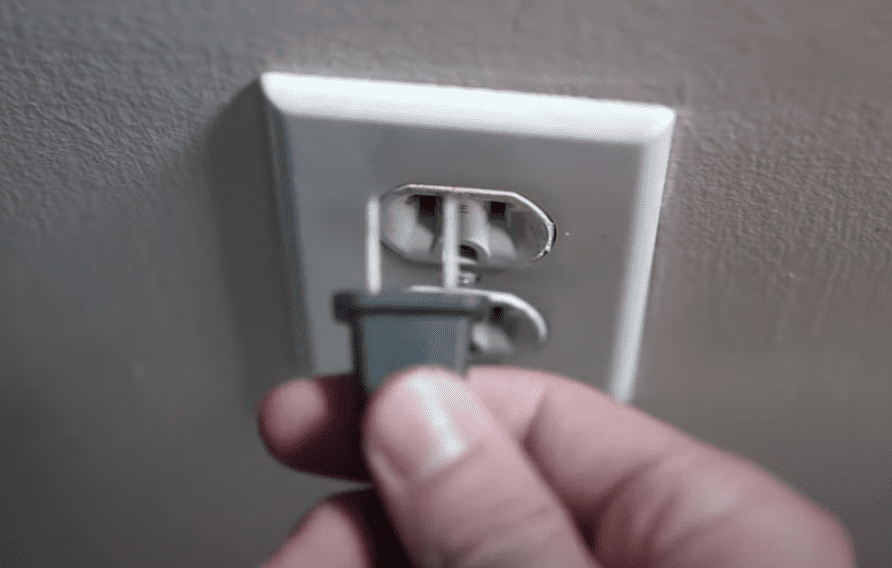
The key here is to actually wait the FULL 60 seconds. Have a little bit of patience and make sure it’s been at least a minute before plugging it back in.
While the TV is unplugged, find and hold the power button on your Samsung TV for 30 seconds. Make sure you are holding the power button on your TV, and not your remote!
This will help to drain any residual power left in the TV and allows the TV to soft reset itself. This is different than simply switching the remote on and off!
Once you plug the TV back in after the 60 seconds, you should see it power back up no problem and the cache should be cleared!
Update TV Firmware
Your Samsung TV can run into a lot of issues if the software isn’t up to date. To correct this problem, simply check for any new Samsung TV OS updates in the settings menu.
All you need to do is look for the newest firmware update available for your TV model.
Here’s how:
- Go to Settings.
- Select the option Support.
- Now, go to Software Update.
- Select the Update Software option.
Your TV will automatically update itself. This process may take a few minutes, but your TV will let you know when it’s done.
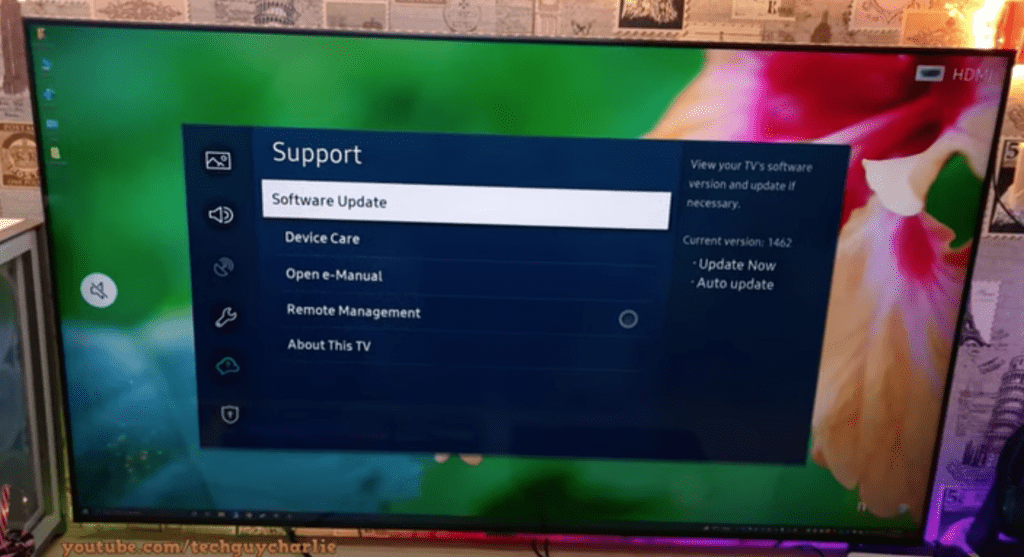
You’ll want to ensure you update your Samsung TV often to keep up with the newest software.
Factory Reset Samsung TV
Factory resetting a TV is best left as a last resort. However, it’s the best way to clear up software issues because it completely resets the memory and storage on the TV.
With the TV powered on (hopefully unplugging it or removing the remote batteries was able to temporarily power the TV) click the Home button on your remote.
Then go to Settings > General > Reset. Then enter your security PIN (“0000” if you never set one). Your TV will turn off and on again and then display the initial setup screen.
This will essentially restore your Samsung TV to the settings it had on the day you purchased the television.
Note: The only setting that a factory reset does not clear is your network settings. So you usually won’t have to connect to your Wi-fi network again. But you will have to download all your apps and re-configure your TV’s picture settings.
Resetting your Samsung TV will completely clear the cache, apps, and all app data. The TV will be reset to factory settings and you’ll need to go through the TV set up all over again.
Bear in mind, that on some Samsung TVs you need to reset the Smart Hub before you can reset the TV. Also, remember if an app is open, the reset options will be greyed out.
Resetting the Smart Hub and then resetting the TV to factory defaults is a nuclear option that will almost always fix software issues.
Factory Reset Samsung TV without remote
If for whatever reason you do not have access to your TV’s remote, you can still factory reset your Samsung TV.
To do this find the power button on your TV. Depending on the model you have this may be on the right hand side, left hand side, or very bottom of the device.
With the TV on, press the Menu button on the TV and then toggle to Settings > General > Reset.
If you’re having trouble finding these buttons on your TV, or if your TV is mounted in a tight spot, there are other options.
First, consider plugging in a USB keyboard directly into the back of your Samsung TV.
You can then use the keyboard to navigate and reset your TV.
Another option, if you have a Samsung Smart TV, is to download the the Samsung SmartThings app to your smart phone.
After connecting your TV to the app, you can use your smart phone as a remote!
A final possibility is to grab a universal remote you have lying around and enter the appropriate Samsung code for the remote to get it working.
Contact Samsung support
If you still can’t get the cache cleared on your Samsung TV, you can try contacting the Samsung support team.
They offer a variety of service methods, from in-home service to mail-in options.
The cost for this service will vary depending on the final diagnosis and whether or not the work is covered under warranty.
But the good thing is you’ll get a certified Samsung technician to take a look.
Conclusion
To clear the cache on your Samsung TV, try the following methods:
- Hold down the power button on your remote for 20 seconds until the TV restarts
- Use Samsung’s Device Care (or Self Diagnosis) tool found in Settings under Support
- Clear app cache using Manage Storage to free up memory
- Reset your Samsung TV Smart Hub
- Unplug your TV from the power and let it sit for 60 seconds or longer
- Update your TV’s firmware
- Perform a factory reset on your TV
These steps will clear the cache on 99% of Samsung TVs, and they should help the TV run much smoother.
If you’re still experiencing issues, it might be best to contact Samsung’s support and have a trained technician inspect your TV.