Do Samsung TVs Have Bluetooth? (How to Connect!)
Of all the TV brands on the market today, Samsung is close to the top of the list for the most Bluetooth enabled options. Nearly all of their newer TV series come with Bluetooth.
Here’s how to tell for sure if your Samsung TV is Bluetooth enabled, and how to pair it with a Bluetooth enabled device such as headphones, a keyboard or even a soundbar!
Do Samsung TVs have Bluetooth?
Yes, the following Samsung TVs have Bluetooth: 6, 7, 8, 9, Frame, Serif, Sero, Terrace, Q60T, Q70T, Q80T, Q90T, Q800T, & Q900TS series. To enable Bluetooth on your Samsung TV go to Settings > Sound > Sound Output > Bluetooth Speaker List. Click OK and your TV will automatically search for bluetooth devices.
Just make sure that the Bluetooth device you’re trying to connect to is in pairing mode.
Your Samsung TV will then automatically list all the available Bluetooth devices. Simply select the one you wish to connect to, and you’re done!
Which Samsung TV’s are Bluetooth compatible?
The following Samsung smart TV models come with Bluetooth enabled:
- Samsung – 6, 7, 8, & 9 series
- Samsung – Frame series
- Samsung – Serif series
- Samsung – Sero series
- Samsung – Terrace series
- Samsung – Q60T, Q70T, Q80T, Q90T, Q800T, & Q900TS series
How to check if your Samsung TV has Bluetooth
The easiest way to confirm whether a specific class of Samsung TV has Bluetooth or not is to visit the Samsung website and check the specifications of your exact television.
Once you’ve found your TV, click on it. This will pull up a full page dedicated to your exact TV with a ton of details.
We are interested in the “VIEW ALL SPECS” tab close to the bottom of the page. Once you find that, go ahead and click on it.
Then, scroll down the the SPECS section, until you see a line item for “Bluetooth”.
If it says Yes, then you have your answer!
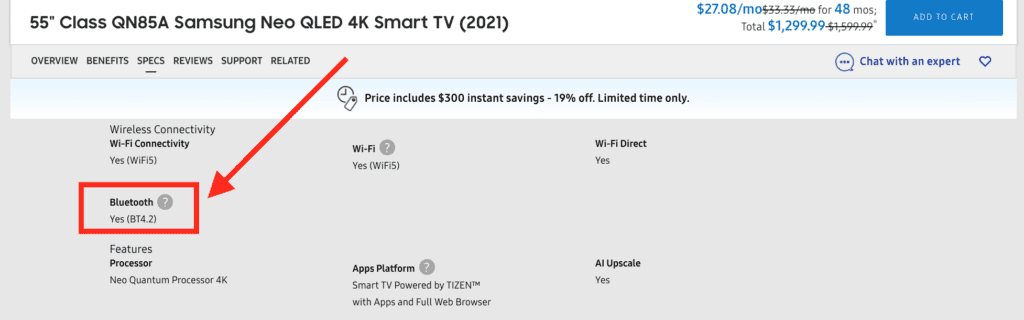
Samsung provides a ton of interesting info about your TV here, so feel free to poke around a bit. You can find out if your TV is integrated with any Voice Assistants, like Google Home or Amazon Alexa.
There are also details about Intelligent Voice Recognition, TV response time for gaming, and much more!
Another option is to check directly on your TV.
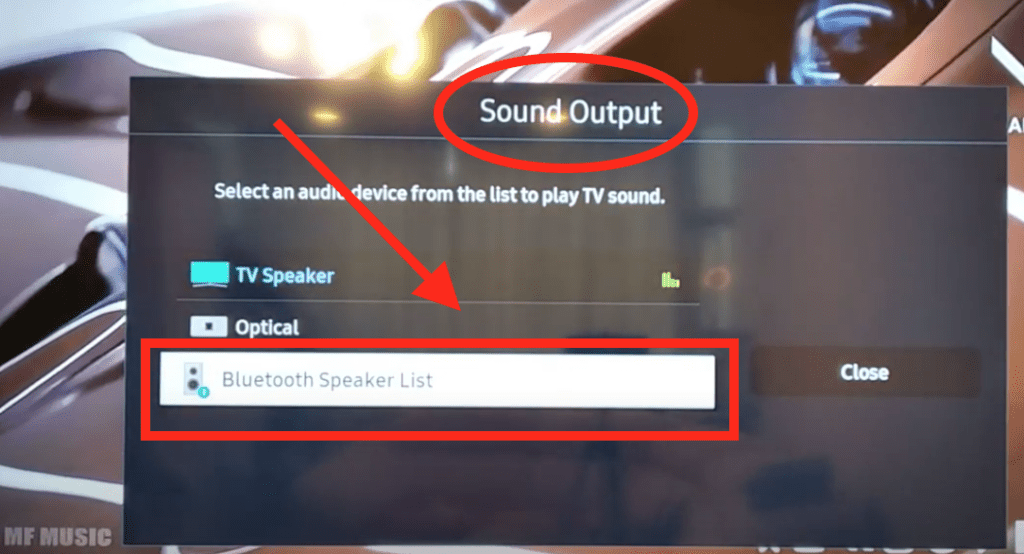
First go to Settings > Sound > Sound Output. If you see “Bluetooth Speaker List” as an option, then your TV most definitely supports Bluetooth.
How to sync your Bluetooth device to your Samsung TV
Now that you’ve confirmed your Samsung TV has Bluetooth, it’s time to sync it with your Bluetooth device!
With the TV on, click Settings on your Samsung remote. Alternatively, you can arrow over left to the gear icon on the Home screen menu.
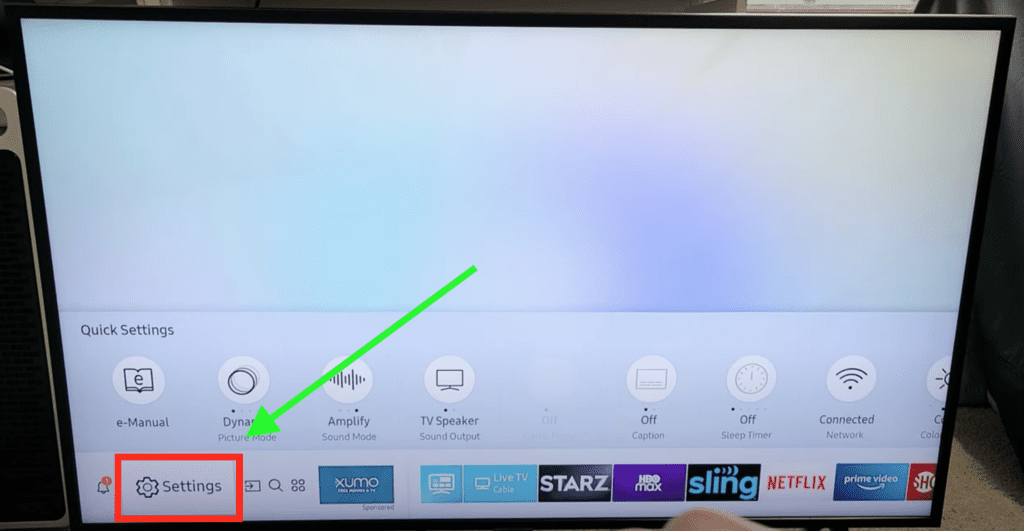
Within Settings, go to Sound and then Sound Output.
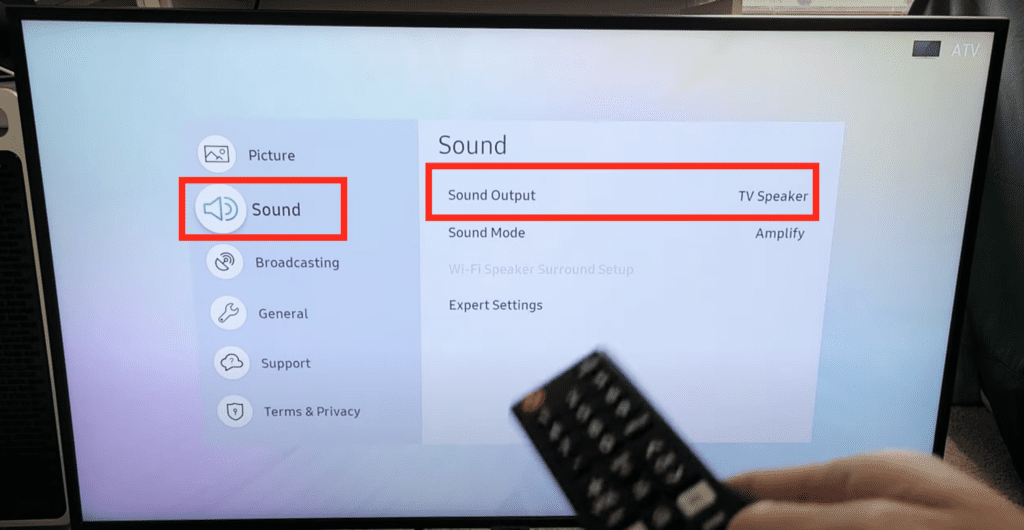
Finally, within Sound Output, go to Bluetooth Speaker List.
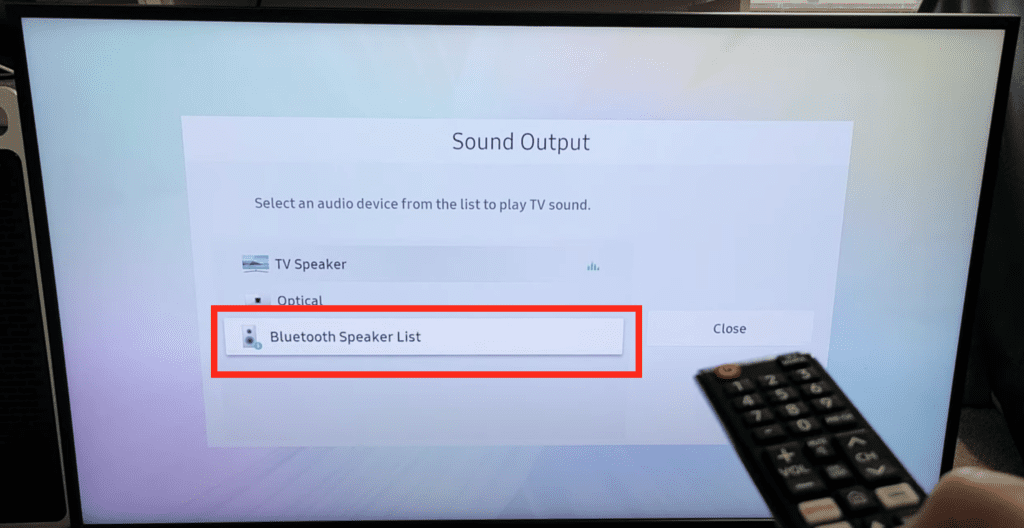
Your Samsung TV will begin searching for all nearby Bluetooth devices.
Make sure that the device you are trying to pair is in pairing mode! I know this sounds obvious, but you would be surprised how often people run into this issue.
They don’t see their headphones or sound-bar in the Bluetooth drop down menu because they never put their device in pairing mode!
Every device requires something slightly different to get it into pairing mode. AirPods, for example, require you to press and hold the button on the back of the case until the white light starts blinking.
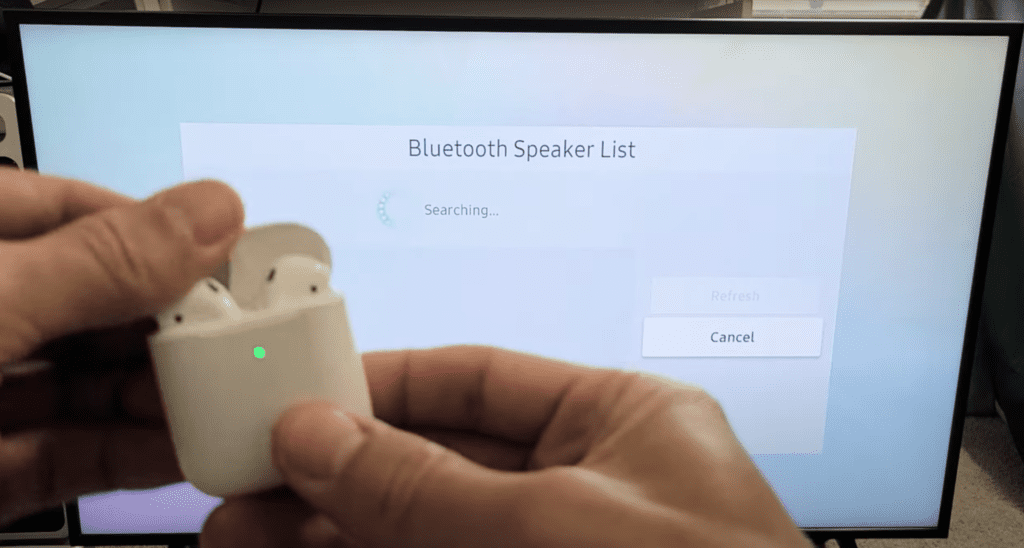
Most other devices follow a similar pairing process.
If you’ve successfully put your device into pairing mode, it should appear in the list on your Samsung TV! If it does, simply select it and your Samsung TV will connect.
If you’re having any issues connecting your Bluetooth device to your TV, try using the Samsung Bluetooth Connect Guide.
You can also try some of my troubleshooting steps detailed further down.
Unlock Bluetooth on your Samsung TV using Service Mode
If you don’t see the “Bluetooth Speaker List” in your Settings, but your user manual says your Samsung TV is Bluetooth enabled, there are a few additional steps you may need to take in order to turn Bluetooth on.
Depending on your exact model, you may or may not need to do each of these steps, but it’s easier to just follow along regardless!
NOTE: We are going to be accessing your Samsung TV’s Service Mode. Don’t touch any other settings while in Service Mode! You can easily “brick” your TV, which means it will just completely start working.
If you follow my instructions below, step by step, you will not have any issues.
Turn BT Audio ON in Service Mode
To start, you’ll need to access your Samsung TV’s Service Mode.
With the TV OFF, grab your remote and select: Mute, 1, 8, 2, and finally Power. You may have to try this a few times to get it to work!
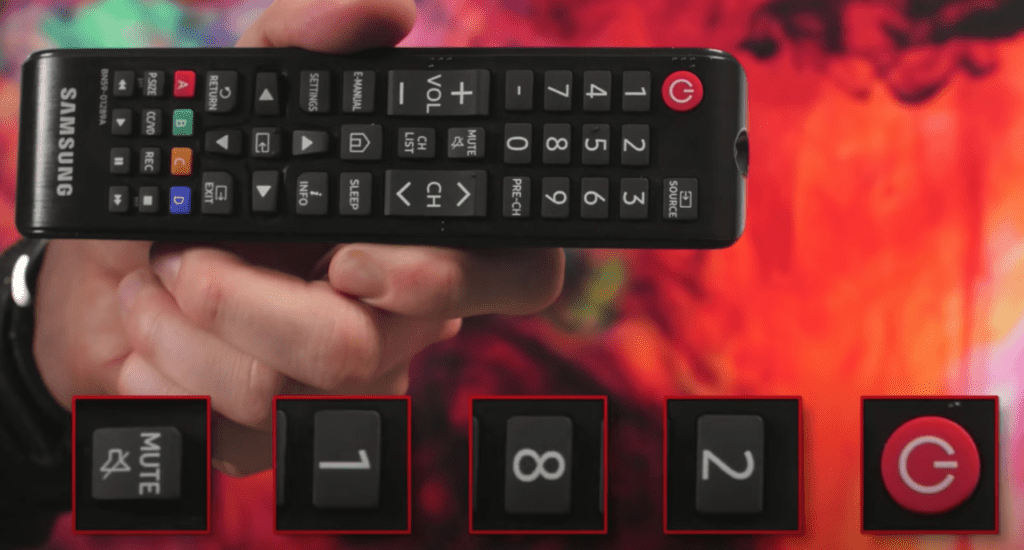
You’ll know this worked if you see a big blue window appear on your TV.
Next you’re going to select Option > Engineer Option > BT Audio > ON.
If you don’t see “BT Audio”, don’t worry and just move on to the next step. If you do see it, make sure it is ON.
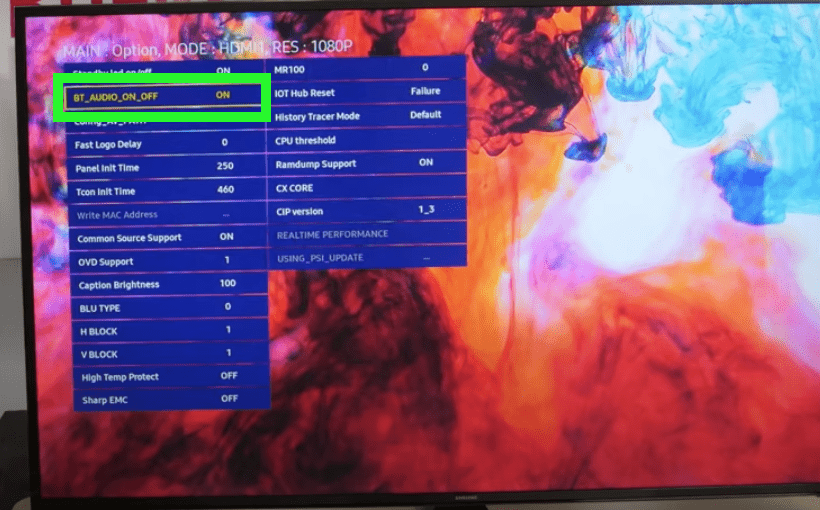
Turn BT Support ON in Service Mode
Again in Service Mode, now go to MRT Option from the first menu.
Scroll down until you find BT Support and make sure it is ON too!
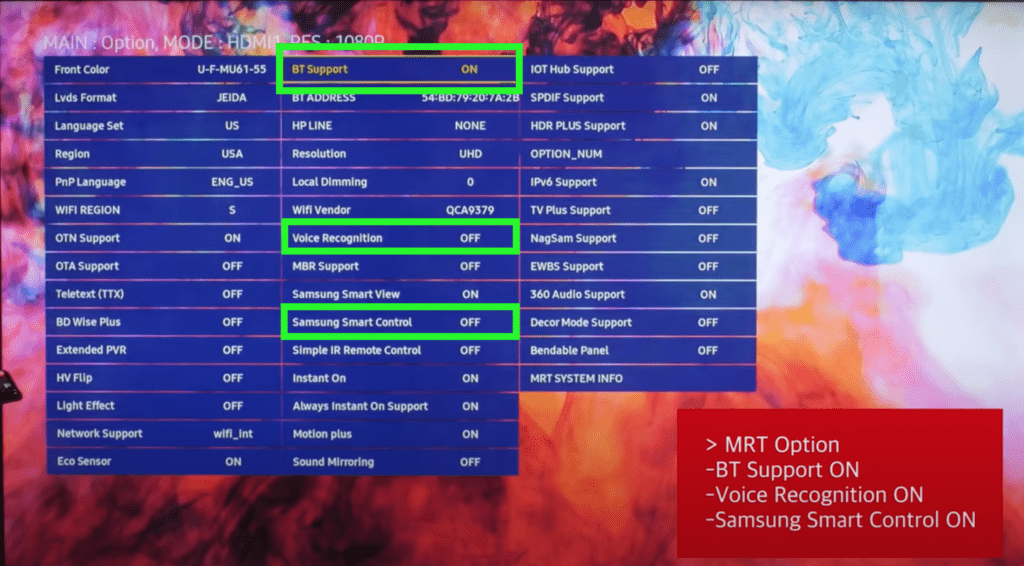
Also set Voice Recognition to ON as well as Samsung Smart Control to ON.
That’s it!
Now power OFF your Samsung TV, wait a few seconds, then turn it back ON. You should be able to access the Bluetooth Speaker List in the Settings now!
Adding Bluetooth Support to an Unsupported Samsung TV
If you can’t enable Bluetooth through Service Mode, don’t panic, you still have one good option left.
You can buy a Bluetooth transmitter.
A Bluetooth transmitter is simply a product that plugs into a non-Bluetooth enabled device (in this case your smart TV) and turns it into a fully functioning Bluetooth device.
These days the technology has gotten so good that there is very low latency with these devices (meaning the sound will come near real time, without delay).
And even better, you can get a great one for cheap (under 40 bucks).
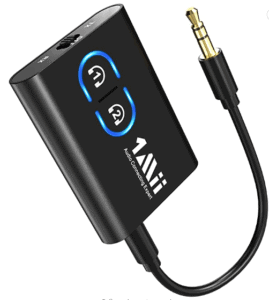
If you’re thinking about going this route I highly recommend the 1Mii Bluetooth 5.2 Transmitter Receiver (check price on Amazon). This thing get’s amazing reviews and will make your smart TV Bluetooth in seconds.
This one does require a headphone jack (AUX) on your TV, so make sure you have one before buying it.
If your TV doesn’t have a headphone jack, no problem, go with the Avantree Bluetooth 5.0 Transmitter. Same amazing reviews, but it offers multiple different options for setup (Optical, Aux, RCA, USB).

(As an added tip, bring your Bluetooth transmitter with you the next time you fly. You can plug it into the headphone jack and finally use your Bluetooth AirPods to watch TV on the plane!)
What is a Bluetooth TV capable of?
You may be wondering if all this investigation/effort is even worth it.
For me it definitely was.
Bluetooth just offers a lot of great functionality that you can’t get otherwise.
For example, my Bluetooth enabled Samsung smart TV allows me to do the following:
- Connect wireless headsets or speakers to the TV
- Use my smart phone as a remote control
- Sync a wireless keyboard to type on the TV
- Stream music from my iPod or smart phone to your TV
- Project my smart phone’s screen and apps onto the TV
Just being able to watch TV with a pair of headsets late at night so I don’t wake up my wife, makes the effort to make my TV “Bluetooth enabled”, worth it.
Troubleshooting Samsung TV Bluetooth connection issues
Occasionally you’ll run into some issues getting your device to connect to your Samsung TVs Bluetooth.
If you do, don’t panic. Here are some of the most common fixes you should try. All of them take no more than a minute or two and are easy to implement:
- Remove/Forget your Bluetooth device from your Samsung TV and try re-pairing it
- Unplug your Samsung TV from the wall for 60 seconds. While unplugged, press and hold the power button on the TV for 10 seconds. This will power-cycle your TV and fully reset it.
- Turn off the device you’re trying to pair and then turn it back on again.
- Make sure you are no more than 30 feet (10 meters) away from your Samsung TV. This is the max range for Bluetooth. Also if other Bluetooth devices are nearby, try turning them off during setup. Sometimes these other devices can create a lot of interference.
- Reset your router/modem by unplugging it, waiting 60 seconds then plugging it back in. Make sure your Samsung TV successfully reestablishes its WiFi connection.
- Make sure your Samsung TV is running the latest Firmware.
- Make sure the Bluetooth device you’re trying to connect is running the latest Firmware.
If, after trying all of these fixes, you’re still having issues with your Samsung TV’s Bluetooth, you should consider contacting Samsung support directly.
Conclusion
Most Samsung TVs come with Bluetooth enabled out of the box! The following Samsung TVs have Bluetooth: 6, 7, 8, 9, Frame, Serif, Sero, Terrace, Q60T, Q70T, Q80T, Q90T, Q800T, & Q900TS series.
If you’re not entirely sure whether or not your Samsung TV has Bluetooth you can always visit Samsung’s website, search for your exact TV and then review the SPECS. If it says Bluetooth YES, you’re in luck!
To enable Bluetooth on your Samsung TV go to Settings > Sound > Sound Output > Bluetooth Speaker List. Also make sure the device you’re connecting is in pairing mode!
If you do not see “Bluetooth Speaker List” as a menu option, you may need to enable it in your TV’s Service mode.
Turn your TV OFF, and then press Mute, 1, 8, 2, Power on your remote to bring up Service Mode. In Service mode, turn BT Audio and BT Support ON.
Let me know in the comments below if you run into any issues during setup. I’d also love to know if your specific Samsung TV doesn’t have bluetooth – include the model name in your comment.