How to Connect Apple TV to WiFi Without Remote? (EASY!)
If you have an Apple TV that’s not currently connected to your internet, and you don’t have your Apple TV remote, you’ll have to setup your WiFi some other way.
Luckily I have a cheap and easy solution for you.
Connect Apple TV to WiFi without Remote
Connect your Apple TV to your router using an ethernet cable. On your Apple device, open the Apple TV Remote app. Go to Settings > Remotes and Devices > Learn Remote. Now, using any infrared remote, follow the on-screen instructions to pair it. Use your newly connected remote to connect to WiFi!
Use an ethernet cable, Apple TV Remote app and spare IR remote
While this solution has been proven to work 100% of the time, it does require that you have access to several things:
- Ethernet cable
- iPhone, iPad, or iPod touch with Apple TV Remote app enabled
- Infrared remote of any kind (standard TV remote, DVD player remote, etc.)
- Access to the WiFi router
If you are missing any of these items, this simply won’t work. In that case, you should jump down to the next solution below.
If you have all four items, start by connecting one end of your ethernet cable to the back of your Apple TV, and the other end to your WiFi router.
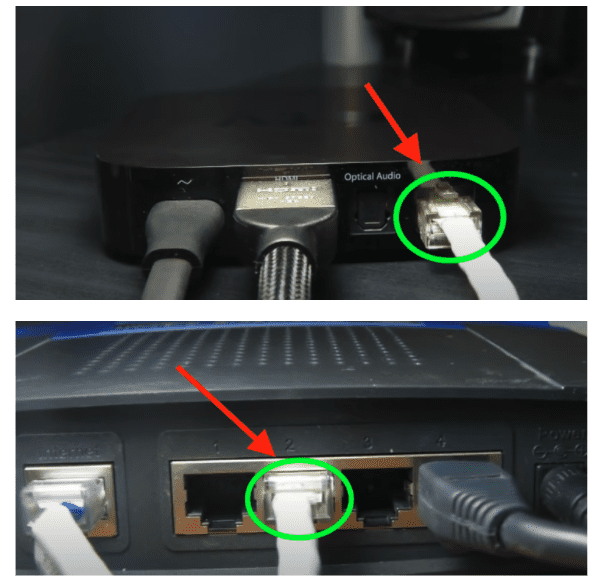
Once these connections are made, go ahead and turn on your TV and make sure you see your Apple TV load on the screen. (If you don’t see Apple TV, use the TV input/source button to navigate to HDMI.)
Now, on your iPhone, iPad or iPod touch, open up the Control Center.
- On iPhone X or later or iPad with the latest version of iPadOS: Swipe down from the upper-right corner of the screen.
- On iPhone 8 or earlier or iOS 11 or earlier: Swipe up from the bottom edge of the screen.
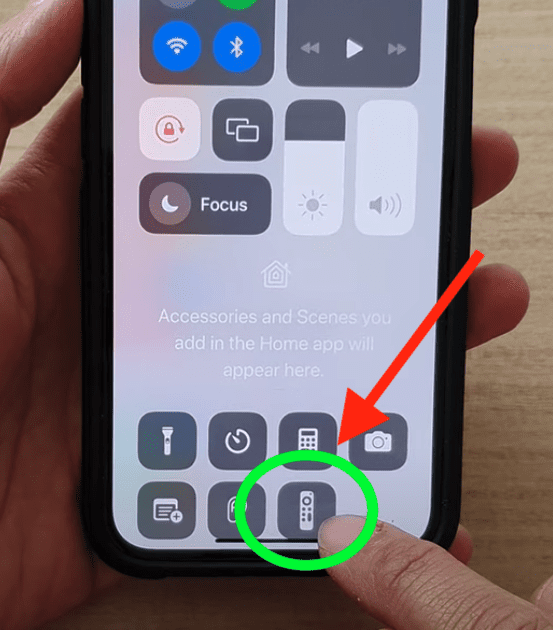
Once the Control Center is open:
- Tap the Apple TV Remote app.
- Tap your Apple TV from the available list.
- When prompted, enter a four-digit passcode into your iPhone, iPad, or iPod touch.
(If you do not see Apple TV Remote app, go to Settings > Control Center, and tap Add (+) next to Apple TV Remote)
Using the Apple TV Remote application, navigate to Settings > Remotes and Devices > Learn Remote on your Apple TV.
Now, with the spare IR remote you found lying around, follow the on-screen instructions. This process allows Apple TV to recognize the IR remotes signal and will sync with it.
Now you can disconnect your Apple TV from the ethernet and use your newly connected remote to connect your Apple TV to the WiFi!
Use a Bluetooth keyboard in place of an IR remote
If the only thing you’re missing in the list above is a spare infrared remote, maybe you have a bluetooth keyboard lying around? If so, we can still make this work!
Note: even if you don’t have an actual Bluetooth keyboard with you, you can actually turn your laptop into one! If you have a Mac or MacBook, try Typeeto. It’s free software that allows you to use your laptop keyboard to control your Apple TV. If you have something other than a Mac/MacBook , just Google “Bluetooth keyboard for laptop” and you should find several options.
We are going to follow all of the same steps above, but once we get our Apple TV Remote app working, instead of going to Learn Remote on the Apple TV, we’re going to go to Bluetooth and connect the keyboard.
Here’s how:
- Put your Bluetooth keyboard into pairing mode.
- On your Apple TV, go to Settings > Remotes and Devices > Bluetooth. Your Apple TV will start to search for keyboard.
- Choose your Bluetooth keyboard once it appears.
- If prompted, enter a four-digit code. On your Apple TV, your keyboard should now appear in My Devices.
Use you keyboard to proceed connecting your Apple TV to the WiFi!
Try a Smart TV remote
If you’re unable to follow the steps above because you’re missing one of the required items, you should always immediately try this next solution.
It might not work, but it’s so quick and easy to try that it’s absolutely worth doing.
If the TV you’re using Apple TV with is a smart TV, go and find the remote. Once you’ve located it, pull up Apple TV on your smart TV and try using the smart TV remote with it, as is!
I discovered, in many cases, smart TV remote direction arrows are recognized by Apple TV automatically, and you’re able to navigate to the network settings and add the WiFi network there.
Then, immediately my iPhone would connect as well as soon as it connected to the same network and I could use the Apple TV Remote app.
If this worked for you, great! If not, keep reading, I have a few more possible solutions for you.
Rename iPhone, iPad, or iPod touch and connect to hotspot
Another really easy solution here is to try renaming your iPhone, iPad or iPod touch to have the same exact name as your WiFi network back home!
This way, when you turn on the hotspot on your phone, your Apple TV should automatically connect to it because it “recognizes” the network already.
To rename your Apple device:
- Go to Settings
- Then General
- At the very top choose About
- Select Name
- Name your iPhone the exact same name as your home WiFi network and then hit Done
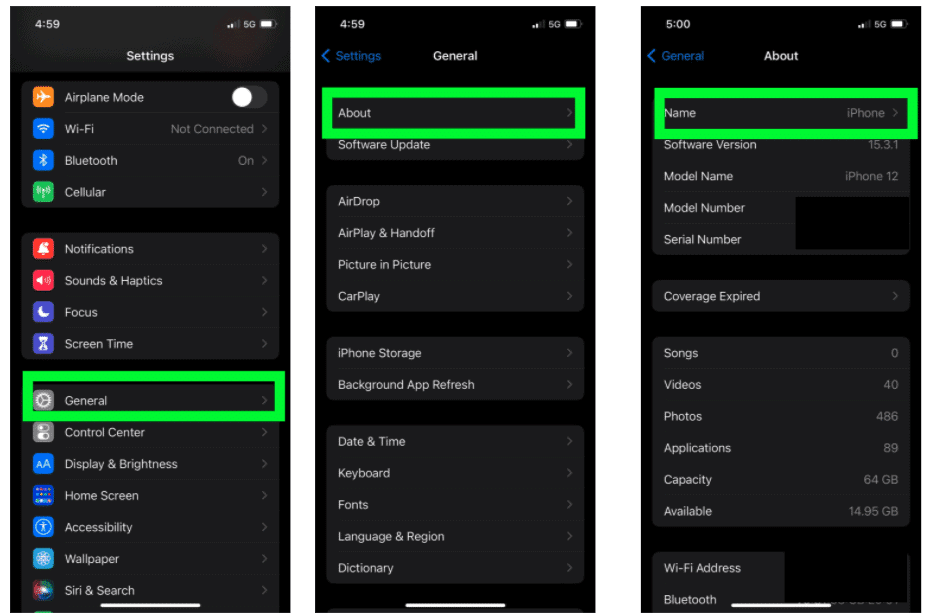
(Now, when you turn on your device’s hotspot, its name will be the new name of your phone – your home WiFi network!)
Once you’re successfully connected, you can access your Apple TV using the Apple TV Remote app to navigate to Settings > Remotes and Devices > Learn Remote on your Apple TV.
Now, with the spare hotel TV remote, or any remote you have lying around, follow the on-screen instructions. This process allows Apple TV to recognize the IR remotes signal and will sync with it.
Change new WiFi network SSID and password
This solution is a very similar concept as renaming your Apple device to the same name as your home WiFi network and “tricking” your Apple TV into connecting via hotspot.
Except in this case, you’re going to be making some changes directly to the new router you’re trying to connect to.
Specifically, you’re going to update the SSID and the password of the new router to be exactly the same as the SSID and password as your home network. (SSID is just the technical term for a WiFi network name.)
Note: Obviously this solution will not work if you don’t have admin access to the new WiFi network you’re trying to connect to. You’ll need that router admin access in order to make these changes.
Ok, start by accessing the new WiFi router settings. Every router is slightly different, but you can access almost all router settings by following these instructions.
Once you’re in the router settings, look for phrases like SSID or Wireless Network Name. Change the network name and password to be exactly the same as your home WiFi.
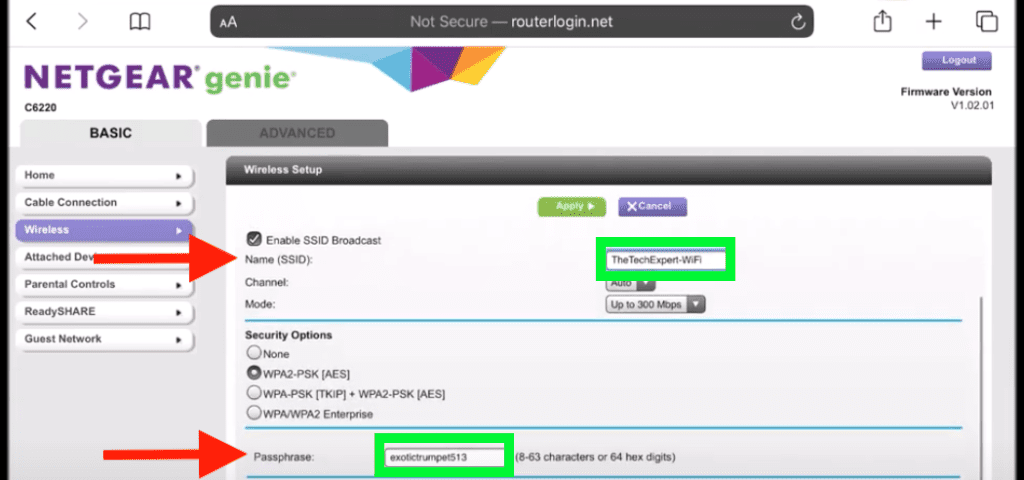
Finally, check that the SSID and password changes you made were successful. You can do this by checking the WiFi connection on your smart phone or laptop. Here’s how:
iOS SSID
- Select “Settings”.
- Select “WiFi”.
- Within the list of networks, look for the network name listed with a check mark. This is your network’s SSID.
Mac OS SSID
- Select the WiFi icon in the menu bar.
- Within the list of networks, look for the network name listed with a check mark. This is your network’s SSID.
Windows SSID
- Left click the wireless signal icon (bottom right corner of the desktop).
- Within the list of networks, look for the network name listed next to “Connected”. This is your network’s SSID.
Android SSID
- From the Apps menu, select “Settings”.
- Select “WiFi”.
- Within the list of networks, look for the network name listed next to “Connected”. This is your network’s SSID.
Once you’re successfully connected, you can access your Apple TV using the Apple TV Remote app to navigate to Settings > Remotes and Devices > Learn Remote on your Apple TV.
Now, with the spare hotel TV remote, or any remote you have lying around, follow the on-screen instructions. This process allows Apple TV to recognize the IR remotes signal and will sync with it.
Replace your lost or broken Apple TV remote
If you really want to solve this issue once and for all, just get a replacement Apple TV remote.
These remotes can get a bit pricey, but use Amazon and you can have it shipped to your house tomorrow.
If you’re interested, here’s a link to an Apple TV replacement remote on Amazon.
But hey, I’m not judging, maybe it’s late and you just gotta watch that new episode of Friends right now, and hacking together a near term solution is all that matters.
Do your future-self a favor though, and buy the replacement remote too. You’ll thank me later.
Conclusion
If you lost or broke your Apple remote, but you still want to connect your TV to WiFi, you can use any infrared remote you have lying around.
You’ll also need an ethernet cord, Apple TV Remote app and access to the WiFi router. (If you’re just missing the infrared remote, but you have a bluetooth keyboard or laptop, you can use that instead!)
Alternatively you can try:
- Using your smart TV remote as is. Sometimes these automatically connect to Apple TV.
- Renaming your Apple device to trick your Apple TV into connecting to your hotspot.
- Change the new WiFi network SSID and password to be the same as your home WiFi network.
- Replacing your Apple TV remote with a new one.
Hopefully these tips helped you connect your Apple TV to WiFi without the original remote! If you were successful connecting in a different way, let me know in the comments below!