With all the possible combinations of TVs, set-top boxes and sound bars these days, sound delay has become an extremely common problem. While incredibly frustrating, there are several proven fixes you can try implementing yourself.
If you stick with this list, and work your way through each solution, one-by-one, it’s extremely likely you’ll fix your problem. Don’t skip a step thinking it’s too obvious, or that it won’t work. They worked for others, and they will work for you!
Sound delay on TVs can be fixed by enabling AV sync adjustment, connecting source devices directly to external speakers, resetting sound settings, power resetting your TV, reconnecting the TV to the source device, adjusting game mode, clearing cache, closing background apps, using an alternative streaming app, performing a factory reset, or updating your TV’s firmware. Make sure to follow each step without skipping any to ensure the issue gets resolved.
How to Fix Sound Delay on TV
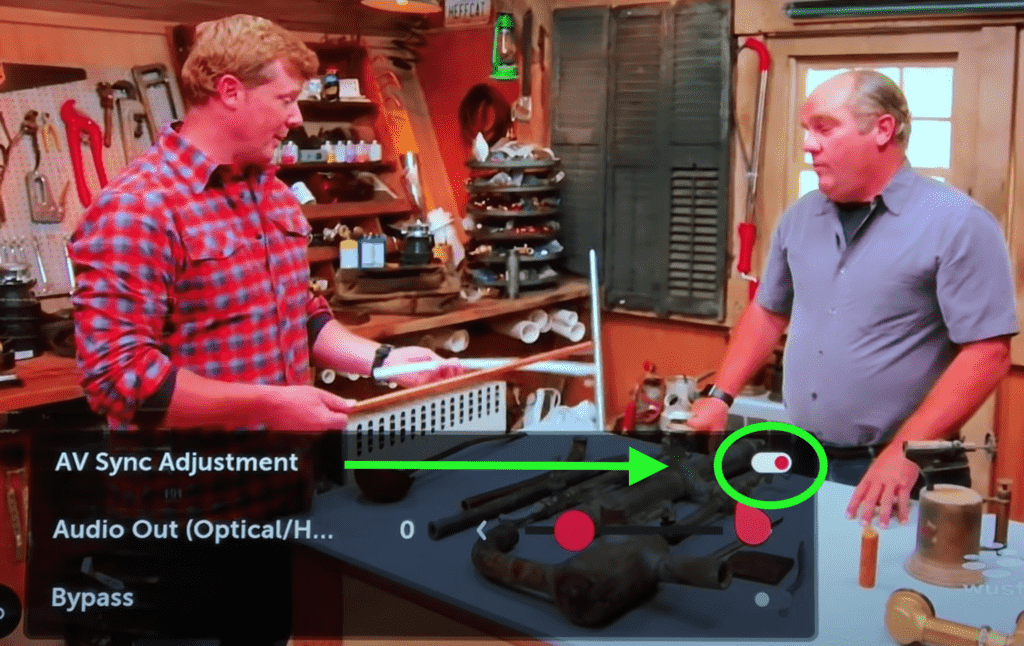
To fix a sound delay on your TV, simply turn on “AV Sync Adjustment”. Go to SETTINGS, navigate to SOUNG SETTINGS, and select AV SYNC ADJUSTMENT to enable it. Ensure the AUDIO OUT setting is at “0” before adjusting the slide bar accordingly to solve the issue.
Making this AV Sync Adjustment is the easiest and most common way to resolve your TV’s sound delay.
NOTE: I provide generic step-by-step instructions for each of the fixes below. You may need to look up the user manual for your specific TV make and model to find the setting I refer to. Or better yet, just YouTube it!
Enable AV Sync Adjustment
If your TV’s audio and video are out of sync and the sound is too slow, you need to check the Audio-to-Video Synchronization settings.
The latest TVs come with an AV Sync adjustment that allows you to fix sound delays with the press of a button.
Adjusting the AV Sync adjustment setting lets you minimize the lag between the audio output and visual display, subsequently fixing annoying and frustrating sound delays.
Here are the steps:
Press the MENU/HOME button on your remote
Go to settings
Select sound settings
Navigate to AV Sync Adjustment
Enable AV Sync Adjustment
Adjust the “Audio Out” slider up or down to reduce sound delays accordingly
Connect Source Device Directly to External Speakers
Audio delays often arise if you connect your TV directly to your sound bar, home theater, or external speakers using HDMI ARC or optical output.
The delay occurs because the audio signal has to travel longer than the video signal. The audio travels from the source device to the TV and then to the soundbar or home theater, while the video signal only travels from the source device to the TV.
By the time the soundbar unpacks the audio signal, you would have already seen the video. In essence, the sound will arrive a few microseconds after the visual display.
You can prevent this disparity by connecting your soundbar directly to the source device and disabling HDMI ARC audio output.
Here are the steps:
Press the MENU/HOME button on your remote
Go to settings
Select sound settings
Navigate and select “sound/audio out.”
Turn HDMI ARC/CEC off
Connect your source device directly to your soundbar
Reset Sound Settings
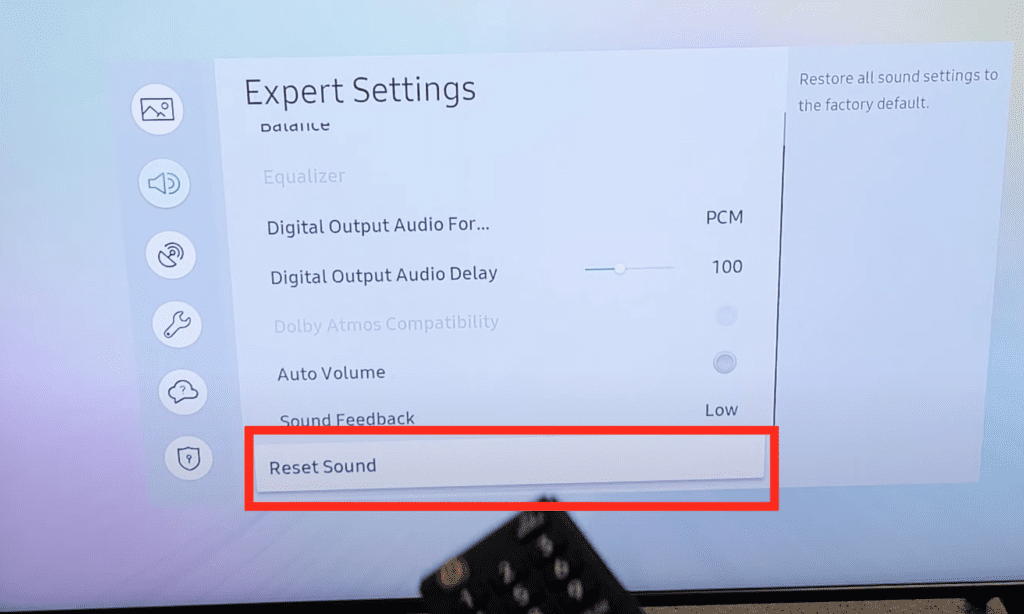
One of the quickest ways to resolve audio lags is to reset your TV’s sound settings. This hack will solve several issues, such as sound delays, echoing, and no audio.
Resetting sound settings is a fast and straightforward process.
Here are the steps:
Press the MENU/HOME button on your remote
Go to system settings
Navigate to advanced system settings
Go to sound settings
Select Reset TV audio/picture settings
Power Reset Your TV
Performing a power reset is an integral part of troubleshooting your TV. This simple process can help resolve various issues such as sound delays, freezing display, black screen, non-responsive remote control, and slow or buffering apps.
Before performing a power reset on your TV, turn it on and unplug all external USB devices.
You can power reset your TV using three different methods:
Method 1 – Power Reset By Unplugging Power Cable
Turn off your TV
Unplug the power cable from the wall outlet
Wait a full 60 seconds
Plug the power cable back directly to the wall outlet (avoid using an extension or power strip for now)
Disconnect and Reconnect Your TV to the Source Device
Several issues can cause sound delays on your TV, and one of the most overlooked is a bad connection.
A poor connection between your TV and source device, such as a cable box, Blu-ray Disc player, or DVD player, can cause out-of-sync audio issues.
Check if the cables connecting these devices are plugged securely and correctly. Disconnect all cables from your TV and source device and connect them back one by one.
If the issue remains unresolved, your cables might be faulty. Try replacing them with new ones.
Enable and Disable Game Mode Accordingly
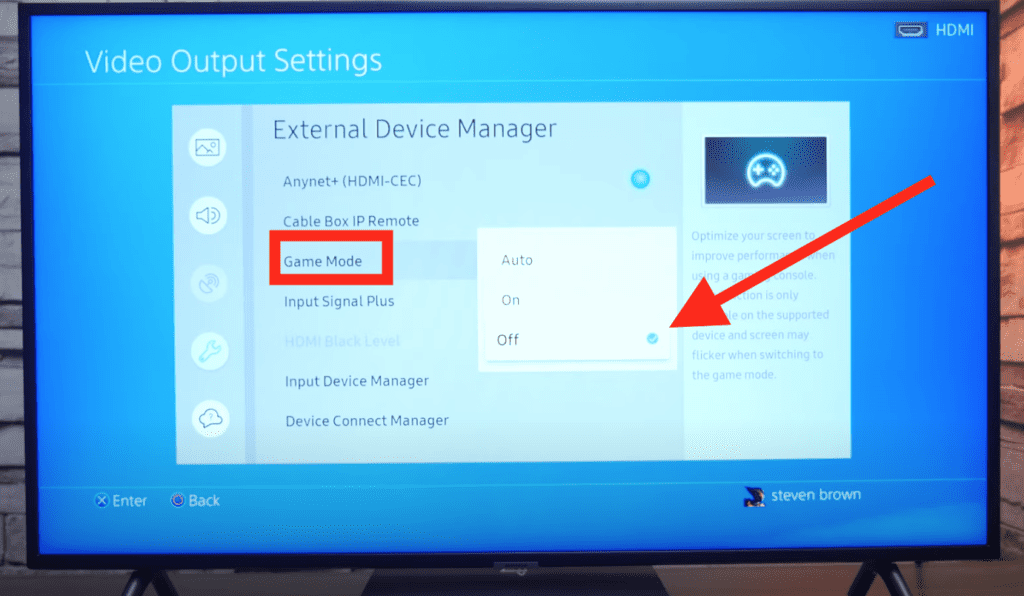
Most TVs come with a “Game Mode” feature that configures the TV to bypass several video processors, subsequently cutting down the time the TV needs to process video signals during gameplay.
Enabling Game Mode during gameplay can help reduce sound delays when playing video games. However, it would help if you disable Game Mode when watching TV or playing a Blu-Ray disc to avoid out-of-sync audio issues.
Here are the steps:
Turn on your TV
Press the HOME button on your remote control
Go to settings
Navigate to picture or picture adjustments
Select picture mode or special viewing mode
Enable or disable GAME MODE accordingly
Clear Cache
If you are experiencing sound delays on your TV because of a particular app such as Netflix or YouTube, consider clearing the cache.
A cache is a memory storage location in your TV that collects temporary data allowing apps to load faster.
Cached data can accumulate over time and fill up your TV’s memory, causing it to freeze and lead to other issues, including sound delays.
Clearing cache can help restore the functionality of your TV and prevent audio lags.
Here are the steps:
Turn on your TV
Press the HOME button on your remote control
Navigate to settings
Select Applications
Navigate to Manage Installed Applications
Select each app one by one and click “clear cache.”
Close Multiple Background Apps
Smart TVs come loaded with dozens of pre-installed applications. Some of these apps are useful, while others fill up space for no good reason.
When you boot your TV, you will notice that some apps will load automatically and run in the background.
Multiple apps running simultaneously in the background can cause your TV to freeze and develop sound delays. The quickest solution to this problem is closing apps that you do not need at the moment.
Here are the steps:
Press the HOME button on your remote control
Navigate to settings
Select Applications
Navigate to Manage Installed Applications
Select the app you want to stop and click “Force Stop.”
You should also consider deleting any and all apps that you don’t use, or plan to use. You can always add these back later!
Use An Alternative Streaming App
Sometimes, a sound delay on your TV might be caused by a particular app that you are using. If you are streaming content from an online source, you may experience audio lags because of issues with the app in question.
After confirming that the app is the source of your sound problems, consider downloading and installing an alternative streaming app.
Depending on your TV brand or model, you can find apps on Apple App Store, SmartCast, Google Play Store, etc.
Factory Reset Your TV
Factory resetting your TV will erase everything except pre-installed apps and leave your TV as new as how it came from the shop. That said, this step can help fix various issues, including sound delays.
Here are the steps:
Using your TV’s original remote control, press the “Home” button
Select “Settings” from the menu
Choose “Storage and Reset”
Select “Factory Data Reset”
Restart your TV
Update Your TV’s Firmware
If you’ve tried all the tips above and nothing seems to work, perhaps its time you update your TV’s firmware.
Manufacturers often release new updates to fix bugs and issues that affect their products. Updating your TV’s software might help resolve sound delays.
Here are the steps:
Connect your TV to the internet
Press the HOME/MENU button on your remote control
Navigate to settings and then system settings
Select Software Update/Firmware Update
The update process will begin if there are any new software versions
Conclusion
Sound delays and out-of-sync audio issues are common, so you shouldn’t fret much. Our tips above can help you resolve the problem as quickly as possible.
Here is a summary of what you can do to fix sound delay on TV:
Enable AV Sync Adjustment
Connect speakers directly to source device
Reset sound settings
Power reset TV
Swap TV and source device cables
Enable and disable game mode accordingly
Clear cache
Close background apps
Use alternative streaming app
Factory reset TV
Update TV firmware
Hopefully one of these fixes worked for you. Were you able to fix the sound delay on your TV? If so, let me know how in the comments below!
Michael Xavier Donovan, the visionary behind Good Home Automation, has dedicated a decade to elevating the tech world's standard, lending his expertise to some of the globe's most renowned products. Disturbed by the prevailing gaps in online tech troubleshooting, he founded Good Home Automation as an antidote to generic, often misleading advice. A Summa Cum Laude graduate from the University of Massachusetts Amherst, Michael's academic prowess is underpinned by numerous accolades, further cementing his commitment to excellence. Trust in his insights to steer you right when technology throws a curveball. Connect with Michael on LinkedIn