How To Download Apps on Samsung Smart TV (EASY!)
After you get your Samsung Smart TV set up, it’s time to add all your favorite apps!
Downloading a new app is easy. Here’s how…
How to Download Apps on Samsung Smart TV
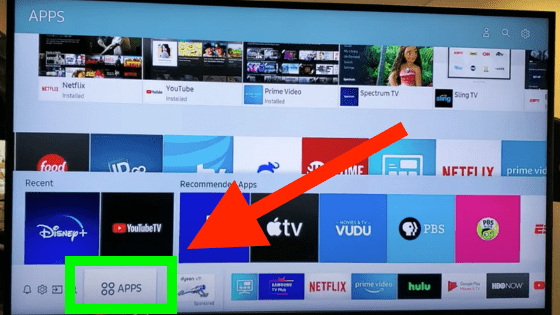
To download apps to your Samsung TV, click the “Smart Hub” (Home) button on your remote until you see a navigation bar appear at the bottom of your screen. Scroll left to “APPS” and click “Enter”. Navigate to the magnifying glass at the top right of the screen and search for your desired app. Click “Install”.
You will add most of the apps you wish to download through Samsung’s Smart Hub.
The Smart Hub is just Samsung’s built in entertainment platform. You can think of it as their own version of Roku or FireStick.
To access the SmartHub, start by clicking the Home button on your remote until you see a navigation bar appear along the bottom of your screen.
You may need to hit the Home button twice to get the navigation bar to appear!
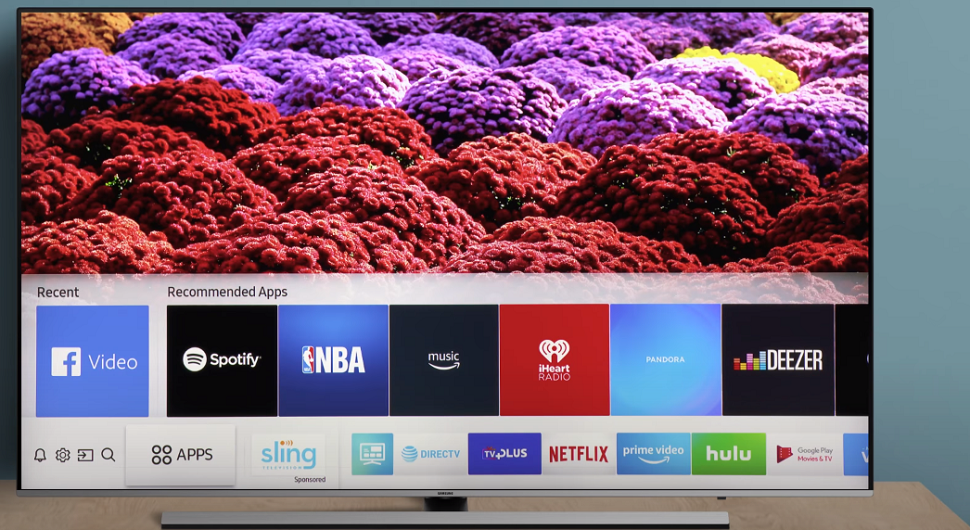
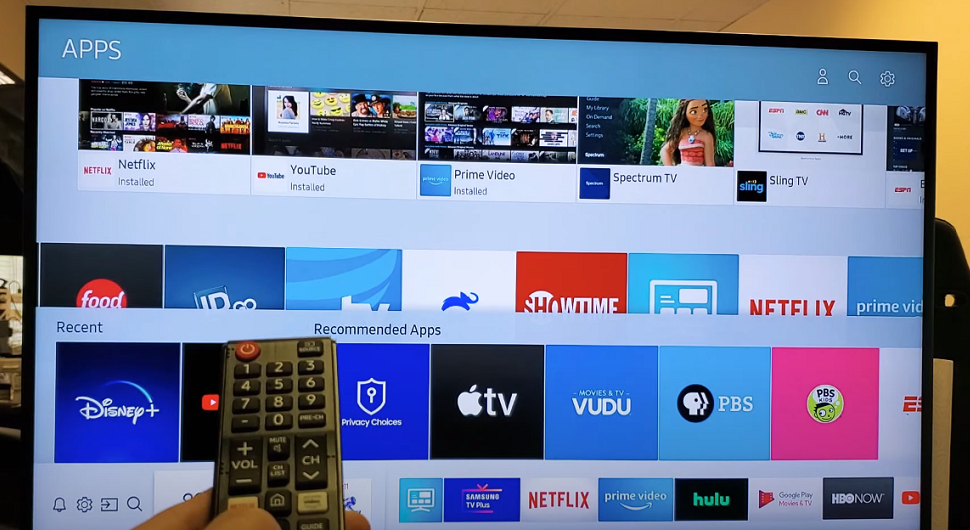
Once you see the navigation bar, scroll to the left until you see “APPS”. Hovering on “APPS” click “Enter” on your remote.
This will bring up the APPS page.
At the top right hand side of the APPS page you’ll see a magnifying class. Navigate up to that magnifying glass and click “Enter”.
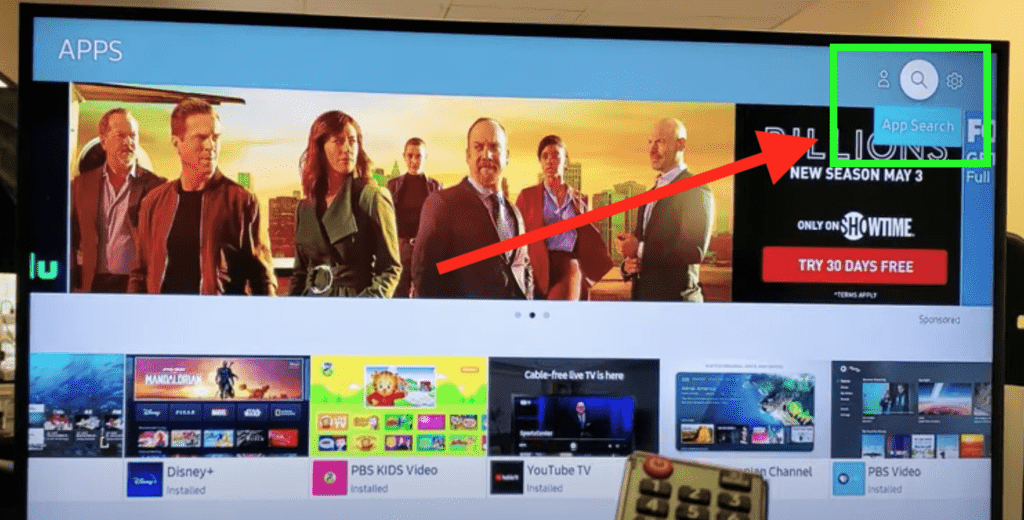
This will bring up a search bar. Type in the name of the app you’re looking for. You will then see a list of possible app options. Find the one you’re after, select it, and click “Install”.

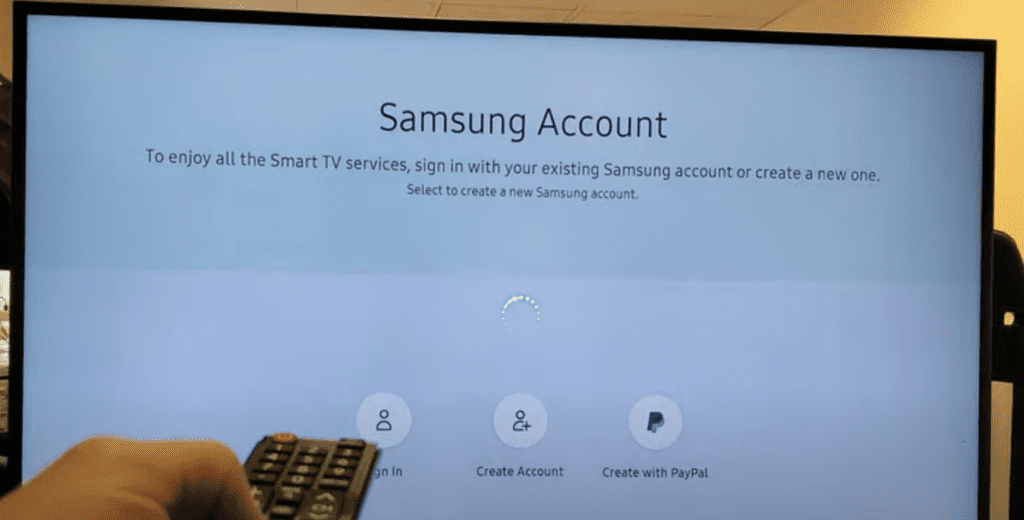
Note: If you haven’t already, you’ll need to set up a Samsung account before your install starts! This is pretty straight forward, just input some account details and you’ll be on your way. You’ll only have to do this once.
Your Samsung Smart TV will immediately begin the download. Once the download is complete, stay on the page and click “Add to Home” to add it to your home screen for quicker access.
Can’t Find App on Samsung TV
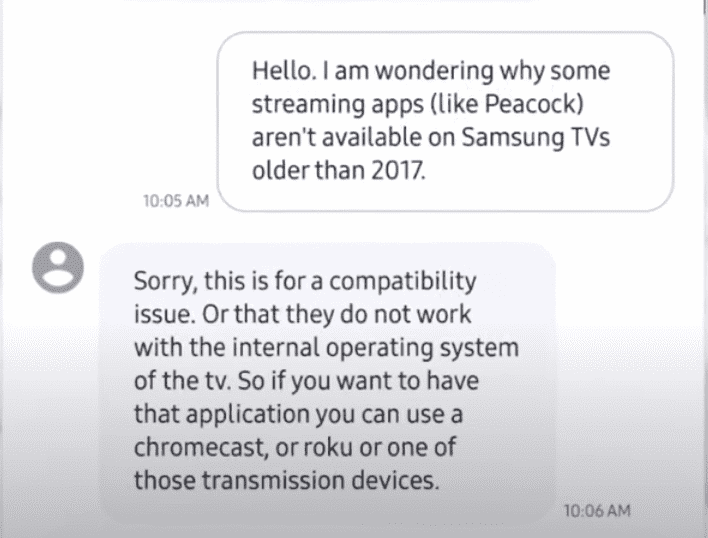
If you don’t see the app you’re looking for in the list, your TV may not be compatible with it – either it runs on a different operating system or your TV is simply too old to support it.
Samsung TVs that are 2017 or older are USUALLY not compatible with many apps! If that’s the case, Samsung support recommends you use a Chromecast, Roku or Firestick as a workaround.
These streaming sticks are a much cheaper option than buying a brand new TV!
Alternatively, it’s possible that the app you’re trying to download isn’t available in your country.
This is less common, but definitely a possibility. I’d check in with customer service team of the app in question if you have any doubts.
A List of Essential Samsung TV Apps
If you’re having trouble thinking of which apps to add to your Samsung TV, here are some of the more popular options!
- Samsung TV Plus: Access live-streamed video for no cost. While it may not have the diversity of some paid VOD services, it’s a great start and costs nothing.
- Hulu: An independent streamed video hub. You can choose between ad-supported, cheap AVOD tiers and an ad-free premium version. Many services are available through the Hulu hub.
- Streaming Services: Netflix, Disney+, Amazon Prime Video, and other premium streamers can be loaded to your Samsung Smart TV if you have a subscription.
- PLEX: Plex allows you to create a curated collection of your media on a private server and ‘stream’ it to your Smart TV.
- YouTube: YouTube has entered the streaming market with YouTube TV. So you can now access professional streaming options as well as the broader YouTube platform.
- Spotify or Audio Apps: If you enjoy music, a service like Spotify will let you stream millions of songs to your Smart TV hassle-free. Samsung Smart TVs made before 2015 will have to use Pandora.
- VUDU: VUDU allows you to ‘rent and watch’ individual titles instead of holding a streaming service subscription.
- TED: Access the famous ‘TED Talks’ on your Smart TV through this fun and informative app
Here’s the full list of all available Samsung Smart TV apps.
Troubleshooting Samsung Smart TV Apps
After you’ve successfully added your desired app to your Samsung Smart TV, you might run into some issues with the app not loading, freezing and/or buffering.
Here are two quick fixes to try in case you run into this.
Delete and Reinstall the App
If the app you installed to your Samsung Smart TV isn’t working, you’ll want to try reinstalling it.
Go to the Samsung TV Home screen and find the app that’s not working. From there, navigate to Apps and then select the Settings icon in the top right corner.
Once you’ve done that, select the app and then “Delete”. You’ll have to select Delete twice.
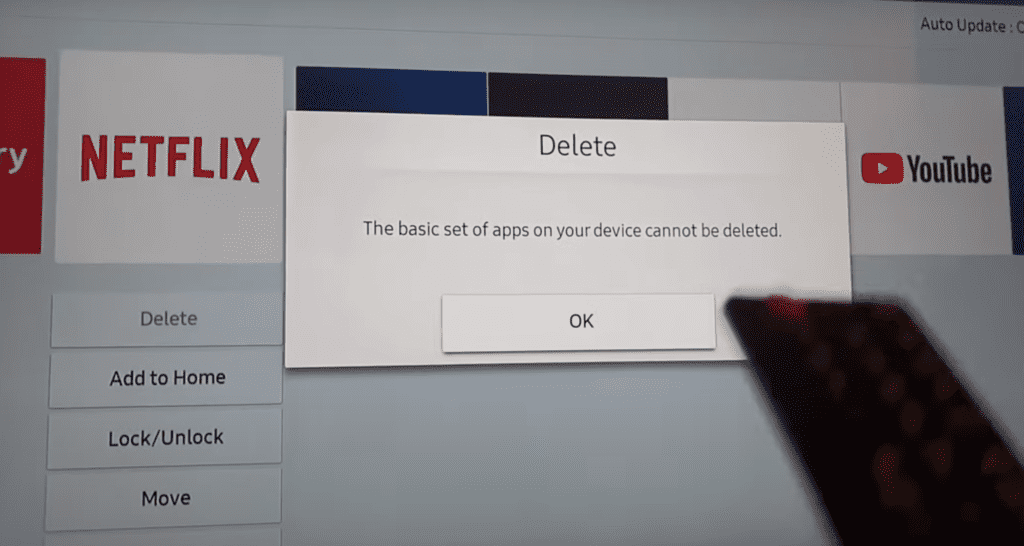
You should turn your Samsung TV off and on again afterward. From here, you simply go back to the Apps section and install the app again.
You’ll want to test it right away by playing some videos. Hopefully, this fix worked for you!
Removing old apps you no longer use regularly is a good idea. It saves space on the Smart TV and keeps the interface clean and clear for you.
(On older Smart TVs, this process can look slightly different. You may have the old nested ‘Apps- My Apps’ sequence to head through, or it may be named ‘Samsung Apps.’ Regardless, the process is similar and intuitive for all Samsung Smart TVs.)
If the app is still having issues loading and buffering, you’ll want to reset the Smart Hub.
Reset the Samsung Smart Hub
A Smart Hub reset removes all information from your account and returns the settings to their factory defaults.
To start click Settings on your remote. If you don’t have a Settings button you can press the Menu button instead.
Then go to Support and finally Self Diagnosis. You should see an option to Reset Smart Hub. Click on it.

You will be prompted to enter your TV’s PIN. This will be “0000” unless you set one previously. Once the PIN is entered, you will reset your TVs Smart Hub settings.
Now that your Smart Hub is reset, you need to reinstall and re-sign into the app.
Conclusion
Downloading a new app on your Samsung Smart TV is easy. Here’s how:
- Access the Smart Hub by clicking the Home button on your remote.
- On the lower navigation bar, scroll to the left until you see “APPS”.
- Hover on “APPS” and click “Enter” on your remote.
- At the top right hand side of the APPS page you’ll see a magnifying class.
- Navigate up to that magnifying glass and click “Enter”.
- This will bring up a search bar. Type in the name of the app you’re looking for.
- You will then see a list of possible app options. Find the one you’re after, select it, and click “Install”.
- You may be prompted to setup a Samsung account before your app will finish installing.
That’s it, your app is now ready for use.
If you can’t find an app in the Samsung Smart Hub, it’s probably because your TV is a 2017 or older and is not compatible with the desired app. As a work around you should consider buying a Chromecast, Roku or Firestick device.