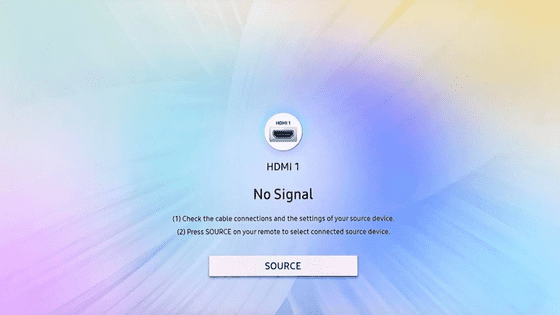
HDMI No Signal Samsung TV (PROVEN Fix!)
If you own a Samsung smart TV, and you have any external HDMI devices connected to it (like a soundbar or gaming console), you’ve probably run into the “HDMI No Signal” error.
While frustrating, this error is usually easy to solve. The most common solution sounds almost too obvious, but trust me, it works in about 80% of cases.
To fix the HDMI No Signal error on your Samsung TV, start by unplugging your TV. Next, press and hold the power button on your TV for 30 seconds. This helps drain any residual power and will hard reset your television. Wait another 30 seconds before plugging your TV back in.
When your Samsung TV eventually turns back on, the HDMI No Signal error should be gone.
Power-cycle your TV and HDMI devices
I know, I know. “Turn it off, and then turn it back on” is what everyone suggests. But there’s a reason this is such popular advice – it works!
The process of turning something off, and then back on again is referred to as “power-cycling”. I want you to start by power-cycling your television.
Unplug your TV from the wall. Once unplugged, press and hold the power button on the TV for 30 seconds.
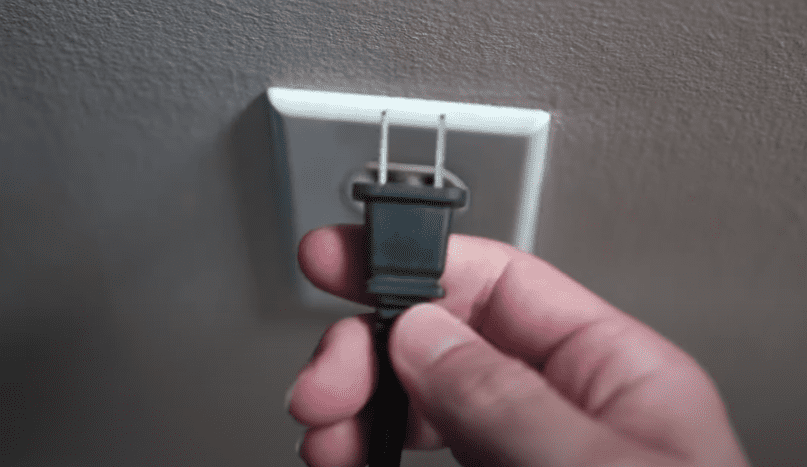
Make sure it’s the actual power button on the TV you’re pressing, and not the power button on your remote.
This helps drain your TV of any left over residual power that has built up in the television’s capacitors, resulting in a hard reset.
After 30 seconds have passed, release the power button.
Now unplug your HDMI connected device and wait 60 seconds. Plug your TV back in, followed by your HDMI device. When you turn your TV back on, you should no longer see the HDMI No Signal error.
Make sure your TV is on the correct input/source
If power-cycling your Samsung TV and HDMI connected device didn’t solve the problem, it’s time to double-check that you’re on the correct input/source.
This is yet another “obvious” troubleshooting step, but you’d be surprised how often simply switching over to the correct input solves this problem.
So just do me a favor and check which HDMI port your device is connected to on your TV. You can figure this out by looking at the HDMI port number on your television.
For example, in the picture below the HDMI device is connected to “HDMI #2”.
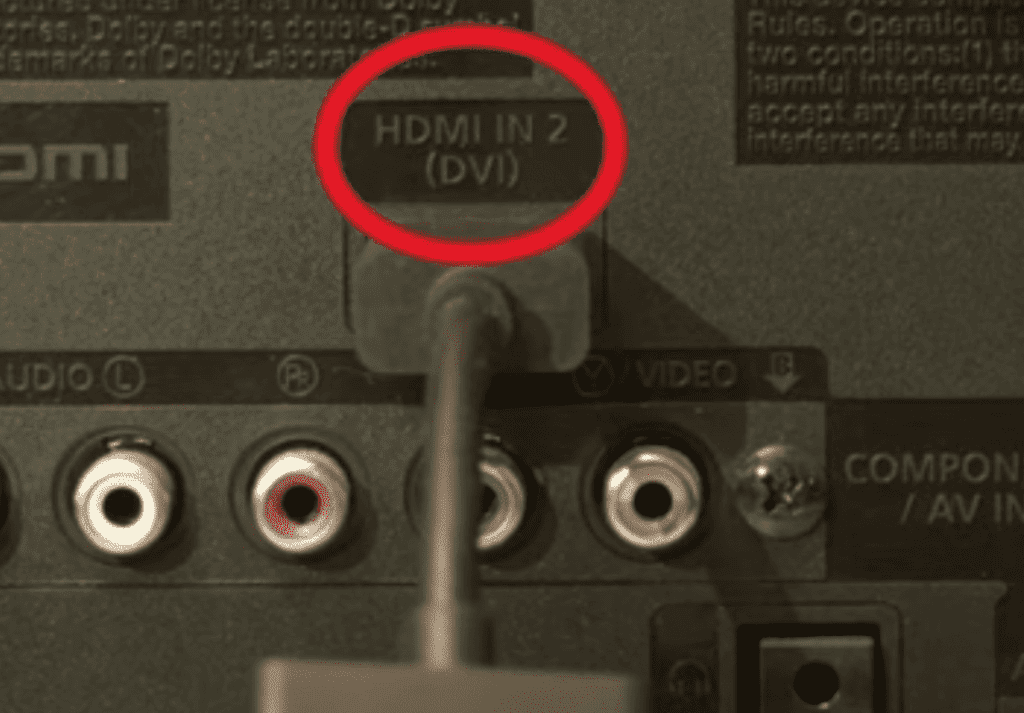
Now that you know which HDMI port you’re connected to, take your Samsung remote and press on the Input/Source button and make sure your TV is showing “HDMI 2”.
Update your TV’s firmware / software
Smart TV’s can get into trouble when they’re not running the latest firmware/software. To make sure your Samsung TV has the latest OS update, just check for new updates.
Start by navigating to Settings. Then click on Support, followed by Software Update. Finally make sure Auto Update is on.
If there is an “Update Now” option, select it.
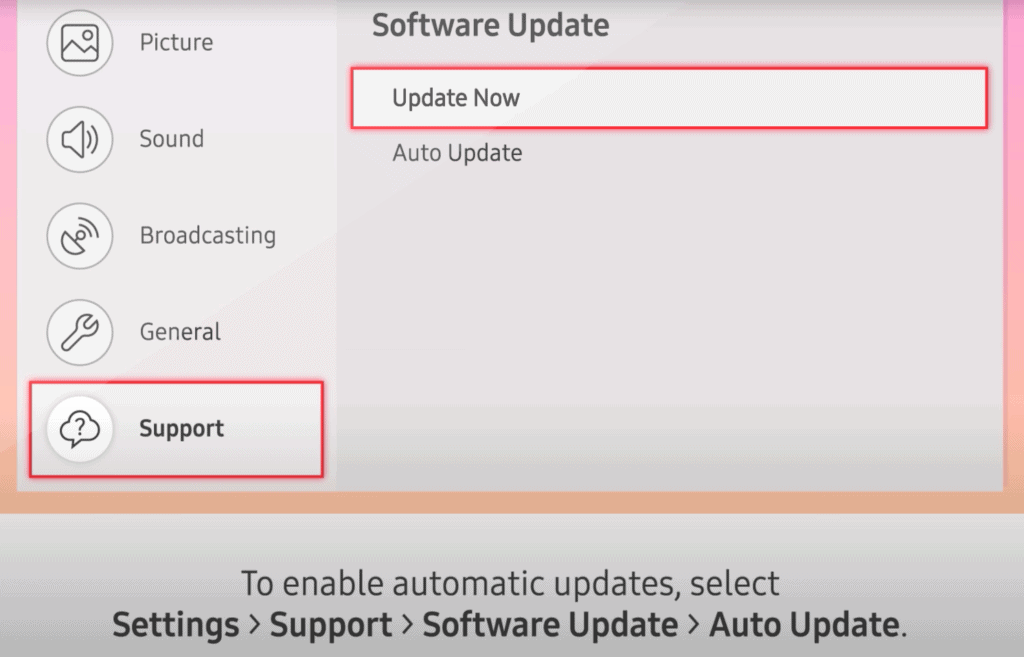
Now your Samsung TV should update automatically. If there was a new update available, it will likely take several minutes to fully install.
Going forward, just make sure that your TV is always running the latest software. This will make sure that it remains compatible with all HDMI connected devices.
Factory reset your TV
If you’ve made it to this point and you’re still seeing the HDMI No Signal message, it’s worth trying a factory reset.
A factory reset returns your TV to factory defaults. This means all your apps, settings and data will be deleted.
Factory resetting your Samsung TV is easy, just do the following:
- Press Home on your Samsung remote
- Navigate to Settings
- Then General
- And finally Reset
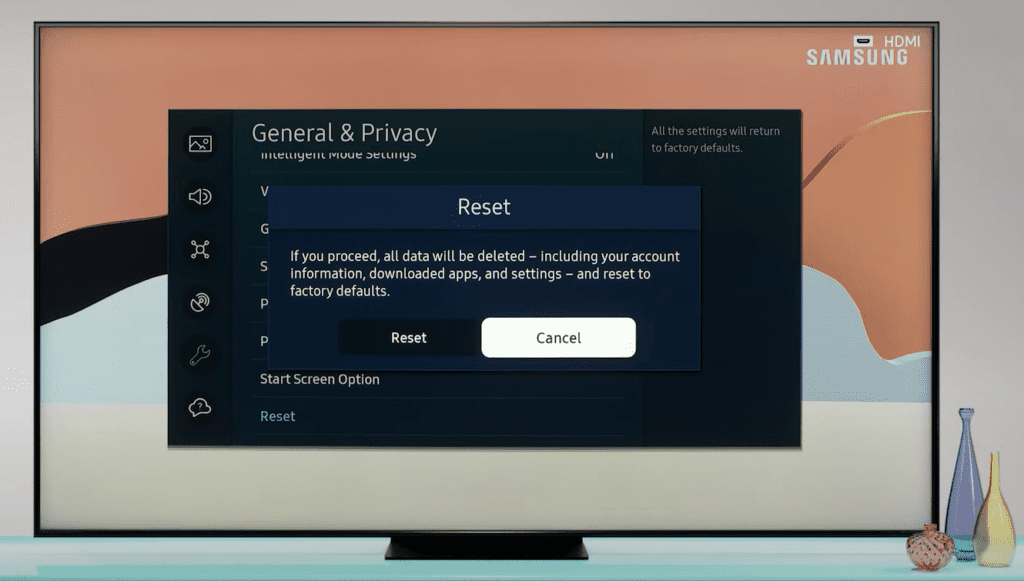
(If you have an older Samsung TV, you’ll go to Settings, Support, Self Diagnosis, Reset).
You’ll then be promoted to enter a PIN. If you have never set a PIN, the code should be “0000”. After you enter the PIN your Samsung TV will automatically turn off, and then back on.
The entire process can take a few minutes, but eventually the setup screen will appear and you’ll have to setup your TV like you did on the day you bought it.
Try using a different HDMI port
If the factory reset didn’t do the trick, try connecting your HDMI device to a different HDMI port on your Samsung TV.
With repeated use, HDMI ports can break, and eventually stop working altogether. By simply switching ports, you can quickly test if this is the cause of the error you’re seeing.
Just make sure after you change ports, you use your remote to toggle your TV to the correct HDMI input/source!
Try connecting a different HDMI device
If a new HDMI port still doesn’t solve your problem, there is a chance the HDMI device you’re trying to connect to your Samsung TV is the culprit.
An easy way to check is to disconnect the HDMI device you’re trying to use, and connect an entirely different HDMI device.
So for example, if you’re trying to connect a gaming console, disconnect it and try using your Blu-ray player instead.
If the Blu-ray player works, you know the issue is likely with your gaming console. But if the Blu-ray player doesn’t work either, read on.
Try using a new HDMI cable
I don’t want to go too far down the rabbit hole on this one, but just know that there is a lot more going on inside a modern HDMI cable than you think.
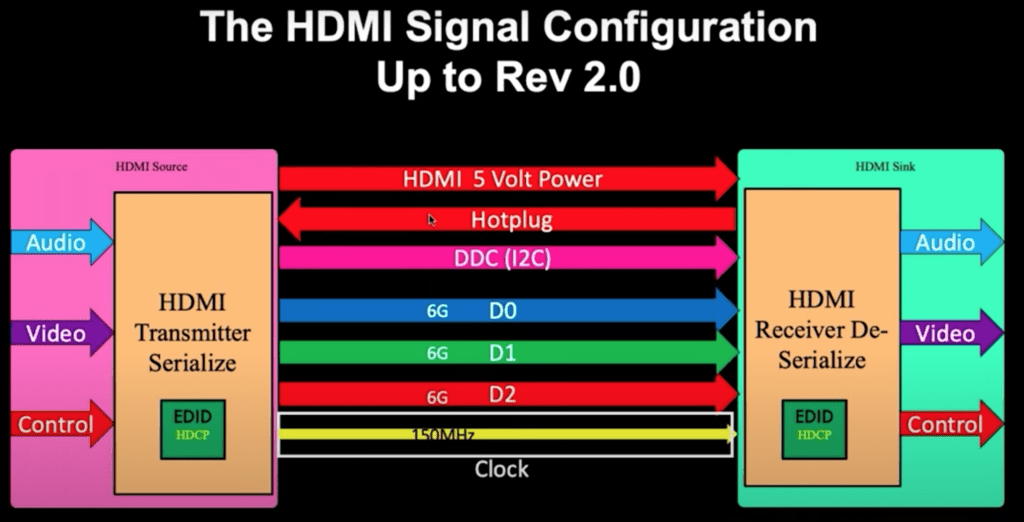
Which makes sense given quality demands have gone up considerably in recent years with 4K resolution TVs, 60 frames-per-second, Dolby Atmos audio, Next-gen gaming consoles, etc.
In the past, things were simpler. With fewer demands, there was more tolerance/room for error. HDMI cable failures weren’t very common. Sadly, that’s no longer the case.
The first thing you should do is see if you have a different HDMI cable lying around. If you do, try it in place of the cable you’ve been using so far. If the new cable works, great. If not, you should probably buy a new one.
By following the buying advice detailed below, you will reduce the risk of your new HDMI cable failing:
- Buy your HDMI cable from a reputable retailer so you can easily return it if it doesn’t work
- Make sure your cable is between 1-2 meters long. No shorter, no longer! Length impacts the copper density within the cable, and the sweet spot happens to be between 1-2m
- Make sure your HDMI cable is rated to handle at least 48Gbps
- And finally, buy a mid-priced HDMI cable. The really cheap ones are usually poor quality, and the really expensive ones are usually overkill
Problems with the TV’s main logic board
If you made it this far, there’s a good chance you have a hardware issue. Specifically, you probably have a problem with your TV’s main logic board.
The main logic board is also referred to as the logic board, motherboard, main panel, etc. It’s the circuit board that has all the visual and audio inputs and outputs (including the HDMI ports!).
There are three common issues with the main logic board that cause the “HDMI No Signal” error on a Samsung TV:
- A bad IC (integrated circuit) chip
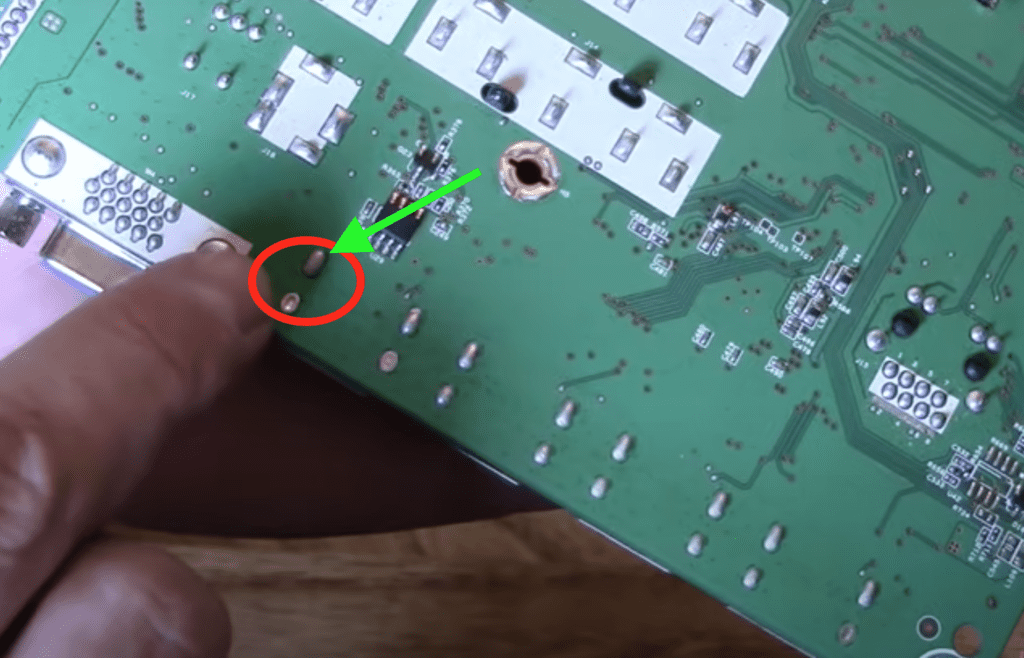
- Broken soldering pins below the HDMI ports
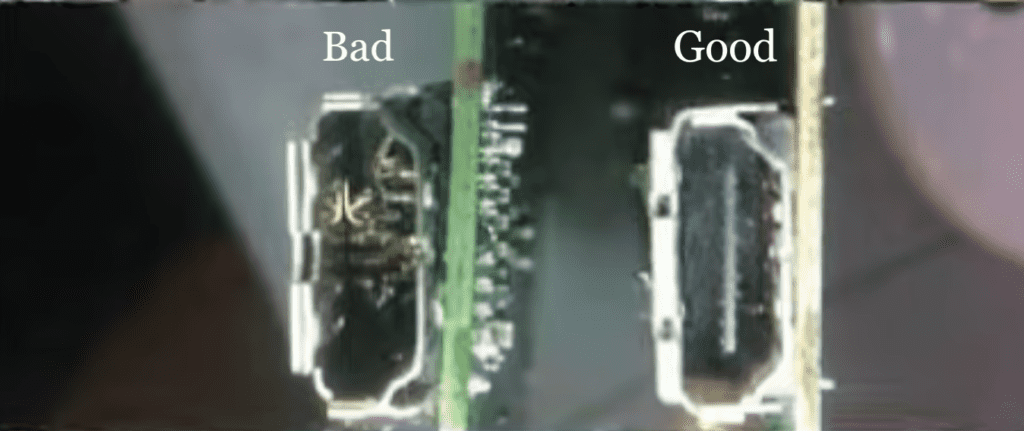
- Broken HDMI ports
You can identify a bad IC chip by discoloration or burn marks. Unfortunately these chips are very difficult to replace given the amount of soldering points holding them in place.
You also need the right tools and, those tools can be expensive. If your IC chip is noticeably bad, I’d just buy a whole new main logic board.
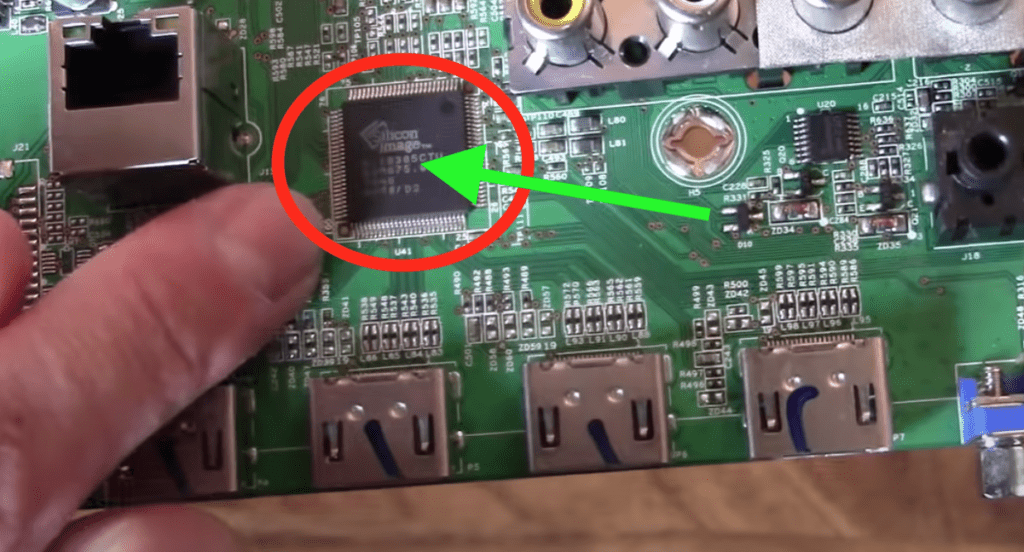
Alternatively, your issue may be caused by broken soldering pins below the HDMI ports, on the underside of the main logic board. If these pins are loose or broken, the corresponding HDMI port won’t work properly.
Finally, the HDMI ports themselves may be damaged. You can check by flashing a light inside and taking a close look.
Replacing an HDMI port is very tricky as there are lots of soldering connections holding them in place. Once again, you’re probably better off replacing the entire board.
Conclusion
To fix HDMI No Signal on your Samsung TV, do the following:
- Power-cycle your TV and HDMI devices
- Make sure your TV is on the correct input/source
- Update your TV’s firmware / software
- Factory reset your TV
- Try using a different HDMI port
- Try connecting a different HDMI device
- Try using a new HDMI cable
If none of these troubleshooting steps work, you might have a hardware issue. Specifically, your main logic board is likely broken.