Oculus (Meta) Quest 2 Won’t Turn On (Easy Fix)
If you paid big money for an Oculus (Meta) Quest 2, and it won’t turn on, don’t panic.
There are a few easy steps you can take to get power back, so you can get back to enjoying whatever immersive experience you were having.
If you try each and every one of these solutions, I am extremely confident one of them will work for you.
Oculus (Meta) Quest 2 Won’t Turn On
If your Oculus Quest 2 won’t turn on, you need to reboot it. Start by pressing and holding the power and the volume down buttons at the same time until your Quest turns ON. Then use the volume button on your headset to navigate to “Boot device”. Finally, press the power button.
Your headset will boot itself and it should turn back on!
Soft reset / boot device
The very first thing you should do whenever your Oculus (Meta) Quest 2 won’t turn on, is a soft reset. A soft reset (aka “boot” or “reboot”) essentially just turns your device off and then on again.
This is a great first troubleshooting step because it quick and it doesn’t delete any data from your Quest – you won’t lose any information doing this.
Here is how to perform a soft reset of your Quest 2.
Step 1: Make sure your Quest 2 headset is OFF and then press and hold the power button and the volume down button simultaneously until you see your Oculus Meta Quest 2 turn ON.
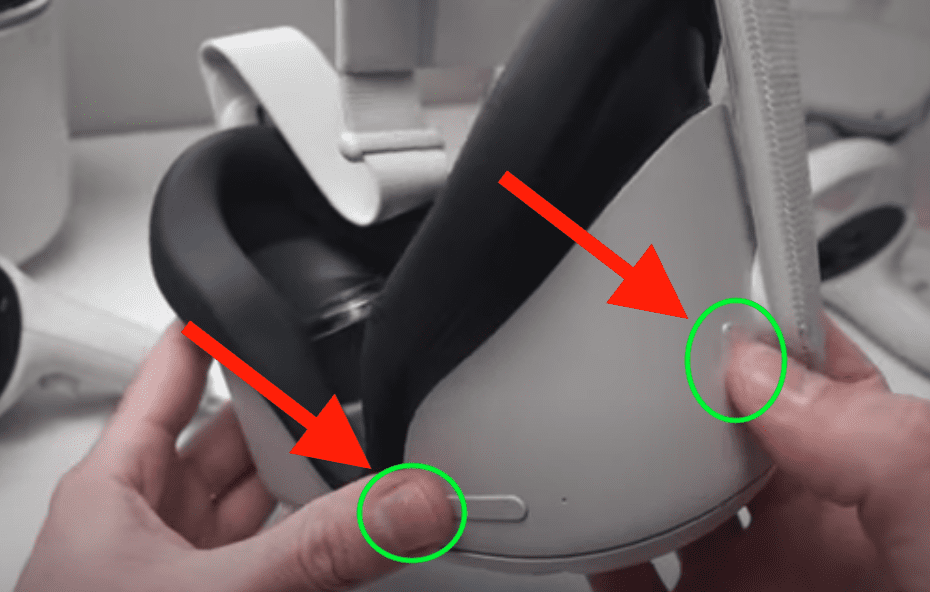
Step 2: Once you’ve entered “USB Update Mode” press the volume down button to toggle. Keep hitting volume down until you land on “Boot Device” then press the power button to select it.
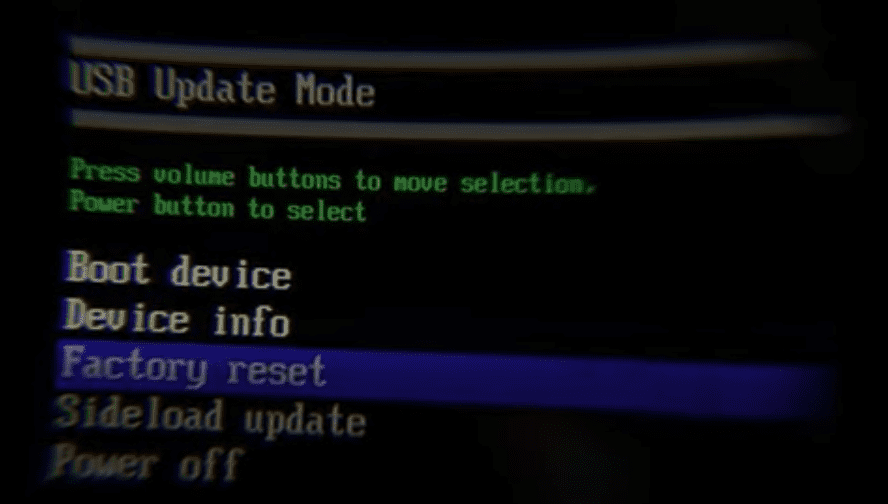
Your Quest 2 headset should show the Oculus Meta logo as your device reboots.
Hopefully this fixed your problem.
Review charging process and charging cable
Charging is one of the more common causes of a Oculus (Meta) Quest 2 not turning on.
First, attempt to charge your Quest 2 headset for 2 full hours. While it’s charging, just make sure the LED light on the side of your headset is either orange or green.
If it’s not, this is a clear sign that your headset isn’t charging properly!
After 2 full hours of charging, if your Quest 2 won’t turn on, it’s time to try a different USB-C to USB-C charging cable. Use a Meta brand charging cable if you can!
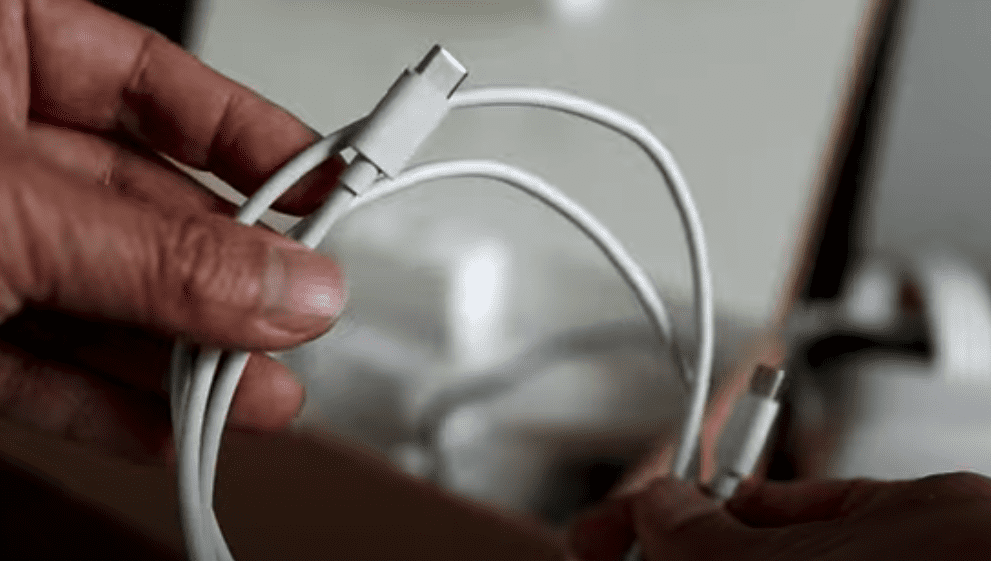
Sometimes these charging cables are made by third parties who don’t build them with the correct specs. If your charging cable doesn’t allow for the correct amps/wattage, you may not be properly charging your Quest 2.
If a new cable didn’t do the trick, try charging from a different outlet or source (like a PC or Mac).
Finally, here are a few additional charging best practices you should follow to ensure your Quest 2 turns on in the future:
- Try to avoid charging your headset while it’s in use
- Turn your headset off or put it to sleep when it’s not being charged
- If you used your headset for an extended period of time, wait 30 minutes before charging it
Check proximity sensor
In the middle of your Quest 2 headset, in between the lenses, is a small circular “proximity sensor”.
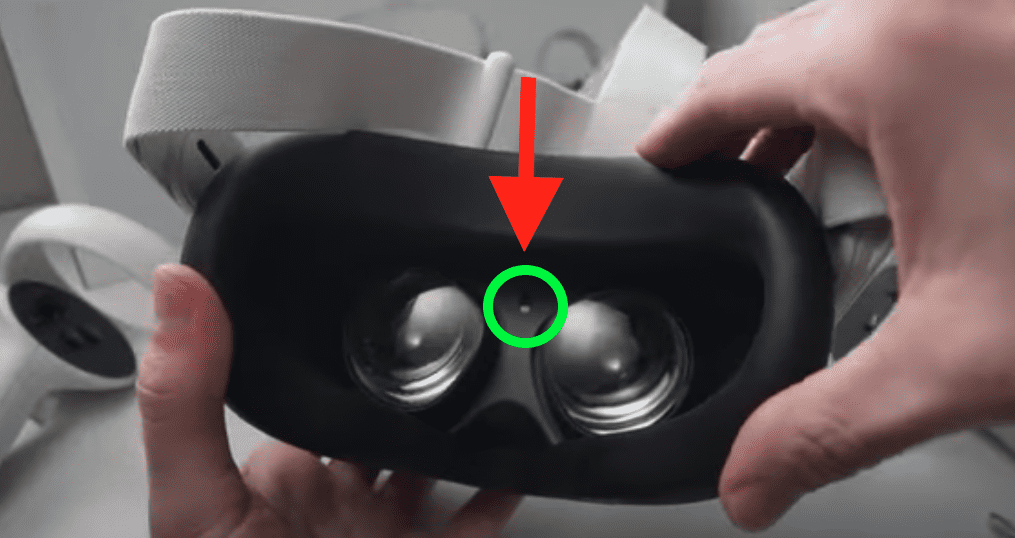
This proximity sensor helps detect how far away your face is from the headset – it’s how your Quest 2 detects whether or not it’s on your head.
A few issues can arise with this sensor, causing your Oculus (Meta) Quest 2 to not turn on.
The first is when the padding from around the headset, or a separate facial interface accessory blocks this sensor during use. When the proximity sensor gets blocked, your Quest 2 might not recognize it’s on your head, causing it to not turn on.
The second issue occurs when this sensor is blocked during charging. This can actually trigger your Quest 2 to remain on during charging. This will drain your battery, and your headset may not charge at all.
So just make sure this sensor isn’t covered or obstructed in any way, even during charging!
Factory reset Quest 2
If you’ve gotten to this point, and none of the troubleshooting steps above helped, it’s time to factory reset your Quest 2.
Keep in mind that you cannot undo a factory reset. It will remove all your account information, downloaded games and content from the headset itself.
That said, any content you’ve purchased or downloaded from your account will not be removed.
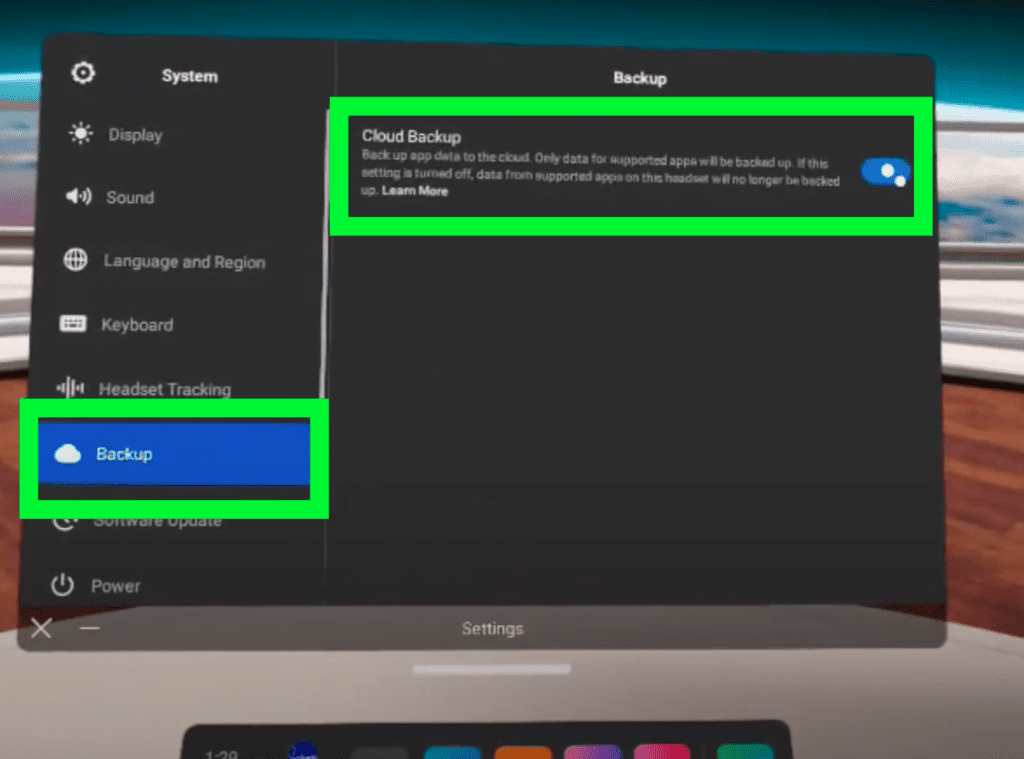
Before you initiate the reset process, I highly recommend you ensure that Cloud Backup is turned on. Cloud Backup ensures that your Quest 2 in-game progress and settings are saved for all cloud enabled apps.
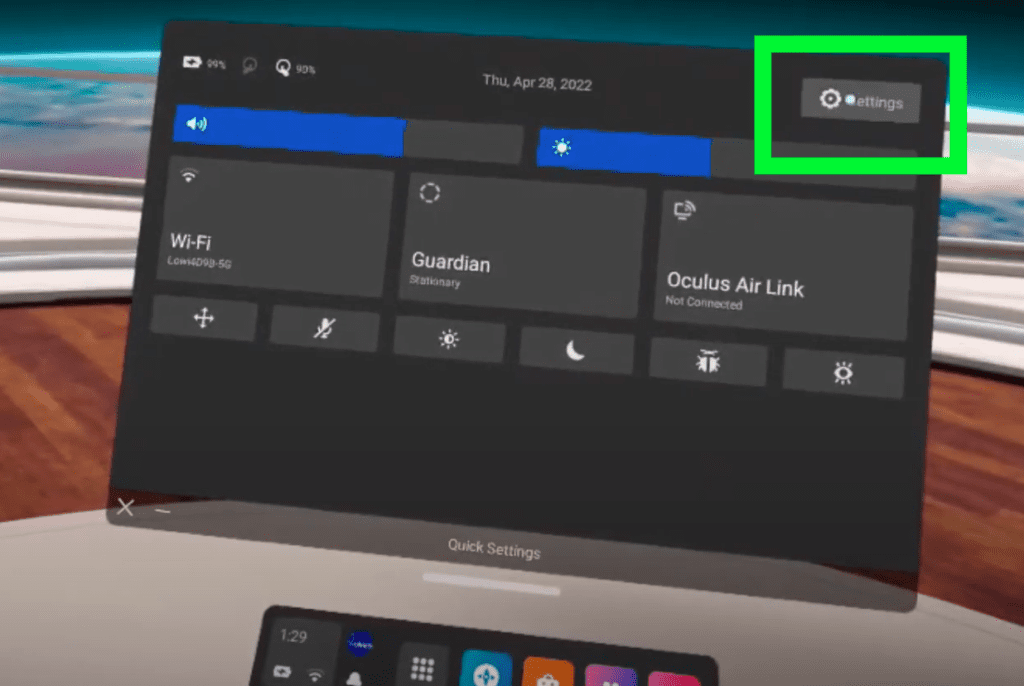
Step 1: To turn on Cloud Backup put on your headset and then hover of the clock on the left-hand side (Quick Settings).
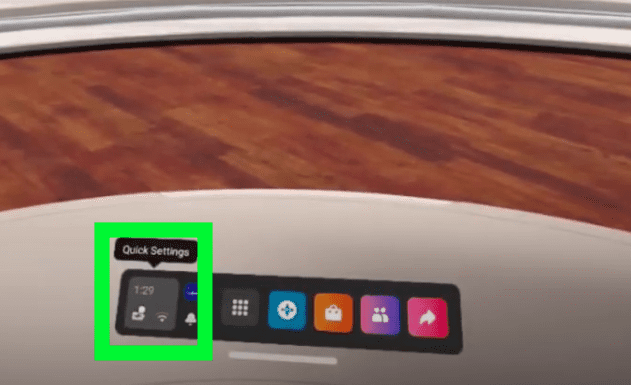
Step 2: Then go to Settings.
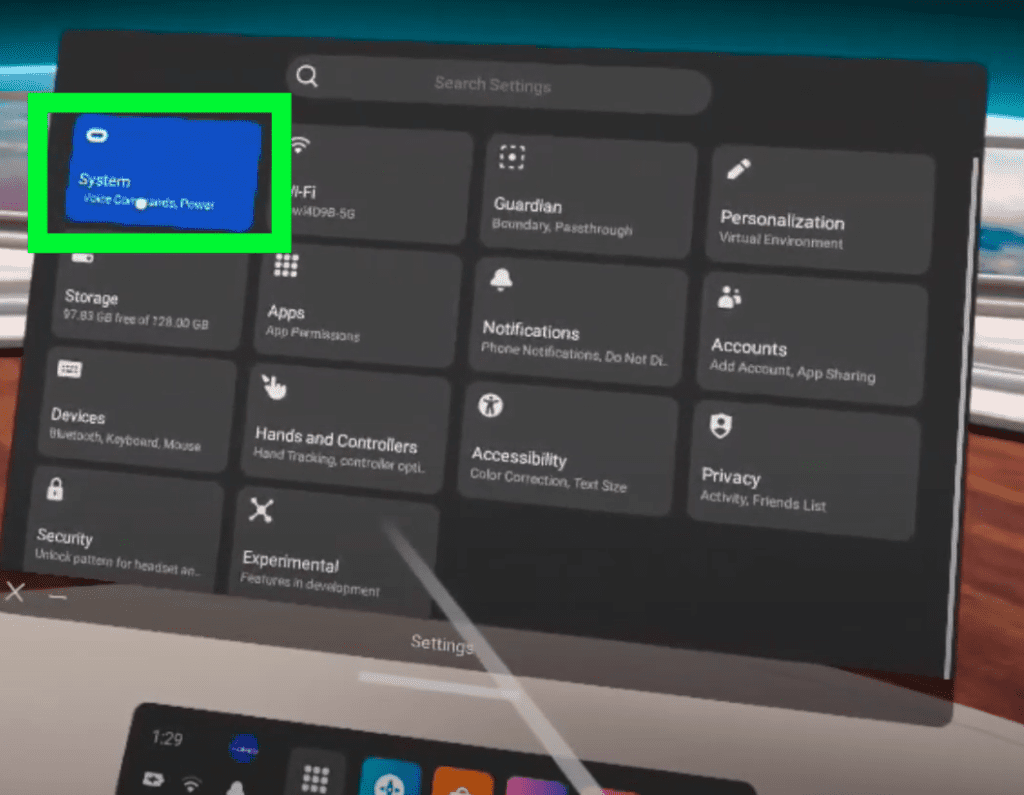
Step 3: Select System.
Step 4: And then Backup. Check and make sure Cloud Backup is enabled!
Ok, now that we’ve enabled Cloud Backup for your Quest 2, let’s start the factory reset process.
Step 1: Make sure your Quest 2 headset is OFF and then press and hold the power button and the volume down button simultaneously until you see your Oculus Meta Quest 2 turn ON.
Step 2: Once you’ve entered “USB Update Mode” press the volume down button to toggle. Keep hitting volume down until you land on “Factory reset” then press the power button to select it.
Step 3: Finally, press the volume down button to toggle to “Yes, erase and factory reset” then press the power button to select it.
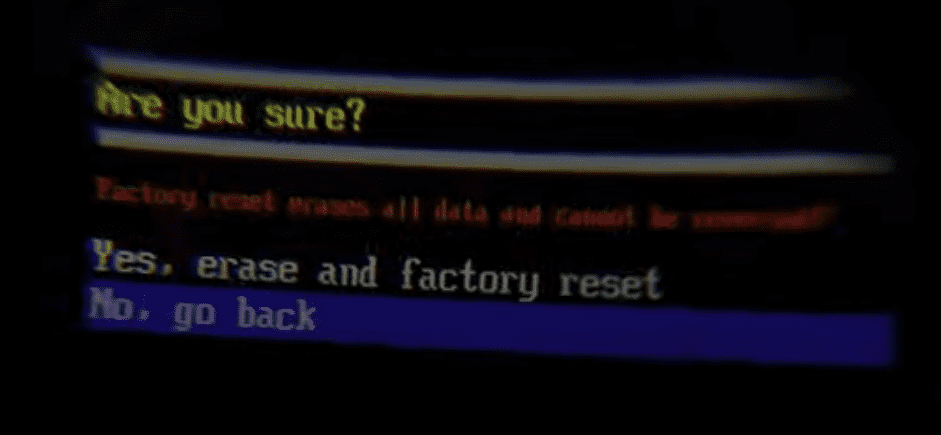
This will begin the factory reset process of your Oculus Meta Quest 2. All of your data will be erased. Once the reset is complete, your Quest 2 will be like the day you bought it!
Keep in mind that you cannot undo a factory reset. It will remove all your account information, downloaded games and content from the headset itself.
That said, any content you’ve purchased or downloaded from your account will not be removed.
NOTE: If you’re Quest 2 won’t turn on after a factory reset, try hold down the power button for 30 seconds.
Contact Meta Support
Hopefully one of the above troubleshooting steps was able to get your Oculus (Meta) Quest 2 to turn on again.
If not, I suggest reaching out to Meta’s support team. They can be reached directly via chat, email, or phone.
Just follow this support link: https://www.meta.com/help/quest/

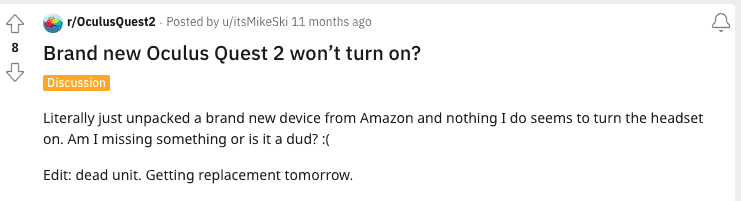
NOTE: On very rare occasion, a new Oculus Quest 2 won’t turn on because the unit is dead. This can happen for a number of different reasons, but regardless of the cause, Meta support should still be able to help you out.
Conclusion
If your Oculus (Meta) Quest 2 won’t turn on, try the following:
- Soft reset/boot your Quest headset
- Charge your headset for 2 full hours
- Try a different USB-C to USB-C charging cable (use a Meta brand charger!)
- Try charging from a different outlet or source (like a PC or a Mac)
- Check the proximity sensor and make sure it isn’t obstructed in any way
- Factory reset your Quest 2
If none of these fixes worked for you, I suggest contacting Meta support directly!