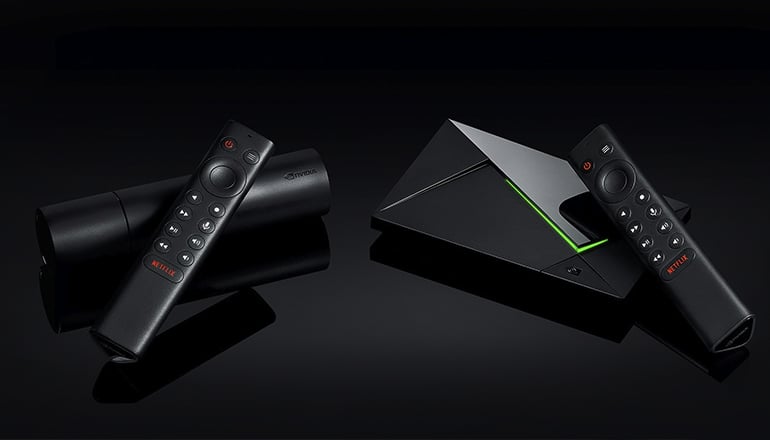
How to Integrate the Nvidia Shield with Your Smart Home
Nvidia Shield is a top player in smart home tech. It’s really good for streaming video games and managing other smart gadgets.
The Shield works well with both Google services and Amazon Alexa. This feature gives it that extra tech edge. It can handle tasks like adjusting Philips Hue lights and Nest thermostats. It can connect to multiple devices across different platforms. It also has a Tegra X1+ processor, which makes its connectivity much better. This not only supports streaming but also smart home control.
So, can Nvidia Shield become the best hub for your smart home? It certainly can, with the help of a performance-boosting Samsung SmartThings Link. This device can make your Shield work even better. It will ensure smooth communication with all your smart home devices. We’ll also guide you on setting it up and using it in your smart home setup.
We’ll discuss how Nvidia Shield can improve your smart home automation!
Nvidia Shield’s Smart Home Capabilities
The NVIDIA Shield TV serves as both a streaming gadget and a smart home central command, offering a large number of capabilities to manage different devices and platforms. One main characteristic of the NVIDIA Shield is that it allows it to control a variety of smart home devices compatible with Google’s ecosystem, thanks to its built-in Google Assistant. From controlling lights to adjusting thermostats and interacting with other devices from brand names like Philips Hue, Nest, TP-Link, and more – that’s all doable.
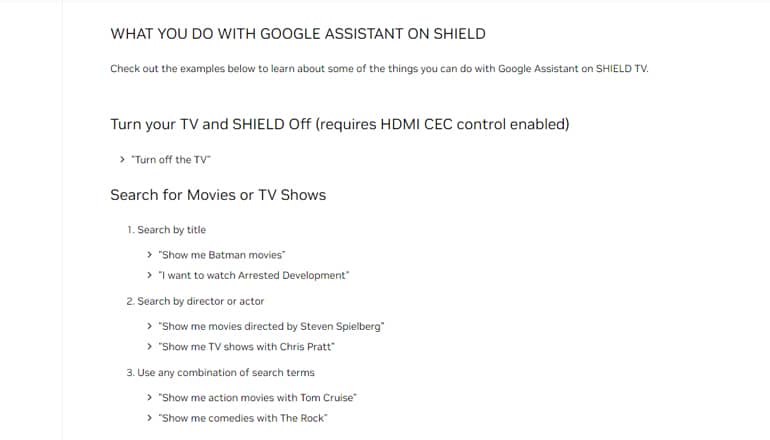
Content sharing on various screens in your home is also simplified thanks to casting to Chromecast-enabled devices.
With the Shield’s compatibility with Google Home and Google Nest devices, it slots right into the Google smart home ecosystem. Want to view Nest camera feeds on your TV, adjust Nest thermostats, or respond to your Nest Hello doorbell? You can do that with your Shield. It doesn’t stop with Google Assistant – NVIDIA Shield is Amazon Alexa compatible. This compatibility basically lets you manage your Shield using an Amazon Echo or another Alexa-enabled device, from launching apps to playing music or managing playback.
Let’s move on to hardware. The NVIDIA Shield stands out due to its high-performing Tegra X1+ processor. It serves multiple purposes, from top-notch streaming and gaming to providing advanced smart home features. You also get plenty of connection options with an HDMI port, two USB ports, and an Ethernet port.
Why would someone choose the NVIDIA Shield over other smart video players for smart home management and functionality? This device integrates well with Google and Amazon ecosystems, boasts robust hardware, and serves as a smart home command center. Although several streaming devices provide some smart home control, the Shield’s comprehensive set of capabilities sets it apart.
Its ability to play games sets the Shield apart as well. Users can stream games from their PC or play Android games. These features, coupled with its smart home capabilities, make the NVIDIA Shield a necessary addition to any smart home setup.
First Ensure That Your Nvidia Shield Software is Up-to-Date
Updating your Nvidia Shield is pretty straightforward and important for keeping your smart home working properly. Let’s walk you through how to do it and why it’s so important.
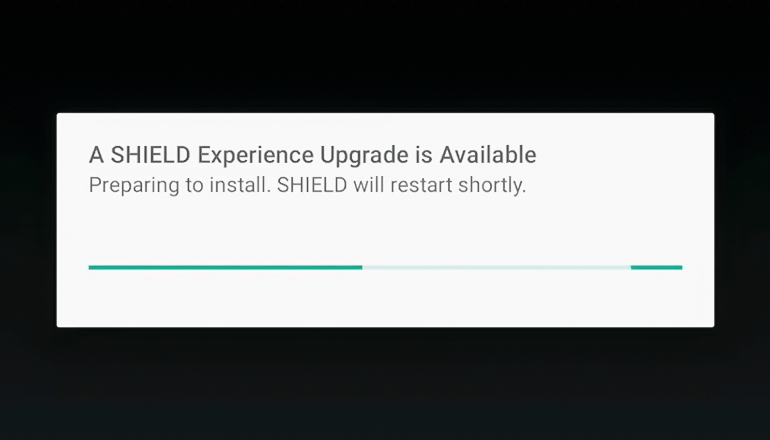
Start the update process by going to the “Settings” menu from your Shield home screen. When you’re there, it’s as easy as scrolling down to find and select the “About” option. Right below that, you’ll find the “System Upgrade.” Clicking on it will bring up the “Install now” option – but only if an update is ready for download and installation. Once the download and installation are done, your Shield will restart on its own.
Regularly updating your Shield is really important for a few reasons.
Each update usually comes with new security patches to strengthen your device. This becomes especially important when you’ve got many different types of devices in your network – each one can potentially become a weak point in your security.
Updates often improve your device’s performance. An up-to-date Nvidia Shield is a perfectly tuned device that improves your smart home experience, making your viewing and gaming sessions even better.
Nvidia includes new features and new capabilities in every update. Whether it’s getting your Shield to work well with a new smart home device or improving its voice control or gaming features – updates take care of it all. By keeping your Shield updated, you’re making sure you’re not missing out on anything.
Regular updates allow your Shield to get rid of any bugs that might have snuck into previous software versions. This way, bugs are fixed regularly, making your user experience smoother and more reliable.
If you’re using your Shield as the main hub for your other smart devices, updates are essential for smooth collaboration. Device manufacturers update their devices constantly, and it’s important for your Shield to keep up with these changes to maintain smooth operation.
Acquire a Samsung SmartThings Link
To turn your Nvidia Shield into a powerful home control center, you need a Samsung SmartThings Link. It allows you to connect all your devices smoothly.
Getting this small device needs some searching. Online marketplaces, like eBay or Amazon, could have it from third-party sellers. Make sure to choose a seller with positive reviews to avoid faulty products.
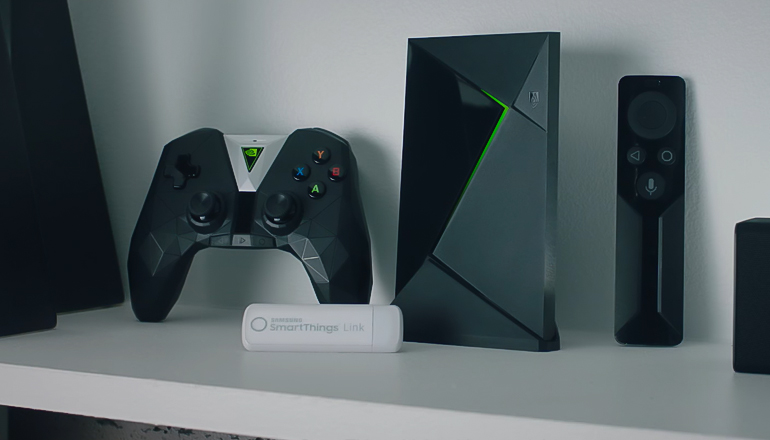
The Samsung SmartThings Link is worth the effort. It changes your Nvidia Shield from simply a streaming tool to a central hub for your smart home. It controls lights, thermostats, cameras, and more from your couch’s comfort. Plus, it connects with many devices through Zigbee and Z-Wave.
Investing in this device means both ease and safety. Using trusted brands like Samsung and Nvidia will ensure reliability. Setting everything up results in a smooth-running smart home, making everyday life easier.
Finding a vendor may take some time. Best Buy and other electronics stores might have it, both online and in-store.
If you can’t find it now, consider buying a used one. Be sure to check if it will work with your devices to avoid future problems.
How to Connect Your SmartThings Link
If you’ve got a Samsung SmartThings Link and an Nvidia Shield, you’re sitting on a goldmine of smart home potential. Connecting these two is pretty easy—if you know the steps.
The first thing is pretty straightforward: plug that little SmartThings Link directly into a USB port on your Nvidia Shield. You’ll want this connection snug and secure because nobody likes their smart home going dark due to loose cables.
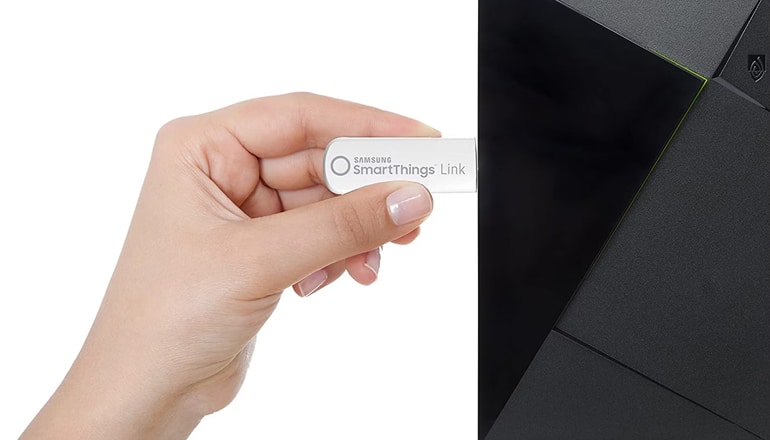
Once connected, the magic begins—your Shield will recognize its new buddy and show some prompts on-screen. Follow them like breadcrumbs leading you out of the forest, or in this case, towards smarter living.
Your TV screen should now display an invitation from your Nvidia Shield—a welcome party for your new device. Hit “Accept,” then sit back, although they get acquainted through what I like to call the “digital handshake.” The next process will guide you through every step without any hocus pocus involved.
You might need to navigate some settings menus next. Think of it as setting up rules for house guests—but these are digital ones that’ll make life easier instead of drinking all your soda. If prompted by setup options or permission requests, give them the green light with confidence since this helps customize things just right for you.
Keep in mind that good connections go both ways. With everything plugged in properly and permissions granted lovingly by yourself—the host extraordinaire—you’ve officially welcomed SmartThings into the heart (and HDMI ports) of your home entertainment system.
Pairing SmartThings Link with Nvidia Shield
Plugging the SmartThings Link into your Nvidia Shield’s available USB port ignites the process. It’s like starting a friendly handshake. The Samsung support page can be your guide if you need help.
Downloading the “SmartThings” app from the Google Play Store onto your Shield is the next step. It will help your devices get along.
Next, involve your phone. Download the same app onto your phone. Then, you can manage your devices from wherever is most convenient, whether it’s your phone or the Shield.
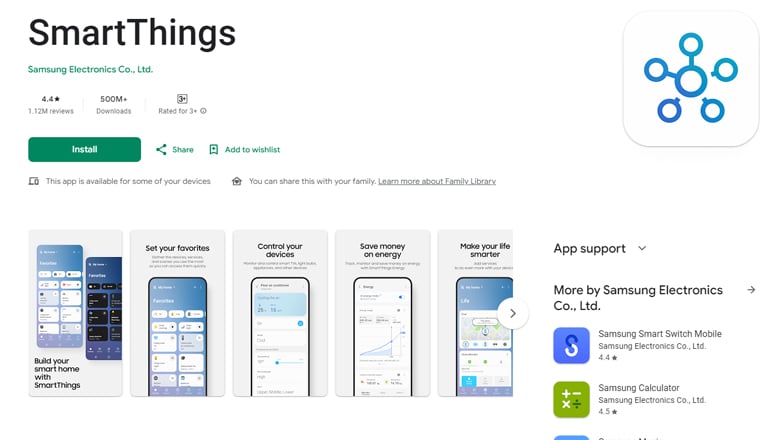
Now it’s time for action. Open the SmartThings app on both devices. The app on your phone will take the lead. Log in or sign up if you’re new.
Now, you should add a device using the app. It’s like asking the gadgets to become best friends. Following the app’s guide will have them working together in no time.
Glitches or connection issues can sometimes happen during the initial setup. Simple steps (such as ensuring everything is powered up or restarting stubborn apps and gadgets) can often solve them. The SmartThing’s help center can provide extra assistance if necessary.
Note: A reboot may quickly rectify an issue. This solution may restore peace and functionality faster than the time it takes to say “smart home” three times.
Overview of Integrated Gadgets Usage
The Nvidia Shield serves as more than a robust machine for streaming. This highly adaptable device also encapsulates your smart home devices. Envision the possibilities of managing your lighting controls, setting the temperature, or even starting your coffee maker. All these functions are made possible by the same tool you use for long sessions of viewing your preferred television shows.
You can sync smart bulbs from brands like Philips Hue directly to your Shield through SmartThings Link. Say goodbye to fumbling for light switches in the dark—just tell your Shield what lighting scene suits your mood. But there’s more than convenience at play here; setting up schedules can mimic occupancy when you’re away, potentially deterring uninvited guests.
Think about adjusting lights slowly as the day ends or altering colors to match the rhythm of spontaneous dancing occasions – you can do it all.
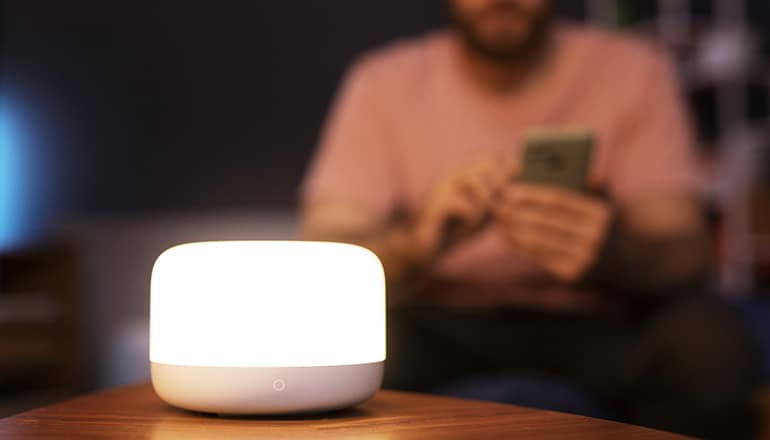
Your comfy movie evenings got smarter with thermostat integration. Devices such as the Nest Thermostat learn your preferences and adjust accordingly. Partner this with Nvidia Shield, and voila, you gain voice control over your house’s warmth without leaving the comfort of your chosen relaxation spot. Don’t put your action movie on hold because you need to increase the heat; just tell your Google-enabled Nvidia Shield, “Hey Google, make it warmer,” and presto, the heat increases without any interruption to your viewing.
Keep in mind the time when we relied on special monitors for security cameras. With the SmartThings Link, you can watch live feeds on your TV via Nvidia Shield, and this includes footage from doorbell cameras. This technology allows you to catch the arrival of packages or check who’s at the door, even when you’re engrossed in virtual reality gaming.
Not only does this offer safety and convenience, but you also get to monitor different areas at the same time, something that’s often missing from traditional systems unless they’re top-of-the-line models.
By making use of easy integrations between Samsung SmartThings Link and NVIDIA SHIELD technology, you get more than merely improved entertainment. This combination helps transform your living space into an adaptable ecosystem that’s effortlessly in tune with your lifestyle’s needs.
Google Home and Alexa
Your Nvidia Shield works well with Google Assistant. All you have to do is say, “Hey Google,” and then tell Google what you want to do, like “play Stranger Things on Netflix.” Be sure both your Shield and Google Assistant are connected to the same Wi-Fi. You can connect them by using the Nvidia app on your phone. Just follow the directions within the Google Home app’s “Home” section.
The Shield also works with Alexa. For this, you need an Amazon Echo or another device that has Alexa. With this setup, you can control your Shield without even touching it.
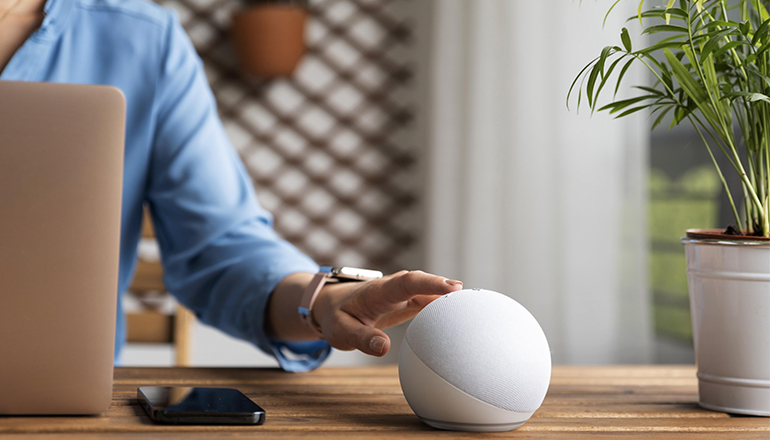
Before linking Nvidia Shield and Alexa, get the Nvidia Games app. Next, launch the Amazon Alexa app. Look for “NVIDIA SHIELD TV” under “Skills & Games.” Press “Enable” and enter your Nvidia account details to finish the setup.
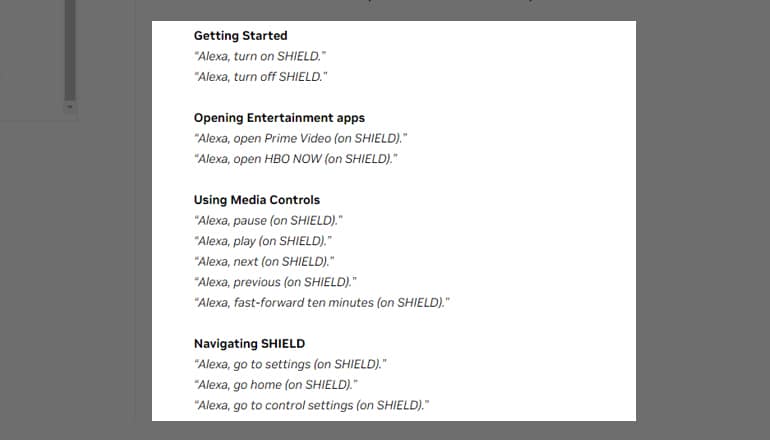
Your Nvidia Shield has a voice control feature. If you say commands like “Alexa, turn on SHIELD,” or “Ask Alexa to resume Netflix from where I paused,” Alexa will follow your command.
Alexa can also perform routines, which are groups of commands. For instance, a command like “Alexa, movie time” can lower your Philips Hue lights, close your curtains, and start playing your favorite show. A single command can perform all these tasks simultaneously.
To create these commands, go to Routines in the Amazon Alexa app. You’ll find a list of options under “When this happens.” Choose “+ Add action,” and pick NVIDIA SHIELD TV for one of the actions. You can add more actions, like dimming the lights or changing the temperature on the thermostat. These combined actions are a good way to improve your home with technology.
We’re eager to gather your thoughts. Does the Shield play an effective role in your smart home? We highly value your feedback!