Roku AirPlay Not Working (PROVEN Fix!)
It’s frustrating when AirPlay isn’t working on your Roku as it should. The good news is the problem is almost always temporary, and it’s typically network or software-related.
l’ll walk you through several proven fixes that worked for me when I experienced Roku AirPlay not working. You’ll be back to using AirPlay with your Roku shortly…
Roku AirPlay Not Working
If AirPlay is not working on your Roku, do the following: restart your Roku, ensure Apple device and Roku are on the same WiFi network, enable AirPlay, disable firewall, update Roku OS, use Roku remote instead of the app, reboot your router, reset your network connection, reset paired devices and finally, perform a factory reset.
It’s also possible that your Roku device and/or Apple device simply don’t support AirPlay on Roku. This is usually only a concern with older versions and models. But more on that in a bit.
First, let’s review each fix in detail.
Restart Your Roku TV or Streaming Device
I know it sounds obvious, but unplugging your TV and your Roku streaming device (if you have one) is the quickest way to get AirPlay working again.
(If your TV has Roku built in, just unplug your TV.)
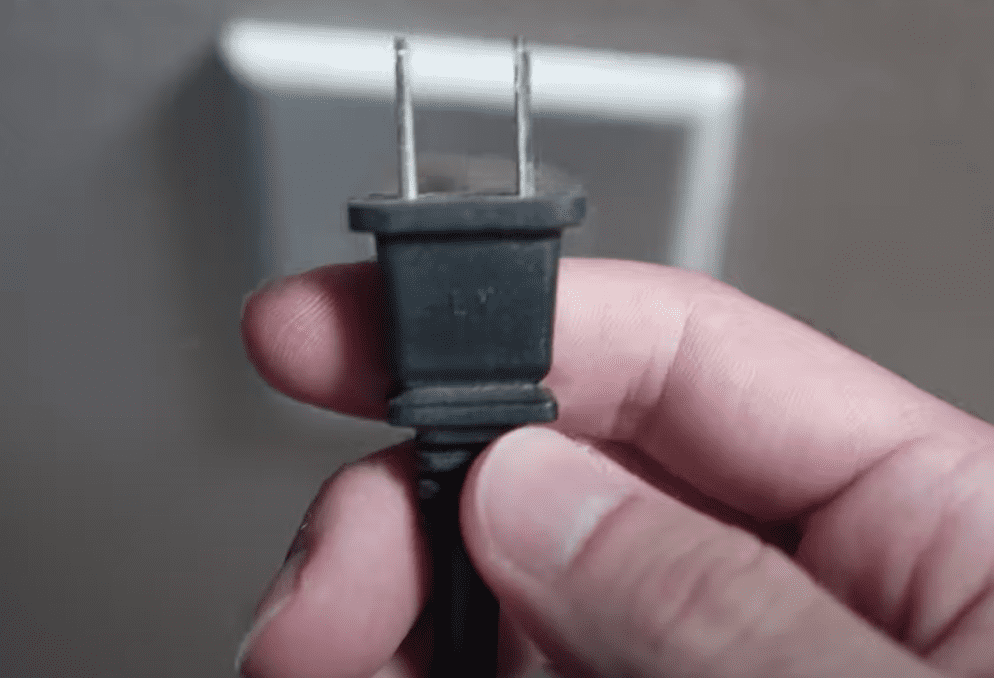
The key here is to actually wait a FULL 60 seconds. Have a little bit of patience and make sure it’s been at least a minute before plugging your TV, and the Roku back in.
While the TV is unplugged, find and hold the power button for 30 seconds. Make sure you are holding the power button on your TV, and not your remote!
This will help to drain any residual power left in the TV and allows the TV to soft reset itself. This is different than simply switching the remote on and off!
Once you plug the TV and Roku device back in after the 60 seconds, power the TV back on and Apple AirPlay should be working again.
Alternatively, you can restart your Roku TV and Roku Streaming Stick by using the Settings menu.
To restart Roku, press the Home button, scroll down to Settings, select System, and then select System Restart.
Once you restarted your Roku TV or streaming stick, test the AirPlay options.
Most of the time, restarting the Roku device will fix any software bugs that could be preventing AirPlay from not working correctly.
While you’re at it, I recommend restarting your Apple device too!
Make Sure Devices are on the Same Network
AirPlay only works when all the devices are connected to the same network.
Almost all routers now have what’s called “dual-band” radio signals. This gives you the ability to connect devices in your home to two different networks (either the 2.4 GHz or 5.0 GHz network).
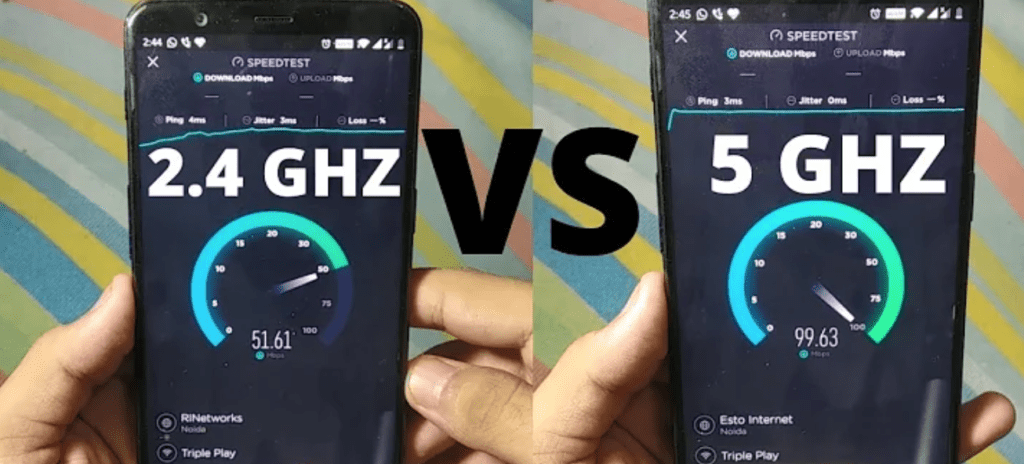
Having two separate networks allows for faster speeds and flexibility. The dual-bands avoid connection issues and interferences and provides more stability overall.
However, this can cause issues with AirPlay on Roku if your Roku is connected to the 2.4 GHz network and your Apple device is connected to the 5.0 GHz network (for example).
It only takes a few seconds, so just check and confirm that Roku and your Apple device are on the exact same WiFi network!
Double-Check that AirPlay is Enabled
In some cases, AirPlay on your Roku may be disabled!
To check, simply click Home on your Roku remote and then open Settings > Apple AirPlay and HomeKit, and make sure AirPlay is toggled ON.
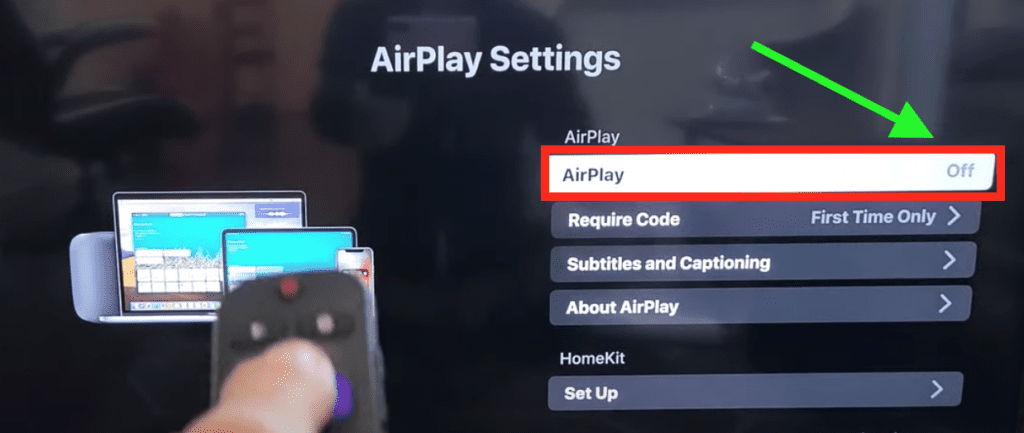
If you recently reset your TV to default settings it might have disabled AirPlay.
NOTE: if you don’t see the Apple and AirPlay option, you will likely need to do a software update on your Roku TV or device…
Turn off Computer’s Firewall
The firewall of any operating system can cause connectivity problems with other devices.
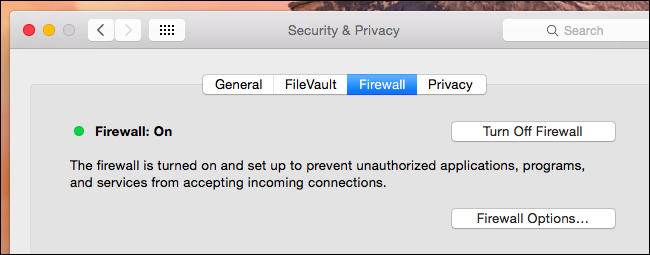
In the case of Airplay, firewall protection of your MacBook (iOS) might be preventing your hosting device from connecting with your TV.
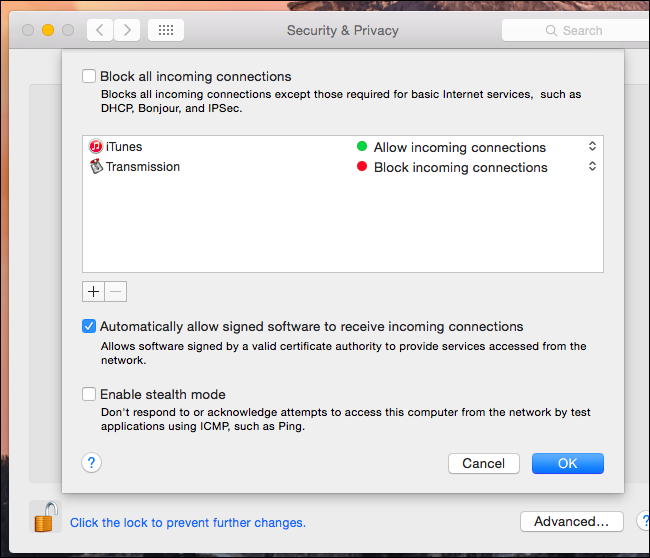
In such a scenario, you must adjust firewall settings to allow incoming connection requests from your TV. You can either turn off the firewall entirely, or disable incoming connection blocking.
To do so, go to System Preferences > Security and Privacy and click on Firewall.
You’ll find the option to turn off the firewall or find and uncheck the other option, which reads as Block All Incoming Connections.
Hopefully disabling the Firewall helped, but if not there are several additional fixes worth trying.
Update Roku OS
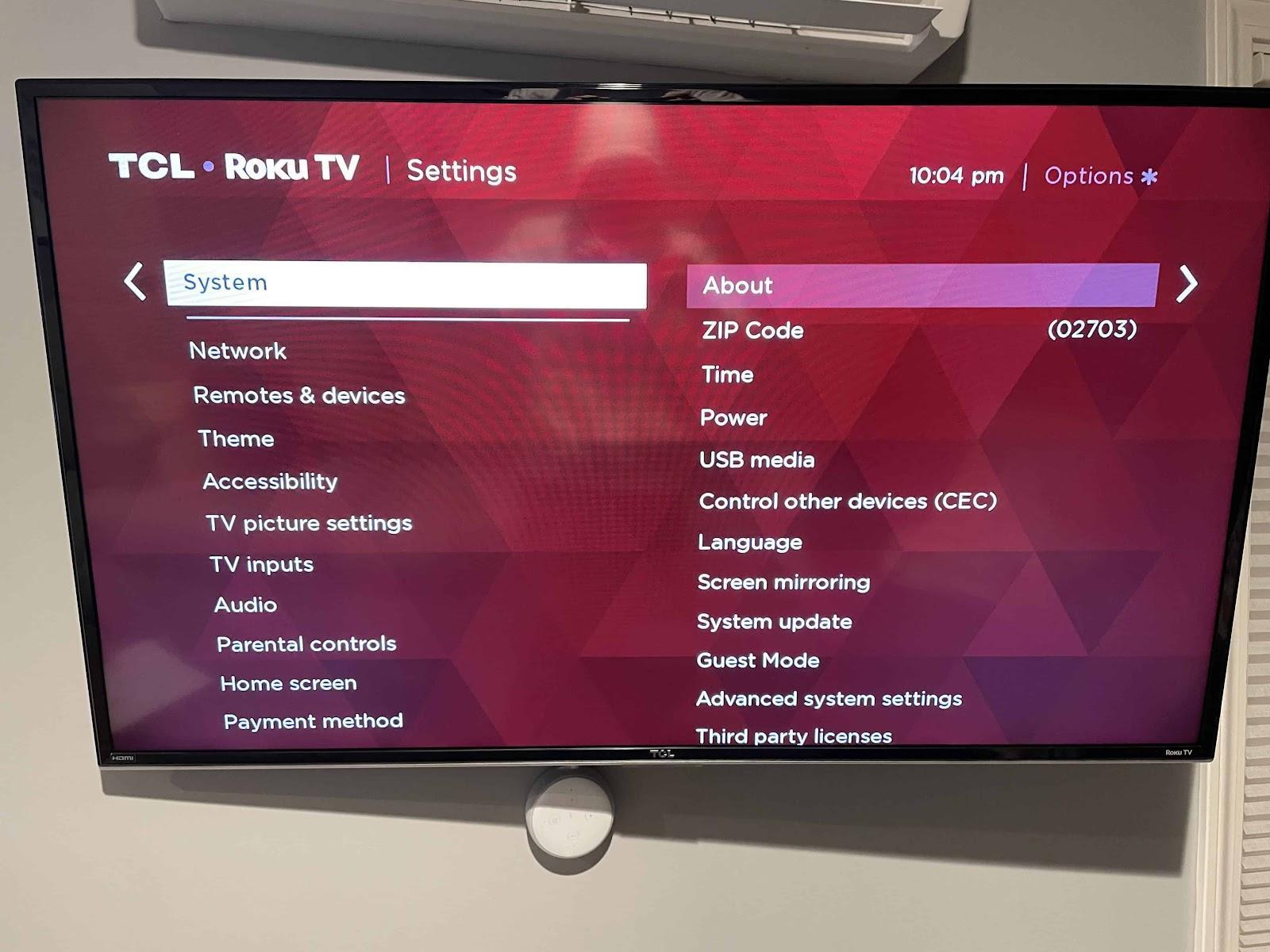
Your Roku can run into a lot of issues if the software isn’t up to date. To correct this problem, simply check for any new Roku OS updates in the settings menu.
To get to settings hit the HOME button on your remote then scroll up or down until you see SYSTEM.
Select System, then go to SYSTEM UPDATE.
You’ll want to ensure you update your Roku often to keep up with the newest software. Doing so ensures that the Apple AirPlay remains compatible with your TV.
It also can’t hurt to check for an update on your Apple device.
Don’t Use Your Phone as the Remote
Most Roku devices will allow you to control them via an app on your phone.
Some people have noticed that AirPlay refuses to work if you’re controlling the TV with the Roku app on your phone at the same time.
The solution is to stop using the app as a remote, and instead, use the remote that came with your Roku to change the settings.
Better yet, close the Roku app on your phone before trying to connect to AirPlay again.
Reboot Your Router
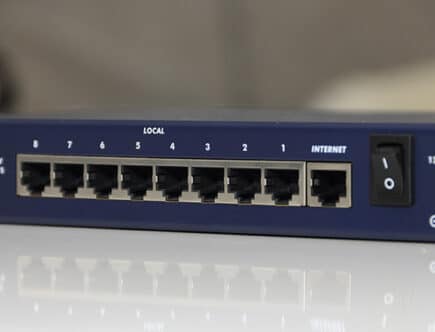
The problem could also be with your router.
I suggest quickly rebooting your router, it often fixes network issues, and it can improve your overall connection too.
Just unplug your router from the power outlet, wait for about 60 seconds, or so and then reconnect it. Every device on your network will automatically reconnect and hopefully, AirPlay will work.
You could also consider upgrading your router if it’s more than 5 years old.
Reset Your Roku’s Network Connection
Is your Roku still not connecting to AirPlay? Another option that can help is simply to reset your Roku’s network connection.
The location in the settings might be slightly different depending on your device.
Open the Settings menu, scroll down to System, and select Advanced System Settings. In this menu, you will see an option for Network Connection Reset.
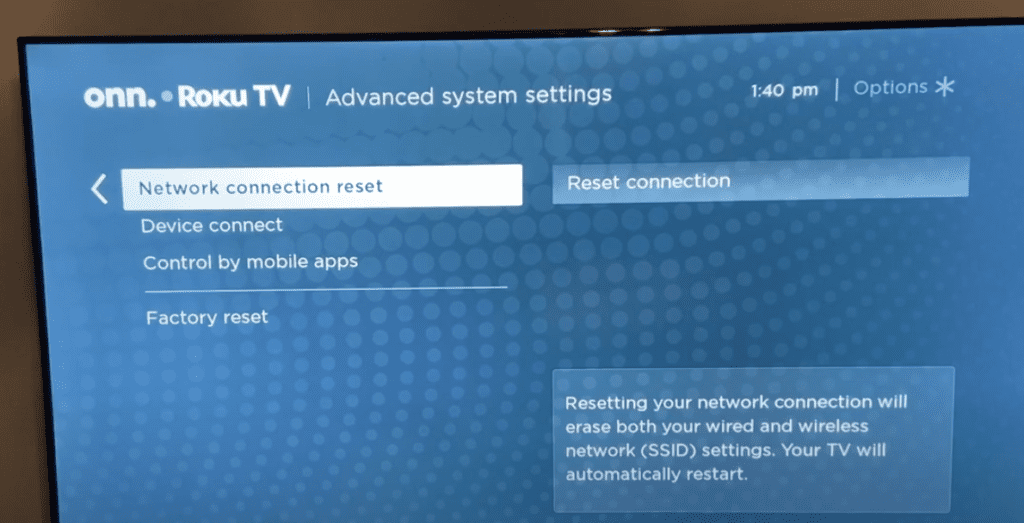
When you confirm the network connection reset, the Roku will restart, and you’ll have to reconnect to your WiFi network. It will also reset any wired network connections.
Since AirPlay uses your WiFi network, resetting the network connections on Roku can fix the issue.
While you’re at it, consider resetting your Apple device’s network connection as well. You can easily find the option ‘Reset Network Setting’s in your phone’s connectivity settings.
For iPhones, go to Settings > General > Transfer or Reset > Reset > Reset Network Settings.
Reset Paired Devices
Ok, now we’re going to try resetting paired devices.
To do this press the Home button on your Roku remote, navigate to Settings and select Apple AirPlay and HomeKit.
Select the Require Code option and scroll down to Reset Paired Devices.
When you reset the devices, all the previously connected devices will be forgotten and you’ll have to reconnect them. It can sometimes help when you’re having issues with AirPlay.
Factory Reset Your Roku TV
As a last resort, a factory reset of your TV can sometimes fix the issue. Factory resetting a Roku TV will reset everything to factory settings and you’ll need to install updates again.
I recommend trying the other solutions because it can be a hassle to download and sign in to all of your apps again. But a factory reset can fix the AirPlay not working issue.
To reset your Roku to its factory settings, press the Home button on your remote then go to SETTINGS > SYSTEM > ADVANCED SYSTEM SETTINGS > FACTORY RESET.
Enter the four digit code that appears on the screen and then click OK on your remote. Your TV will turn off then on again, displaying the initial setup screen.
If you don’t have a remote, check the back of your TV for a reset button. Not all models have this feature, but if yours does, press and hold it for about 15 seconds.
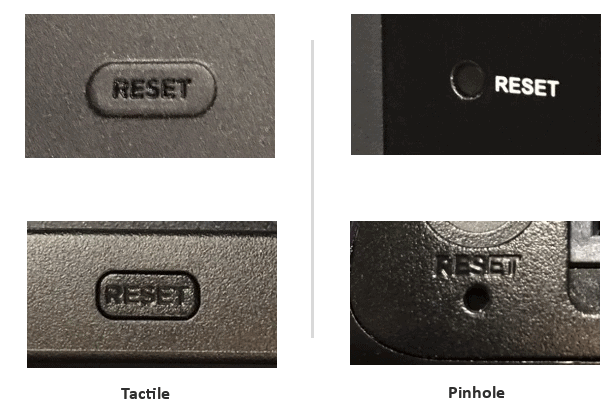
Bear in mind, that a factory reset will force you to go through the TV’s initial setup wizard again.
Your Roku is Not Compatible with AirPlay
If your Roku is a few years old, it simply might not have support for AirPlay, even with the latest Roku OS updates. AirPlay is available on most Roku devices that support 4K.
The Roku TV series 8, 6, 5, 4, and 3 all support AirPlay, but you may need to update the software. Roku TVs and Roku devices need to be running Roku OS 9.4 (or 10, depending on the device version) or higher, and your IOS version needs to be at least 12.3.
If you don’t see the option for AirPlay in your Roku TV settings, it might be because your Roku does not support AirPlay.
I would look up your TV’s model number on the Roku website to see if AirPlay is a supported feature.
How to Setup AirPlay on a Roku TV
It’s very easy to use AirPlay to control and cast media on your Roku TV.
To start, make sure your Roku TV is on the latest update.
Next press the Home button on your Roku remote, navigate to Settings and select Apple AirPlay and HomeKit.
Toggle AirPlay on and set the option you want for when you need to connect with a code, I recommend leaving it on First-Time Only.
On your Apple device, open the quick actions menu by swiping down the top bar, Tap on Screen Mirroring and your Roku device should appear on the list.
Tap on the device you wish to connect and a code should appear on your TV, type that into your phone, it will immediately start screen mirroring if you successfully connected.

To use apps like YouTube, open a video, tap on the casting icon in the top right corner, and select your Roku TV. The audio should also come from your TV and not your phone.
Conclusion
It’s frustrating when AirPlay is not working on Roku, but you can often get it working again by trying the following fixes:
- Restart your Roku TV or Roku Device (or unplug from power for 60 seconds)
- Make sure your Roku and Apple device are on the same WiFi network
- Double-check if AirPlay is enabled on your Roku TV
- Disable computer’s firewall
- Update Roku OS
- Don’t use the Roku app remote on your phone, use the physical remote instead
- Reboot your router
- Reset your Roku TV’s networking connection settings
- Reset paired AirPlay devices and reconnect
- Factory reset your TV or Roku device
- Lookup your Roku model to see if it’s compatible with AirPlay
The easiest way to get AirPlay working on your Roku is to restart your Roku device by either using the menu or unplugging it from the power.
If you still don’t see the AirPlay option after all of these troubleshooting steps, chances are your Roku is simply not compatible with AirPlay. If that’s the case, you should consider buying a newer Roku streaming stick.
Were you able to get AirPlay working on your Roku? If so, let us know how in the comments below!