As an owner of an Insignia TV, you may be wondering if there is a way to use it without the remote – like when you lose, or break the remote.
Believe it or not, there are several proven methods you can try.
I’ll discuss some of these methods below, and provide actionable tips for making them work, regardless of whether you use Insignia TV, Insignia Roku TV, or Insignia Fire TV.
Lost or broken your Insignia TV remote? You have several proven methods to control it regardless of model type, such as Insignia Roku or Insignia Fire TV. Options include using buttons on the TV, smartphone apps, universal remotes, or a USB keyboard. If your remote is present but non-functional, remember to attempt a few fix solutions before replacing it.
How to Use Insignia TV Without Remote?
The easiest way to use Insignia TV without a remote is by using the buttons directly on the TV. You can use them to control volume, change channels, turn off the TV, and change input. Another alternative is to use the iOS or Android app, or a universal remote.
Use buttons on the TV
Usually, you can find hardware buttons directly on Insignia TV, which you can use to control the TV without a remote.
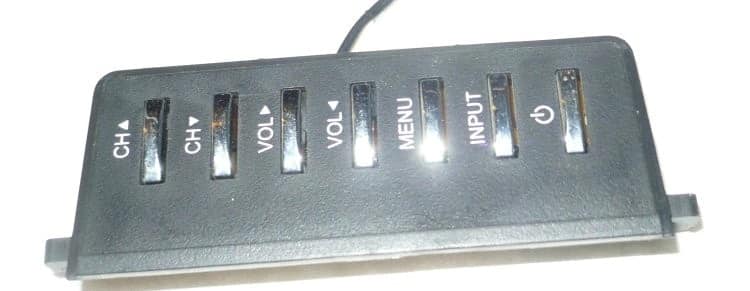
The buttons you can find on your Insignia TV are volume up, volume down, input, channel buttons, and power.
That panel looks like this:
There are usually two places where you can find this panel:
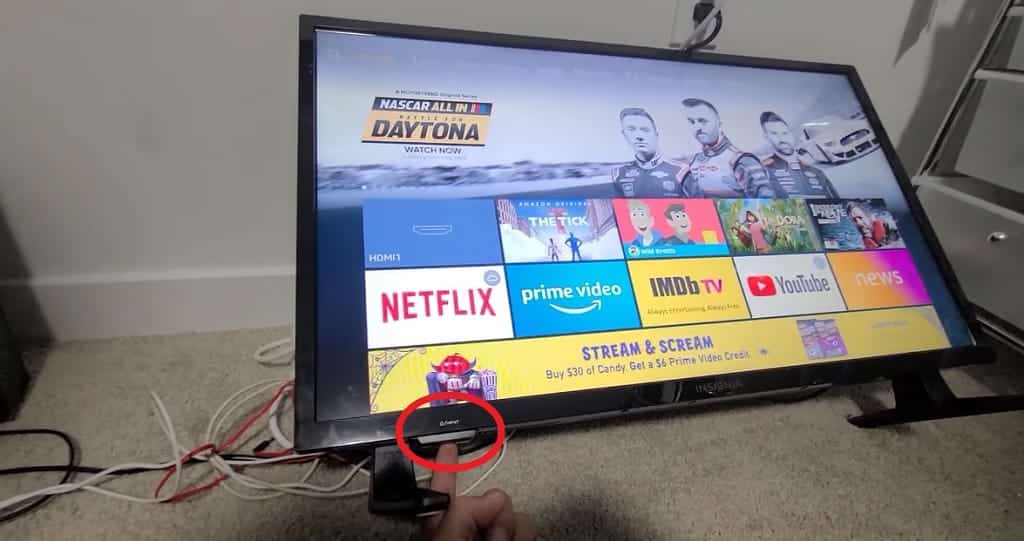
On the bottom of the TV
Some Insignia TVs have these buttons at the bottom, either right in the middle or side.
Like this:
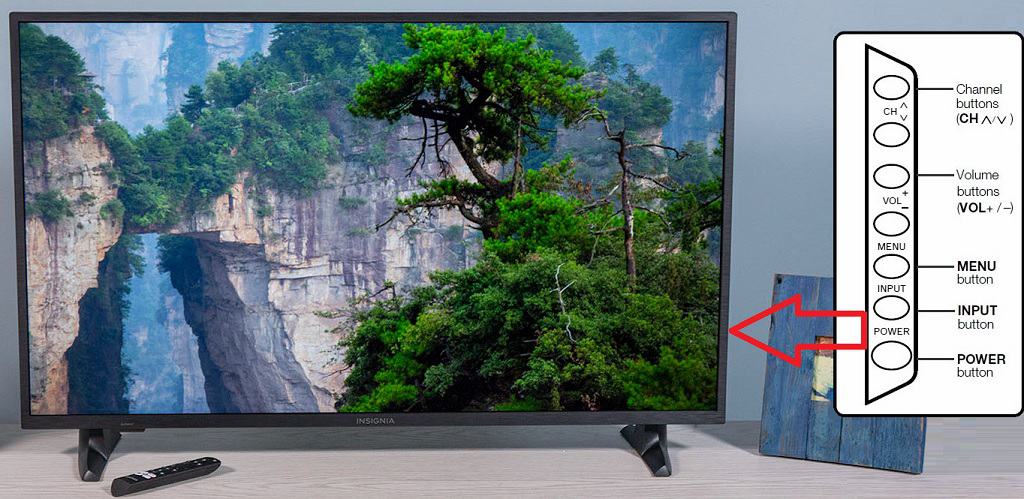
On the side of the TV
Some Insignia TVs have these buttons located on the back of the TV on the side.
This way:
Note: It is also possible that some models have these buttons hidden under the flip cover. In this case, the flip cover needs to be removed carefully (the plastic handles are prone to damage) to access the buttons.
There are no buttons on the TV
On some new Insignia TV models, there are no longer any buttons directly on the TV. In that case, you need to try one of the other methods…
Use an app on your smartphone
You can also use an app for your iOS or Android smartphone to control your Insignia TV without needing a remote.
The phones use either a connection over the same WiFi network, or an infrared blaster (IR) to control the TV.
Simply download the app from the app store, launch it, make sure you’re on the same WiFi network as your TV, and follow the instructions in the app.
You can also use the USB keyboard to control Insignia TV.
Insignia TVs support USB keyboards and even wireless ones.
Just plug the keyboard into the USB port, wait for the device to finish installing, and then you should be able to control your TV using the arrow keys and enter key.
Try to fix your remote
HOWEVER, the first thing I would recommend is to try to fix your remote (if you haven’t lost it, of course).
Occasionally a remote doesn’t work because of some minor issue, and it’s very easy to fix without having to buy a new one.
A good old-fashioned reset. A simple solution to most IT problems.
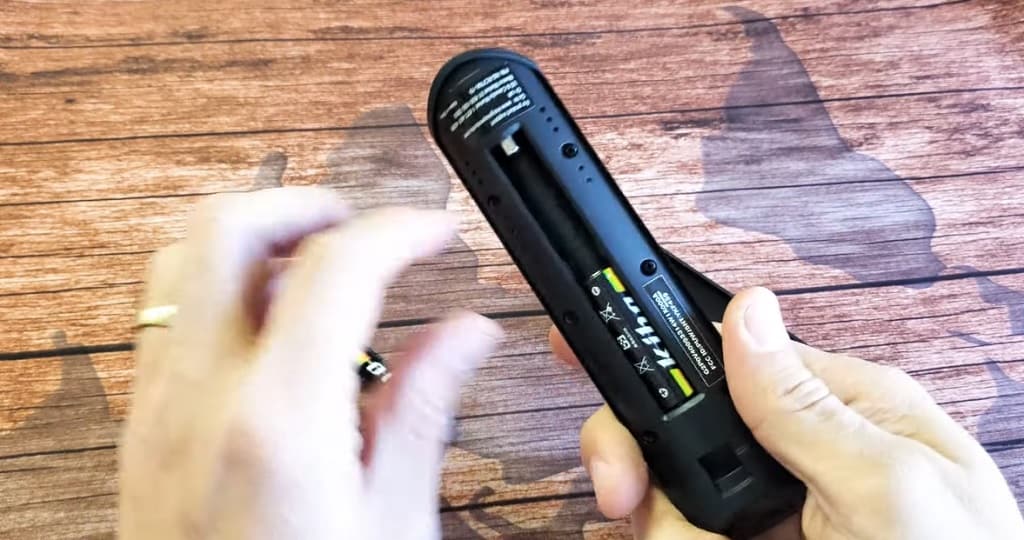
Remove the back cover from the remote controller
Remove the batteries
Wait for 3 minutes
Reinsert the batteries
Now try the remote again.
Check batteries in your remote
I know, I know.
I’m almost embarrassed even to suggest it, but it happens even to the best of us…
Have you tried checking the batteries?
If you have had your controller for a long time (more than one year), it is possible that the batteries may already be dead.
In that case, simply try putting in some new batteries and see if that does it.
Reset your Insignia TV
Sometimes there is simply a misunderstanding between the controller and the TV. Try resetting the TV.
Unplug the TV from the wall
Wait at least 60 seconds
While waiting, press the power button on the TV for 30 seconds
Plug the TV back into the socket
It’s crucial to be patient and wait the full 60 seconds. It is necessary to discharge any residual electricity that remains in the capacitors so that a so-called “soft reset” can happen.
Power cycle the remote
The power cycle is basically an advanced version of the classic reset. A fancy phrase for taking out the batteries and pushing all the buttons like crazy.
Remove the back cover from the remote
Remove the batteries
Press the power button for 30 seconds
Press all other buttons multiple times
Lightly hit your hand with the controller a few times
Put batteries back in
And now try if your remote is fixed.
Reboot your remote
If the previous procedure did not work, try a 3-button reboot.
Press the left button, back button, and home button at the same time and hold them for 30 seconds.
Then try your remote again.
Re-pair your remote
The last thing you can try to repair your remote is to re-pair it (nice pun).
Here’s how to do it:
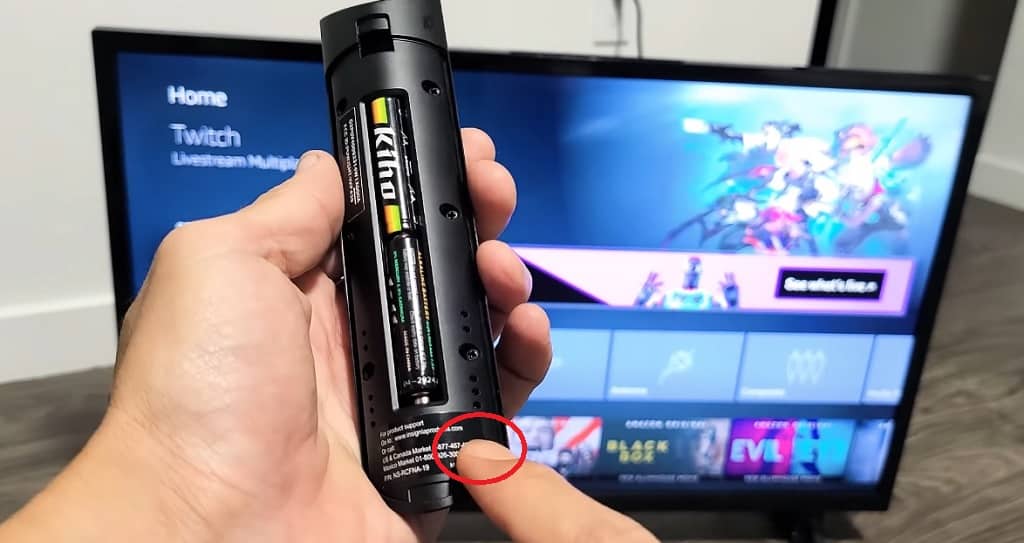
Remove the back cover from your remote
Press the Pair button
If you don’t have a button there, try the second method:
Point your remote to the TV
Press the Home button on the remote and hold for 30 seconds
Try the remote and if it still doesn’t work, try the third method:
Point your remote to the TV
Press the back button, left button, and menu button at once for 30 seconds
Frequently Asked Questions
Here are your most frequently asked questions about using Insignia TV without a remote.
How to Factory Reset Insignia TV Without Remote?
Here is how to factory reset your Insignia TV without a remote:
Unplug the TV
Press and hold the power button on the TV and plug the TV back in
Once the TV is on, stop holding the power button
Wait until you see the control menu
Press the power button on your TV twice and select “wipe data/factory reset”
Press the power button and hold it until the line is green
On the confirmation screen, press the power button once to select “Yes”
Press the power button and hold it until the line is green
Wait until you see “Data wipe complete”
Now make sure the “reboot system now” option is selected
Press the power button and hold it until the line is green
And that’s it. Your Insignia TV should now reboot and be factory new.
How to Turn On Insignia TV Without a Remote?
You can turn on your Insignia TV without a remote by pressing the power button, which is usually at the bottom of the TV on the left, right, or center, or on the left or right side or back.
Does Insignia TV Not Have Buttons?
Some new Insignia TV models actually have no buttons. In this case, you need to use a smartphone app or universal remote.
Where Is the Manual Power Button on Insignia TV?
The power button on Insignia TVs is either underneath the logo, down the side, or possibly on the back of one of the sides. And some Insignia TV models have no power button at all.
Can I Use My Phone as a Remote for My Insignia TV?
Yes, you can use your phone as a remote for your Insignia TV. There are several apps that you can use. And you can download them from here.
Michael Xavier Donovan, the visionary behind Good Home Automation, has dedicated a decade to elevating the tech world's standard, lending his expertise to some of the globe's most renowned products. Disturbed by the prevailing gaps in online tech troubleshooting, he founded Good Home Automation as an antidote to generic, often misleading advice. A Summa Cum Laude graduate from the University of Massachusetts Amherst, Michael's academic prowess is underpinned by numerous accolades, further cementing his commitment to excellence. Trust in his insights to steer you right when technology throws a curveball. Connect with Michael on LinkedIn