Get Netflix on Echo Show (All Versions In 60 Seconds or Less!)
Before December 2020 you couldn’t reliably access Netflix on your Amazon Echo show.
Supposedly there were some hacks you could try (like using the Echo’s Silk browser to access Netflix and then trying to log in that way) but they weren’t very reliable and none actually worked for me.
Luckily you no longer have to rely on hacks because in 2021 Amazon officially added Netflix to the Echo Show!
Netflix on Echo Show
As of January 2021 Netflix has been automatically installed on all Echo Show devices, so you don’t need to download anything extra! In order to connect your Echo Show to Netflix simply say, “Alexa, open Netflix” and then enter your account details and sign in. Now you have Netflix on Echo Show!
Compatibility
With this update Amazon made sure that all of their Echo Show device versions were compatible and worked with Netflix. So if you have an Echo Show of any kind, Netflix is available!
Here is the list of Netflix compatible devices:
- Echo Show (1st and 2nd gen)
- Echo Show 3 (1st and 2nd gen)
- Echo Show 5 (1st and 2nd gen)
- Echo Show 10 (sometimes called 3rd gen)
Setting up Netflix
Amazon gives you two different ways to access Netflix on your Echo Show device.
I think the first option is the easiest. Just start by saying “Alexa, open Netflix”. Your device will then pull up Netflix on the device and bring you directly to the member login screen.
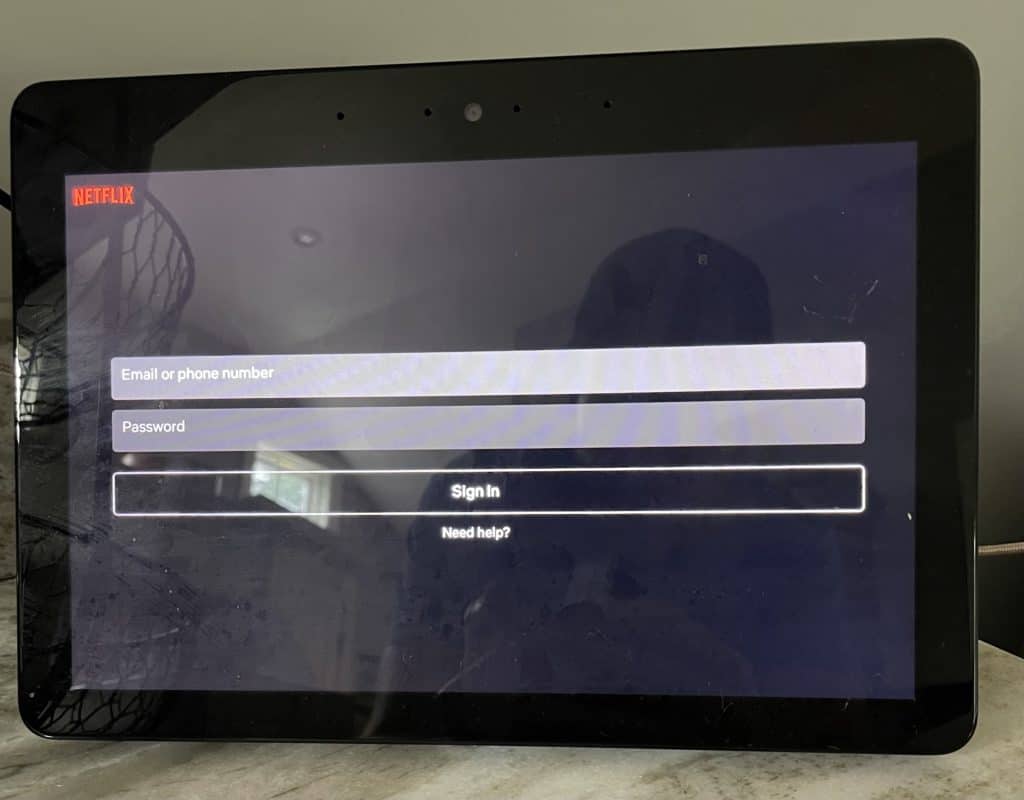
From there simply add your Netflix account email or phone number and password and click Sign In.
That’s it, you’re in!
The other option is to manually pull up the Netflix app on your Echo Show. To do this start on the Echo Show home screen and swipe left.
You should see a menu bar that includes “Video”. Click on Video.
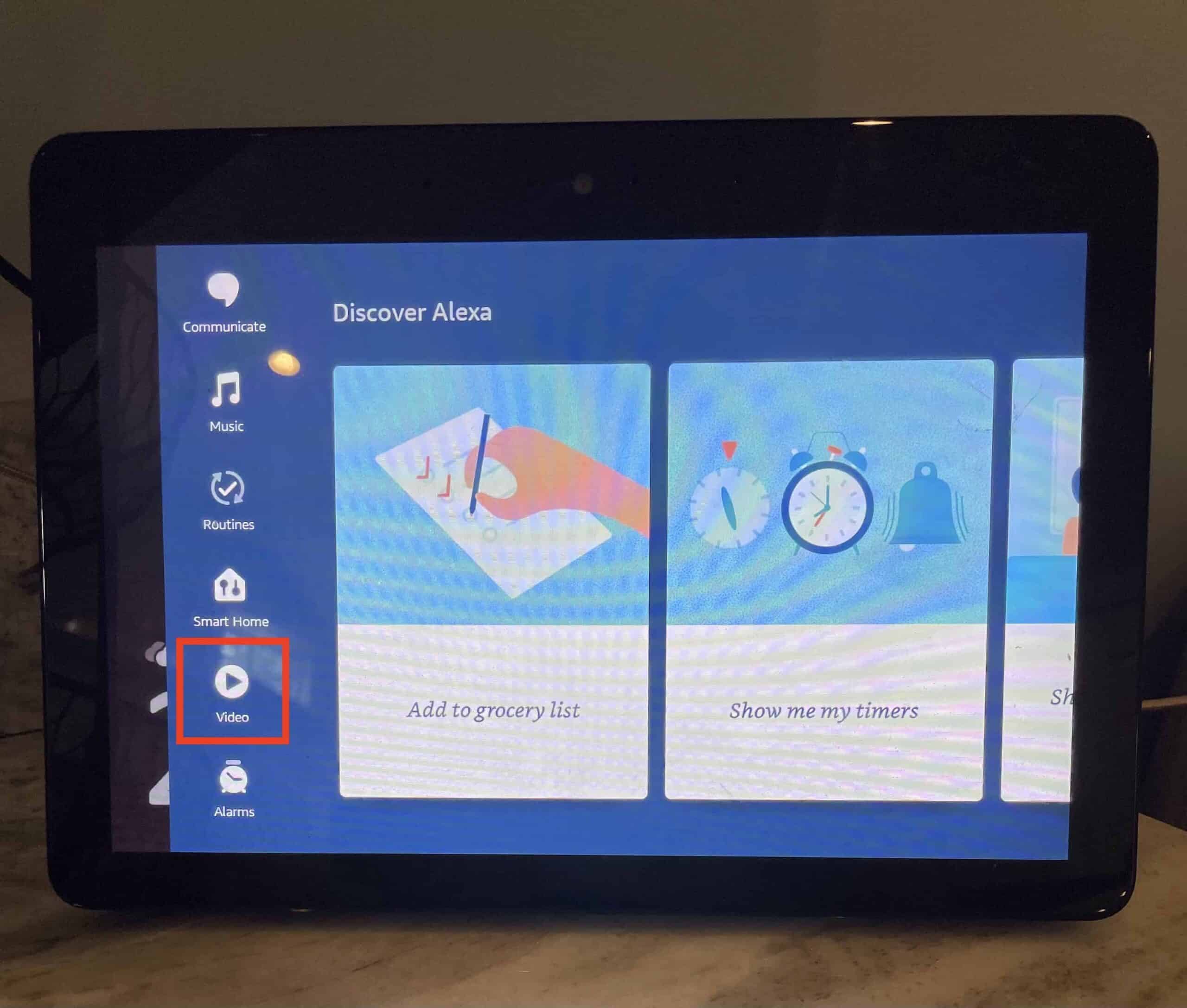
Several video related apps will appear, select Netflix. Once you do the Netflix app will open to the login screen.
Just enter your Netflix account details and sign in!
I do find it a little annoying having to enter the Netflix account details directly on the Echo Show itself. Typing on the screen isn’t always a great experience.
I think it would have been better if Amazon had a way to simply sync your existing Netflix account from your smart phone with your Alexa app. (I am sure there are complexities to making this happen that I am unaware of, but a man can dream!)
The good news is that for both methods of logging in to Netflix, once you’re in you won’t have to enter your login details again, you’ll just remain logged in.
Features
The interface of Netflix on the Echo Show should be a familiar one. The layout is mostly the same except that the “toolbar” runs across the top of the screen.
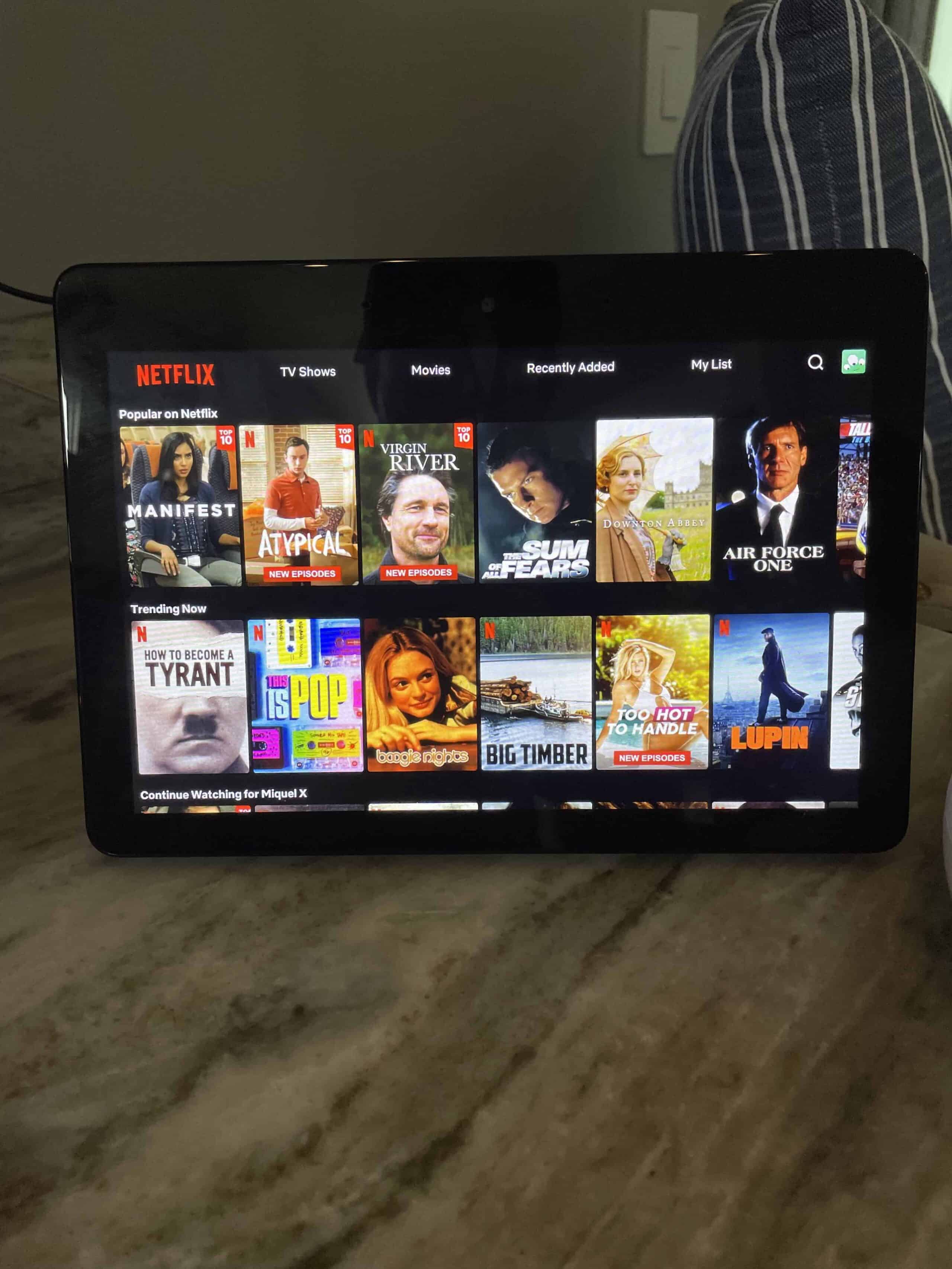
When you land on the Netflix home screen you’ll see all the usual categories like “Popular on Netflix” and “Trending Now”.
Simply swipe your finger within a given category to explore all the shows/movies within.
The toolbar at the top has TV Shows, Movies, Recently Added and My List. You can also click the magnifying glass at the top right to search for a title if you have a specific one in mind.
When you’re playing a title you can click on the screen to pause it, slide the bar at the bottom to rewind and fast forward and even turn on subtitles.
Voice-activated commands
One of the great things about Alexa is the ability to go completely hands free whenever you want.
That’s one of the big reasons I bought the Echo Show for my kitchen – when I’m cooking I don’t want to have to use my hands to turn the volume up or play a show.
Once you get the hang of the various commands, it’s a piece of cake.
For example, if you want to play Stranger Things simply say, “Alexa, play Stranger Things from Netflix”. The Echo Show will automatically pull up that title and start playing from where-ever you last left off.
If you don’t have an exact title in mind you could say something like “Alexa, show me comedies on Netflix”. Your Echo Show will pull up the comedy category from Netflix and you can browse through all the options.
Once you’ve picked your show/movie and it’s playing, you can use commands like “Alexa, pause” or “Alexa, rewind 30 seconds”.
For a more comprehensive list of commands check out the “How to use voice-activated controls with Netflix” article.
Conclusion
After making us all wait a couple of years, Amazon has finally added Netflix to all of its Echo Show devices in 2021.
Accessing it is easy and it comes automatically installed. Simply say “Alexa, open Netflix” and then login to your account by providing your Netflix email and password.
Whether you decide to manually browse Netflix sections directly on the Echo Show or use voice-commands to play your show/movie is completely up to you.
It’s great to see Amazon listen to their customers, even if this one was a bit overdue. Just one more reason to love the Echo Show!