To fix most problems with a Sceptre TV, either power-cycle it (unplugging then plugging back after a moment) or do a factory reset based on whether it's an Android or non-Android model. Be aware that a factory reset deletes all data and restores default settings. If issues persist, reach out to Sceptre support before considering a product defect and possible return charges.
How to reset Sceptre TV
The process you’ll need to follow in order to factory reset your Sceptre TV depends on the exact model television you own.
For example, Sceptre TVs with Android built-in have one set of steps, whereas the newer Sceptre TVs without Android have a different set of steps.
Also, keep in mind that a factory reset will clear the following TV data and at the same time restore factory settings:
Data and system settings as well as present apps
Photos, music and other files
User-initiated downloads and installations
NOTE: You might want to consider restarting (or “power-cycling”) your TV before resetting it. Power-cycling does NOT result in any lost data, apps, music, etc and it’s also incredibly effective at resolving a variety of issues. If you’d like to try restarting your TV by power-cycling it first, you can skip down a section.
Factory resetAndroid Sceptre TV
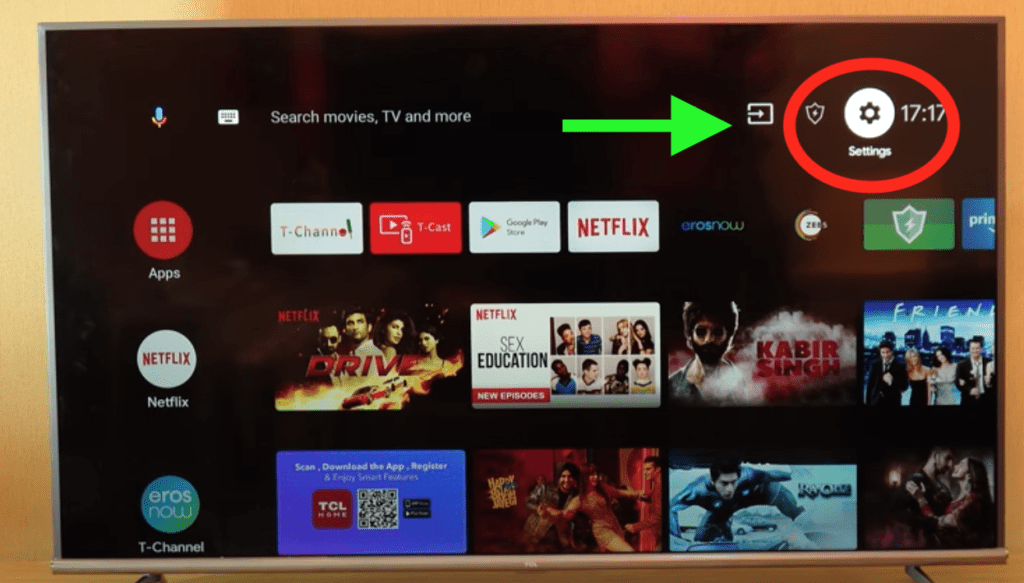
If you have an Android Sceptre TV, follow these steps to perform a factory reset:
On the home screen, click over to Settings (gear icon)
Scroll down to Device Preferences
Go all the way to the bottom of the menu and you’ll find Reset
Click Factory Data Reset
Click Erase Everything
NOTE: You may be asked to enter a password to complete the factory reset process. If so, enter 1,2,3,4.
Factory reset non-Android Sceptre TV
If you have a new Sceptre TV that does NOT have Android built in, follow these steps to perform a factory reset:
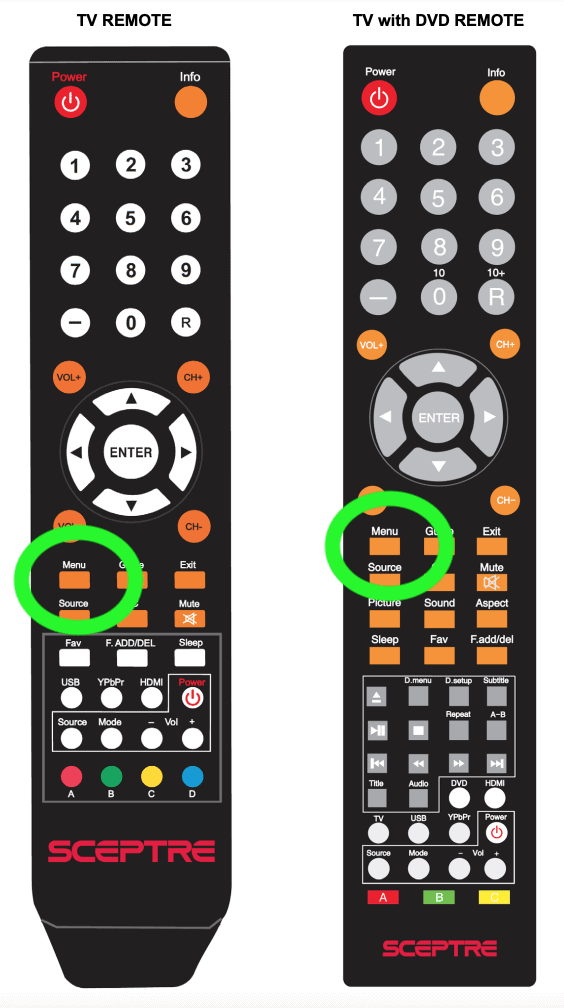
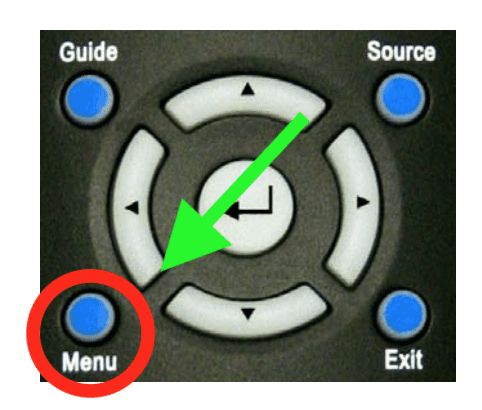
1. Click the Menu button on remote
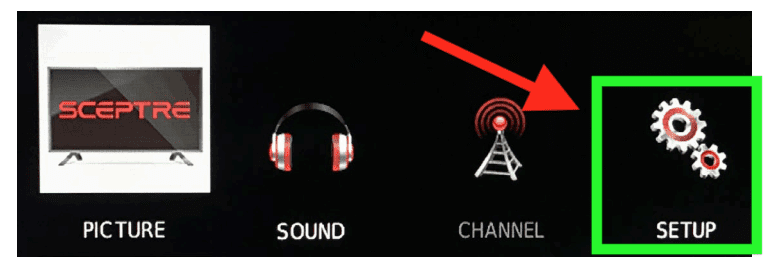
2. Then navigate over to to Setup Menu or Others Menu
3. Finally select All Reset
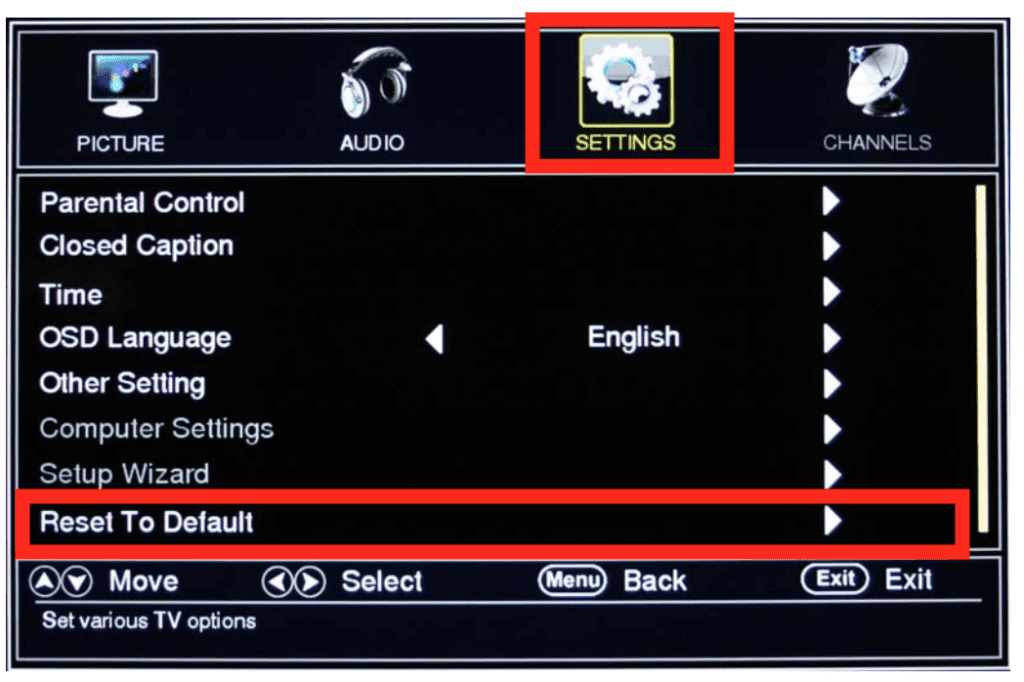
And finally, if you have an older Sceptre TV that does NOT have Android built in, follow these steps to perform a factory reset:
1. Click the Menu button on remote brings up OSD (On Screen Display) Options
2. Then navigate over to Settings
3. Finally, go down to Reset to Default and then click the right over button on the remote to select it
Difference between restarting and factory resetting
I briefly mentioned above that factory resetting your television will result in a loss of data, apps, photos, music, etc. Your TV will be reverted back to the day you bought it.
Because of this, I typically resort to a factory reset as a last ditch effort to resolve an issue I’m experiencing.
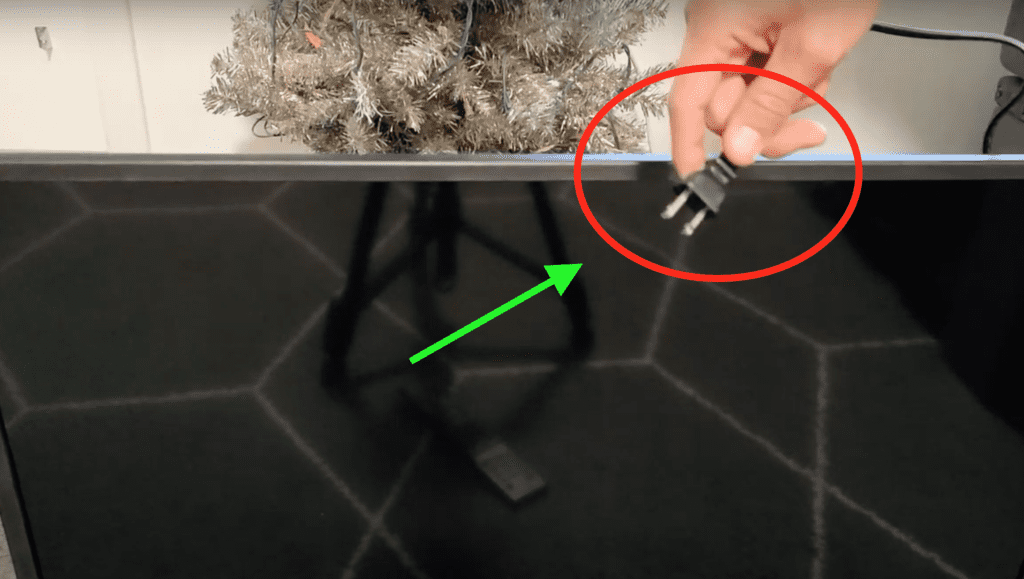
Before I try a factory reset, I try “restarting” my TV, or “power-cycling” it. “Restart” and “power-cycle” can be used interchangeably – they both mean simply unplugging your TV from the wall.
I suggest unplugging your TV, and then finding and pressing and holding the power button on the TV itself for at least 30 seconds.
The act of pressing and holding in the power button helps drain your TV of any excess or residual power built up in the television’s capacitors. This allows for a FULL restart.
After the 30 seconds are up, you can release the power button and then wait another 30 seconds or so before plugging your Sceptre TV back in.
In many cases, this simple restart/power-cycle will resolve any issues you were experiencing!
Sceptre TV support
If factory resetting and/or restarting (power-cycling) your Sceptre TV did not resolve the issue(s) you were experiencing, I suggest contacting Sceptre support.
In many cases, the TV itself is NOT actually defective – there is usually a technical problem that the team at Sceptre can help talk you through. So avoid unnecessary shipping charges, and contact support first!
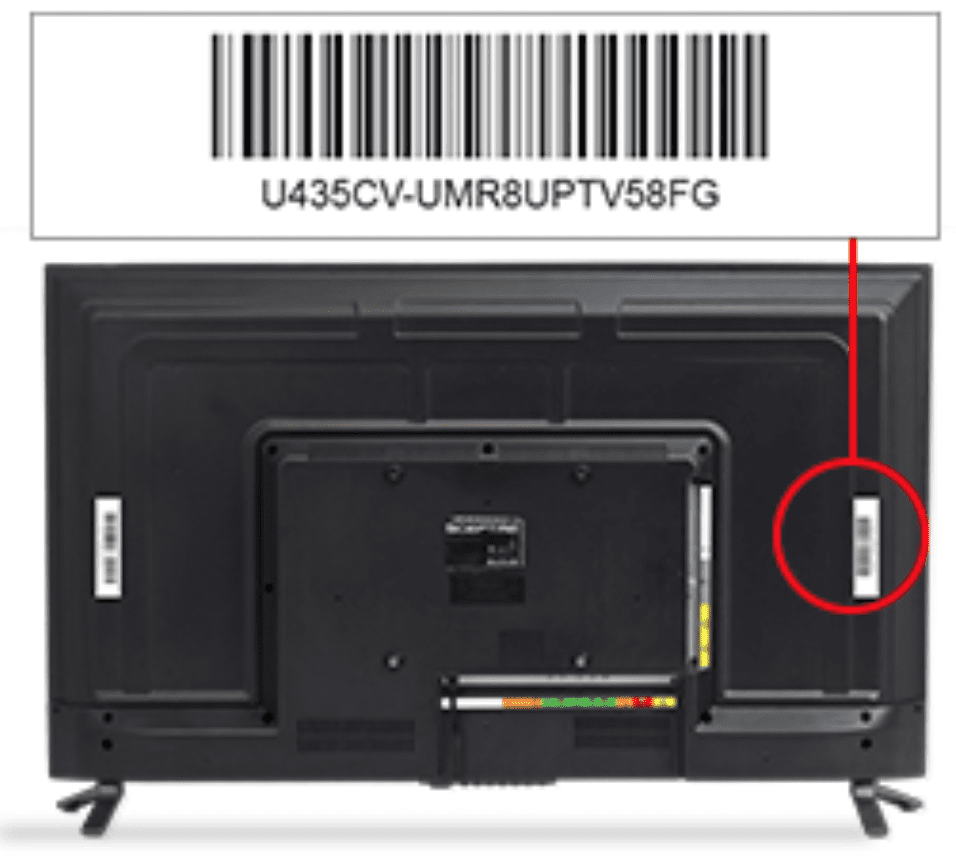
To get technical help, contact the Sceptre Technical Support Group by email or by phone. Make sure you have your Sceptre product number, serial number, and date of TV purchase available before you call.
NOTE: Operation Hours : Mon – Fri at 8:30 AM – 5:30 PM (PST)
Michael Xavier Donovan, the visionary behind Good Home Automation, has dedicated a decade to elevating the tech world's standard, lending his expertise to some of the globe's most renowned products. Disturbed by the prevailing gaps in online tech troubleshooting, he founded Good Home Automation as an antidote to generic, often misleading advice. A Summa Cum Laude graduate from the University of Massachusetts Amherst, Michael's academic prowess is underpinned by numerous accolades, further cementing his commitment to excellence. Trust in his insights to steer you right when technology throws a curveball. Connect with Michael on LinkedIn