Firestick Frozen! (Try This Fix FIRST to Unfreeze It!)
Let’s face it, the processor inside Firestick devices is small, and not very powerful. This undersized processor can cause a variety of issues. One such issue is a frozen Firestick.
Is your Firestick frozen? If so, don’t panic. There are a number of proven fixes, and device setting changes you can make to get it unstuck and working fast again.
Firestick frozen – How to fix it
If your Firestick is frozen, you need to restart it. To do this, hold down both the CENTER and PLAY buttons on your Firestick remote for about 15 seconds. This will forcibly shut off your Firestick and reboot it. It will take a minute for it to come back online.
Restart Firestick
Note: the next three steps assume that your Firestick is truly frozen, or nearly unresponsive. In that case you need to get it back working again before you can make any of the improvements I suggest below.
If your Firestick is responsive, but it is really slow and sluggish, or buffering a lot, then I would skip down and start at “Internet speed”.
The first thing you should attempt to do when your Firestick is frozen is to reset it. There are a few ways to do this.
The first is a forced restart. To do this, hold down both the CENTER and PLAY buttons on your Firestick remote for about 15 seconds.
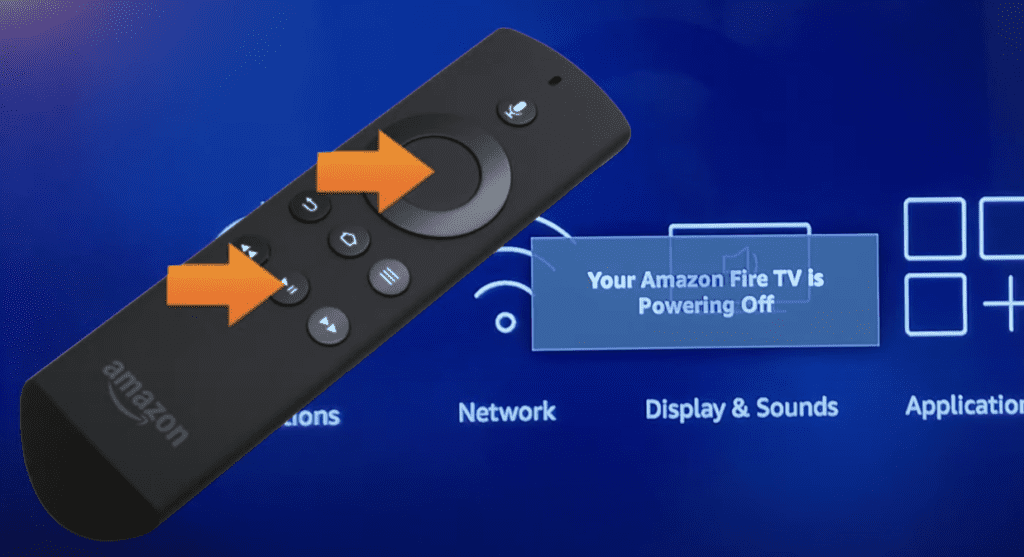
This should forcibly shut off your Firestick and reboot it. It will take a minute or two for it to come back online.
Another way to reset your Firestick is to hold down the CENTER button for 3 seconds > then go to Settings > My Fire TV > Restart.
These both accomplish the same thing, which is to forcibly reset and reboot your Firestick.
Power-cycle Firestick
If for whatever reason the reset options above didn’t work, then I recommend power-cycling your Firestick.
This is just a fancy way of saying, unplug your Firestick from its power supply. If your Firestick is plugged into the wall, unplug it there. If it’s powered via the USB port on your TV, unplug it from the USB port.
And wait 60 FULL seconds. The key here is be patient and actually wait the full minute before plugging it back in.
After the 60 seconds are up, go ahead and plug the Firestick back in and see if it is still frozen.
Factory reset Firestick
If the reset and power-cycle weren’t of any use, then you should perform a factory reset.
Keep in mind that a factory reset will return your Firestick to the settings it had the day you bought it. This means all of your apps, settings, downloads, etc. will be lost and reset.
(That said, all of the apps will remain linked to your account, you’ll just have to re-download each one)
To perform a factory reset go to the HOME menu and then Settings > My Fire TV > Reset to Factory Defaults.
It will likely take a few minutes to fully complete this process. Once your Firestick comes back on, you’ll have to go through the setup process all over again and reconnect to your WiFi.
Check Firestick internet speed
Ok, hopefully one of the steps above successfully unfroze your Firestick, but it’s possible that you’re still experiencing occasional freezing of the device, or just general slowness and lag.
If you reset your Firestick, unplugged-it and performed a factory reset, and you’re still having issues with freezing and buffering, you might have poor internet speed. In fact, poor internet is the number one reason people experience freezing and buffering with their Firestick.
To find out, you need to run a speed test. Go to the search engine on your Firestick and type in “speed test”. I personally recommend you download Analiti. This is the most accurate speed test available.
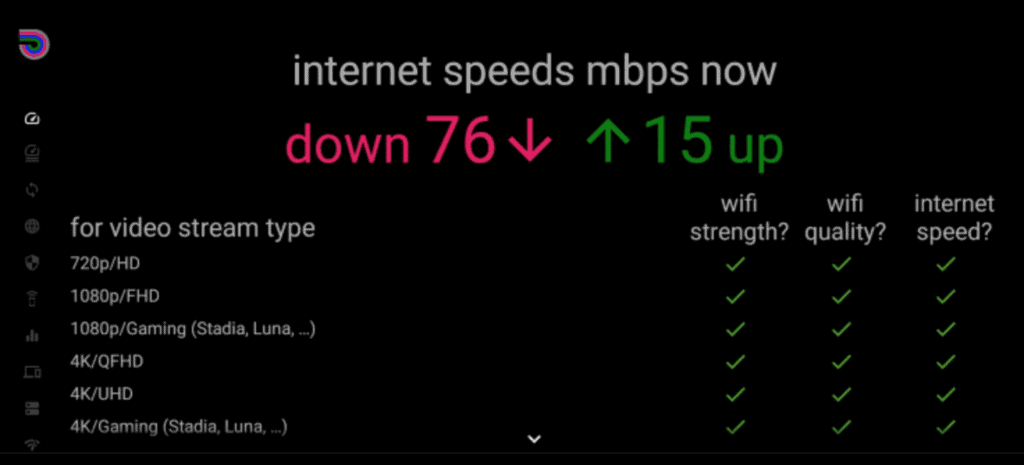
When you run this speed test on your network, you’ll get a number back. You want to focus on the download speed number (not the upload speed), since streaming is a download process.
You want the download speed to be at least 50 Mbps. If it’s not, there are likely two reasons:
- You’re not paying for fast enough internet. You want to get at least 200 Mbps because using WiFi instantly cuts this speed in half to 100 Mbps, and using a VPN cuts this in half again. You end up with the minimum 50 Mbps on a 200 Mbps plan!
- Your router is bad and/or you’re too far away from your router. If your router is old or low quality, it doesn’t matter how fast your internet is, you’ll experience freezing. If your router is good, then consider getting a WiFi extender to get a stronger signal to your Firestick.
You can still implement all of the steps below to improve the speed of your Firestick and streaming, but bad internet will always be your limiting factor!
The source server is bad
If you pass your internet speed test with a 50 Mbps download score (or higher) then its very possible that the app content you are trying to stream is bad.
Take the Cinema HD app for example. When you use an app like this, you’re using a signal from a remote server that supports that app. So if that server is slow, it’s going to freeze and buffer on your end.
This isn’t your fault, or your internet service provider’s fault.
If you select a stream that is freezing or buffering, I would back out and just pick a different stream lower down on the list. Just keep doing this until you find a working stream.
If you can’t find a working stream, either try using a different app altogether, or continue on with the following tips to improve speed and reduce freezing.
“Force Stop” background apps
As mentioned, the processor on your Firestick is small and not very powerful, especially when compared to Android boxes, or really any other streaming device.
Because of this, you need to close all your Firestick apps after you’re done using them! When you’re done using an app and you go back to your home screen, the app you were using does not close by itself.
Resetting your Firestick, unplugging it, etc. none of these will close your background apps. You have to close them manually.
To start, download the “Background Apps and Processes” app. This app will tell you exactly which apps are open and running in the background.
Within that app, select “CLOSE ALL APPS” in the top left hand corner and then FORCE STOP each and every app! You have to close them all one-by-one.
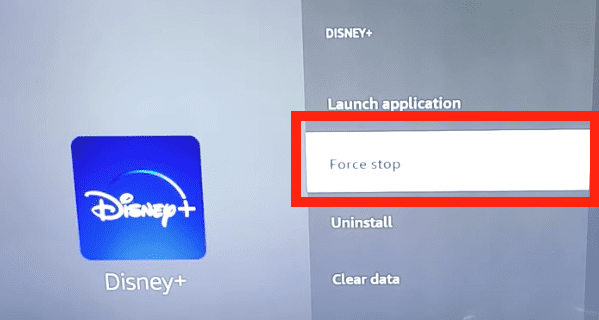
You should see a noticeable improvement in speed after force stopping all your background apps.
Shut off “Featured Content”
The next adjustment you should make is turning off “Featured content”. Featured content is the content that plays automatically on the home screen of your Firestick.
Usually this is a new show or movie that’s out, or available, that is being showcased. Well guess what? This puts additional strain on your Firestick’s processor! We need to turn this OFF.
Go to SETTINGS > PREFERENCES > FEATURED CONTENT. Make sure Allow Featured Autoplay and Allow Audio Autoplay are both OFF!
This will stop the featured video at the top of the screen from automatically playing when you’re on the home screen of your Firestick.
You should once again see a marked improvement of your Firestick’s performance after making this change.
Clear app cache and remove unwanted apps
Cache is basically just a collection of data that is stored on your device to help make some processes a little bit faster.
The problem is cache on your Firestick doesn’t really help much. Because the Firestick processor is so small, the cache really just slows things down because it’s taking up valuable storage!
You’ll want to clear your cache, and make sure you clear it regularly going forward.
To clear the cache on your Firestick go to SETTINGS > APPLICATIONS > MANAGE INSTALLED APPLICATIONS.
This will bring up a list of all your apps and you’ll be able to see which ones have cache. When you land on an app with cache, click on it and CLEAR CACHE.
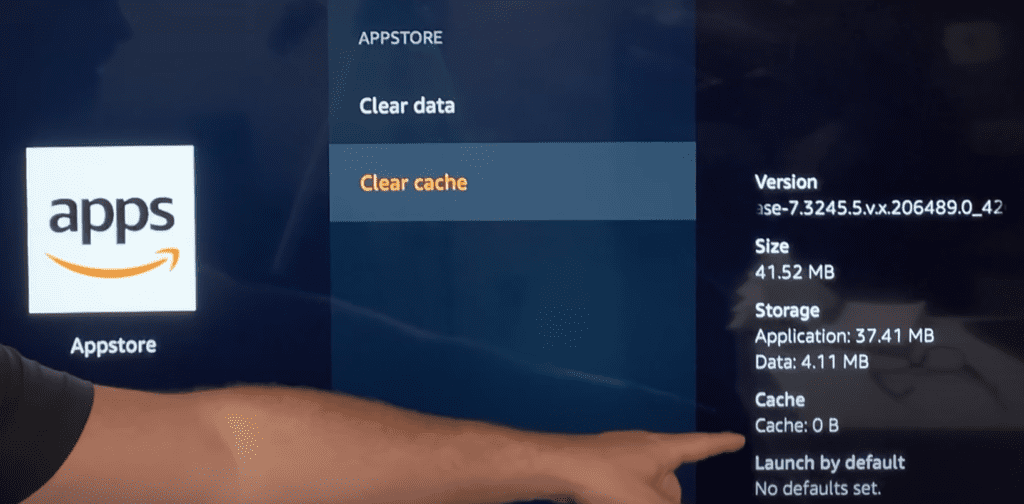
While you’re here, take a look and see if any of these apps can be deleted! If you’re not using an app, it is taking up valuable storage and could be impacting your Firestick’s performance.
Just click on the app you want removed and instead of clear cache, select UNINSTALL.
Update Firestick software
The last thing you can do to prevent your Firestick from freezing and improve performance is to make sure you are always running the latest Firestick software.
To update the software on your Firestick go to SETTINGS > MY FIRE TV > ABOUT > INSTALL UPDATE.
If there is an update available, select install. It will take a few minutes to complete.
Conclusion
Is your Firestick frozen? Don’t panic, there are several proven ways to fix it and to improve your Firestick’s performance in the future. Here’s how:
- Reset your Firestick
- Power-cycle your Firestick
- Factory reset your Firestick
- Check your internet speed
- Try a different stream or a different app
- Force stop all background apps
- Shut off featured content
- Clear cache and remove unwanted apps
- Update your Firestick’s software
If you try each of these fixes, you should see a big improvement in your Firestick’s speed and overall performance, and it should stop freezing altogether.
Were you able to get your Firestick unfrozen? If yes, let me know how in the comments section below!